

Onboarding devices to Microsoft Defender for Endpoint has always been one of those tasks that looks simple on paper and turns messy the moment you touch a real environment. Different scripts per OS, onboarding blobs that expire without warning, and zero visibility into whether a rollout actually succeeded until someone notices a device missing from the portal. Microsoft has been quietly rebuilding this whole flow around the Defender deployment tool, and the latest wave of changes is worth a proper look if you are still relying on the old onboarding package and script approach.
In this post I go through what the deployment tool and deployment packages actually do differently, when it makes sense to use it over your existing onboarding method, how to generate a package, and where I think this still needs work before I would trust it for a large, multi-tenant estate.
One thing worth setting expectations on upfront: as of Microsoft’s most recent update to the documentation, the Windows version of the tool is no longer flagged as preview. The Linux version of the deployment tool still is, so if you run a mixed estate, don’t assume both are at the same maturity level.
From onboarding scripts to deployment packages
The old model was straightforward but brittle: download an onboarding package (a script or GPO blob) from the Defender portal, push it out through your management tool of choice, and hope the device picked it up correctly. There was no built-in expiry, no central view of which packages were still valid, and if that onboarding file leaked or sat on a file share for two years, it stayed usable.
The Defender deployment tool changes the model in a few concrete ways:
- The onboarding configuration is now embedded directly into a single executable rather than shipped as a separate blob or script.
- Generating a package requires setting an expiration date, up to a year, after which the package stops working.
- Running the tool requires an access key generated in the portal at package-creation time, so having the executable alone is not enough to onboard a device.
- Onboarding and offboarding events are now visible in the device timeline and in advanced hunting, instead of giving you a bare exit code and nothing else.
- The tool skips redundant installation if Defender is already present, and gives UI feedback with error descriptions rather than a bare exit code when something goes wrong.
- Onboarding and offboarding can proceed even without connectivity, using offline mode, and resume once connectivity returns.
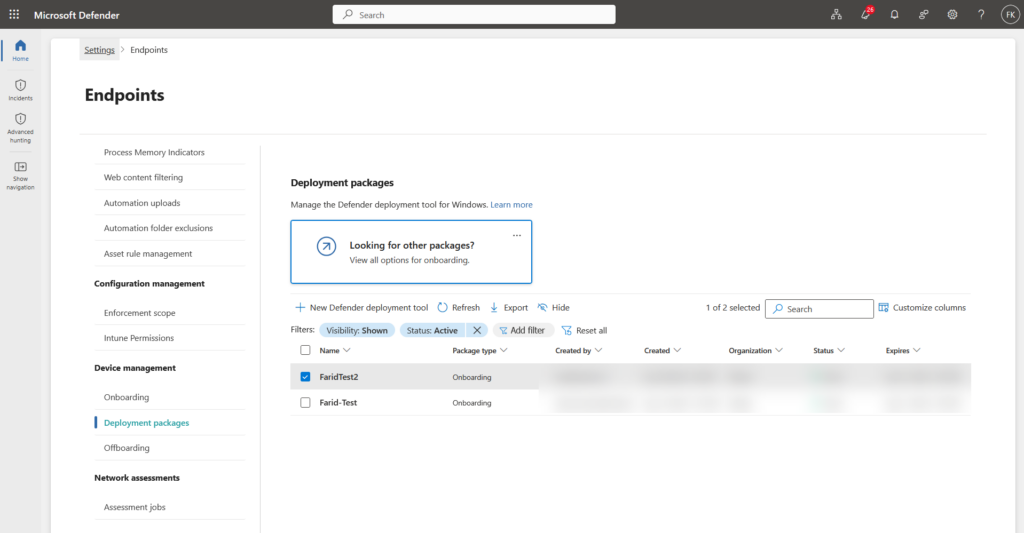
- There is a dedicated deployment packages overview under Settings > Endpoints > Deployment packages, where you can filter by active, expired or hidden packages.
For anyone managing a multi-tenant or multi-customer estate, that last point alone is a meaningful improvement. Before this, tracking which onboarding packages were still floating around for a customer meant asking them, or trusting documentation that was rarely kept current.
When this tool actually applies
Before switching anything over, it is worth being clear on where the deployment tool fits, because it is not meant to replace every onboarding path you already have running.
- Windows client devices managed through Intune: Microsoft’s own Intune connector guidance labels the automatic onboarding option (“auto from connector”) as the recommended path once the service-to-service connection between Intune and Defender for Endpoint is set up. There’s no reason to route Intune-managed devices through the deployment tool instead.
- Devices not enrolled in Intune: this is where the tool is genuinely useful, for devices managed through SCCM, GPO, or another orchestration tool, or not centrally managed at all.
- On-premises Windows Servers: the tool works alongside whatever orchestration you already use to distribute software, since it exposes the same command-line and configuration-file options regardless of how it gets pushed out.
- Servers connected through Azure Arc, and Azure virtual machines: Microsoft’s Defender for Cloud documentation confirms that once the Defender for Servers plan is enabled, onboarding is auto-provisioned through the MDE.Windows or MDE.Linux extension, with no separate onboarding package needed. For new subscriptions this integration is enabled automatically and covers supported Windows Server and Linux machines. That makes the deployment tool mainly relevant for servers that are not (yet) Arc-connected or covered by Defender for Servers.
For an operations team managing many devices, that narrows things down to a fairly specific but common gap: non-Intune-managed Windows devices and servers that fall outside Defender for Servers auto-provisioning. That is exactly the group that used to depend on the older onboarding scripts and blobs, so it is a sensible place to start piloting this.
The tool also carries its own legacy-OS story worth knowing about: it’s what installs the Defender endpoint security solution on Windows 7 SP1 and Windows Server 2008 R2 SP1, and that legacy solution itself has now reached general availability. It runs on a different underlying implementation than newer OS versions, though, so don’t assume full feature parity, and check the specific prerequisites first (the SHA-2 code signing update KB4474419, the servicing stack update KB4490628, and .NET 3.5 or later on Server 2008 R2 SP1).
Generating a deployment package
The workflow for creating a new package sits in the same place onboarding always has, but with an extra step:
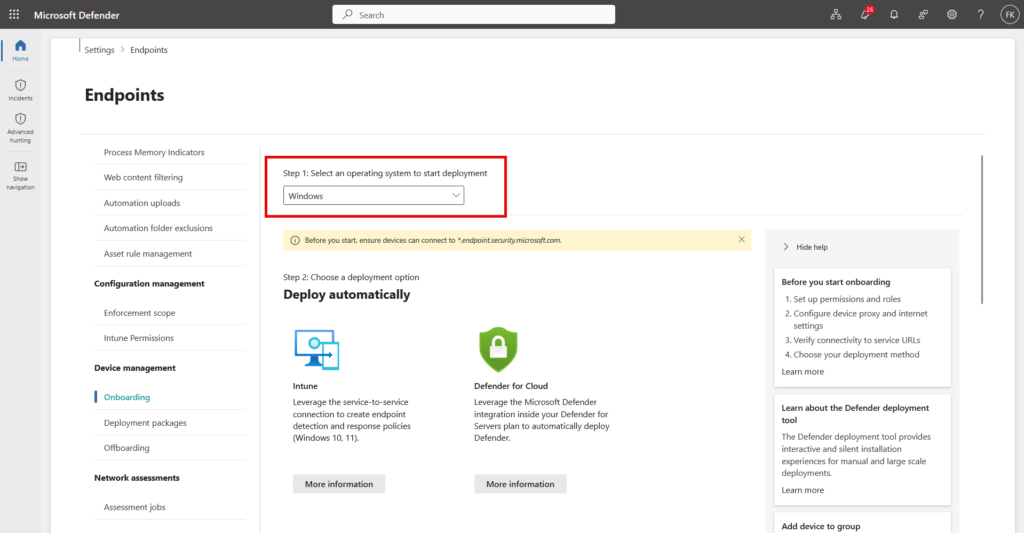
- In the Microsoft Defender portal, go to System > Settings > Endpoints > Onboarding
- Choose Windows as the operating system
- Under deploying by downloading and applying packages or files, select Onboard
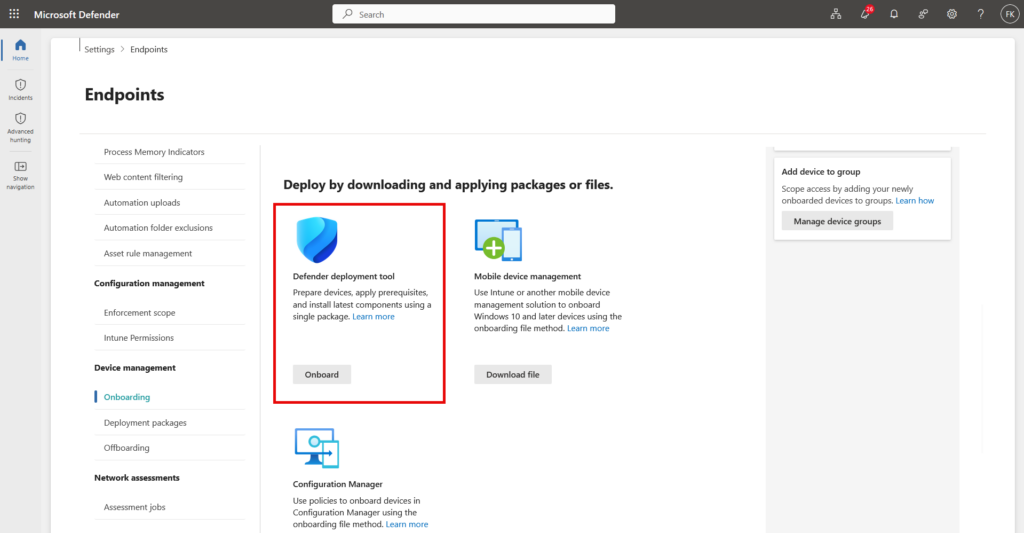
- On the package configuration page, give the package a unique, descriptive name and set an expiration date. Microsoft’s own guidance here is to keep the validity period as short as your rollout realistically allows, which lines up with how I would treat any credential with a long shelf life.
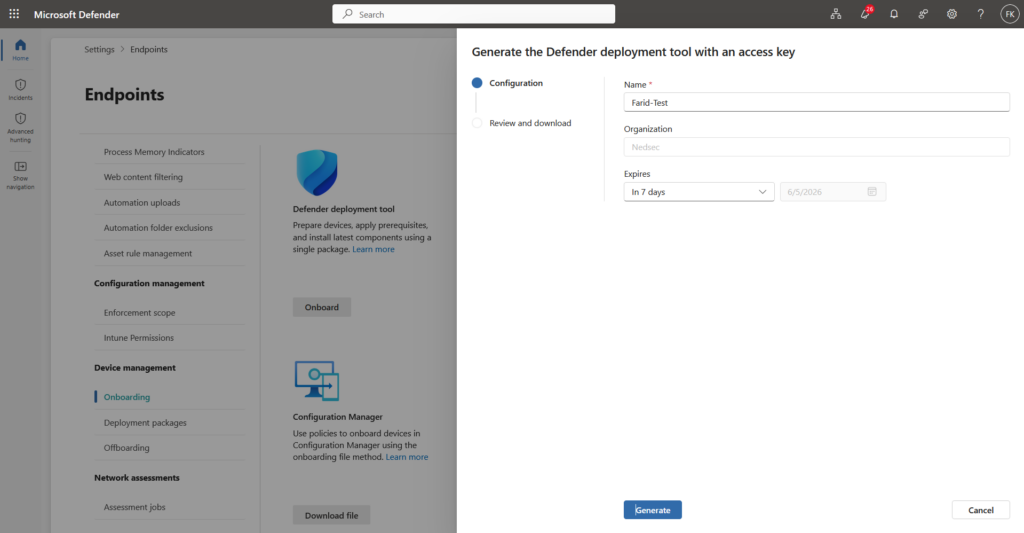
- Select Generate. You get an access key on screen, which you need to copy and store somewhere sane, because the tool prompts for it during onboarding.
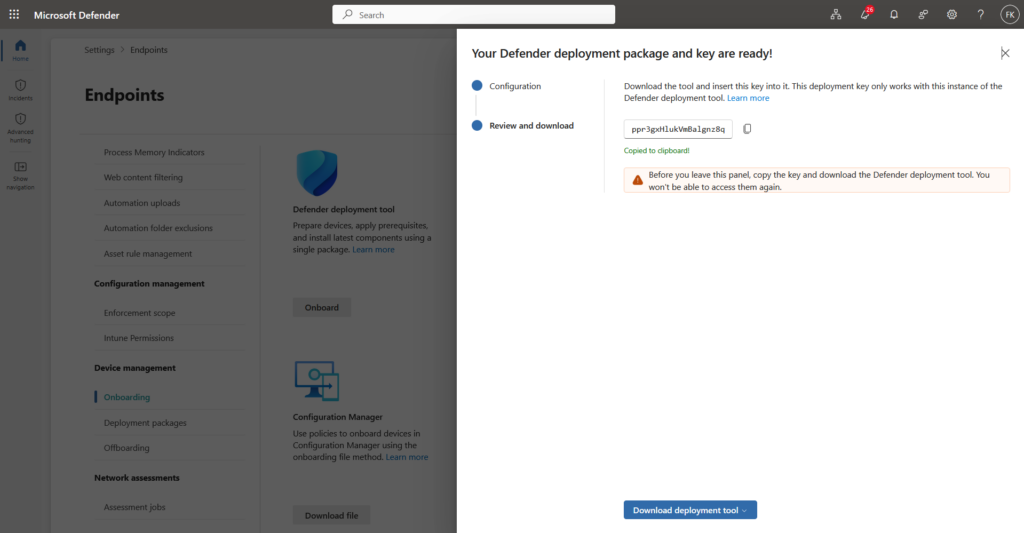
- Download the tool as either a .zip or a standalone .exe.
That access key is the part I would flag to anyone building a runbook around this. It behaves like a short-lived secret, not a public download link, so it needs to go through the same handling as any other deployment credential rather than sitting in a shared onboarding folder in plaintext.
Running the tool: interactive and non-interactive
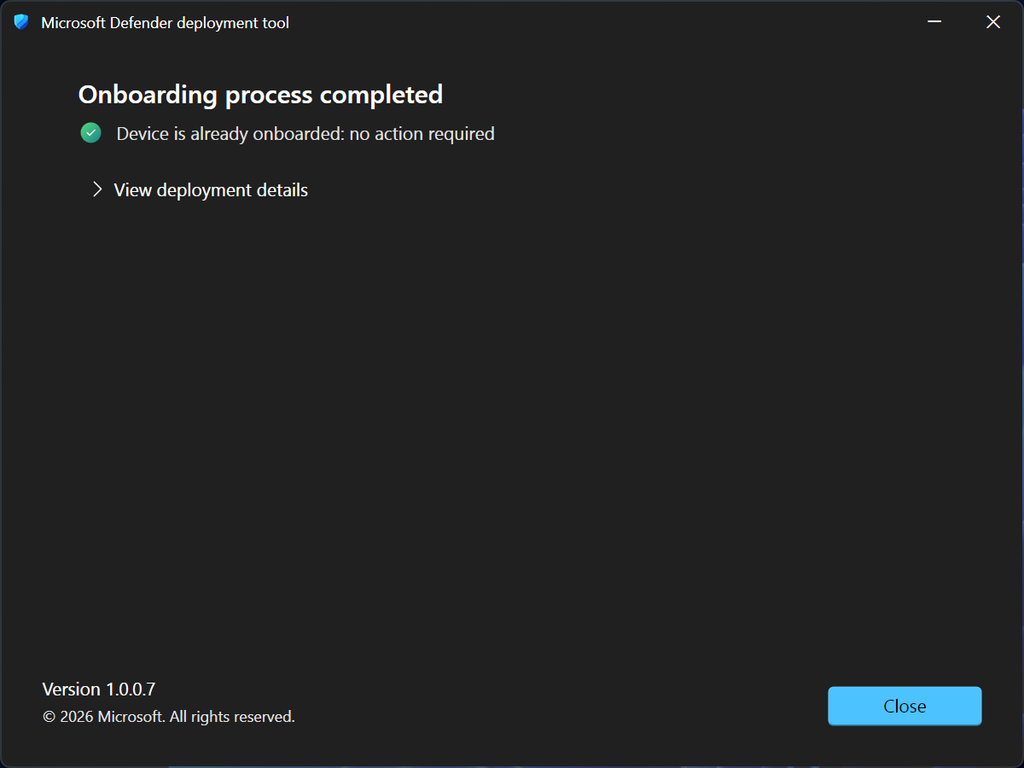
For one-off machines or small pilots, the interactive double-click flow is the quickest option:
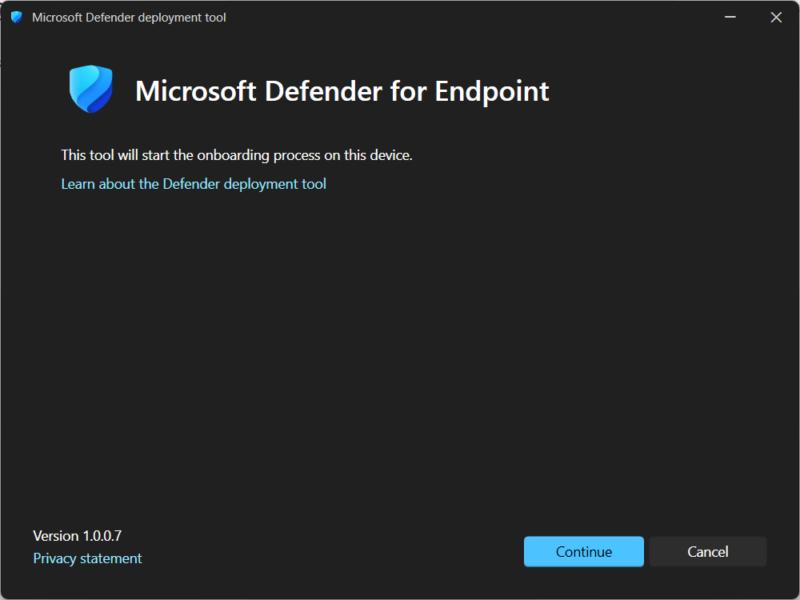
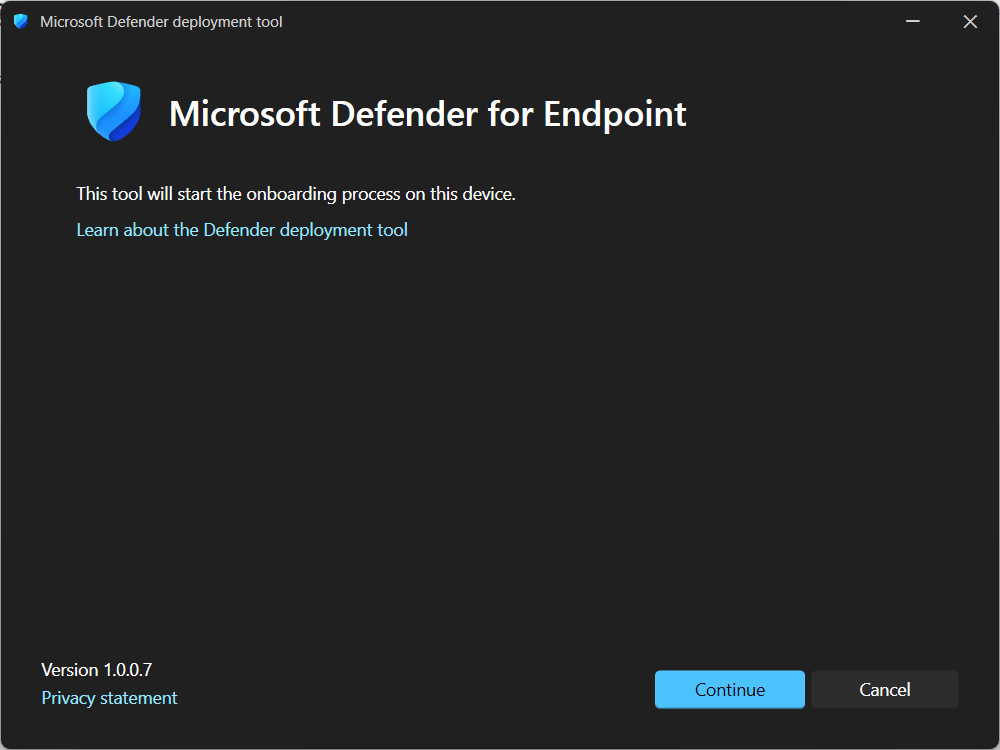
- Double-click the executable to launch it.
- Confirm you want to start onboarding when the dialog appears.
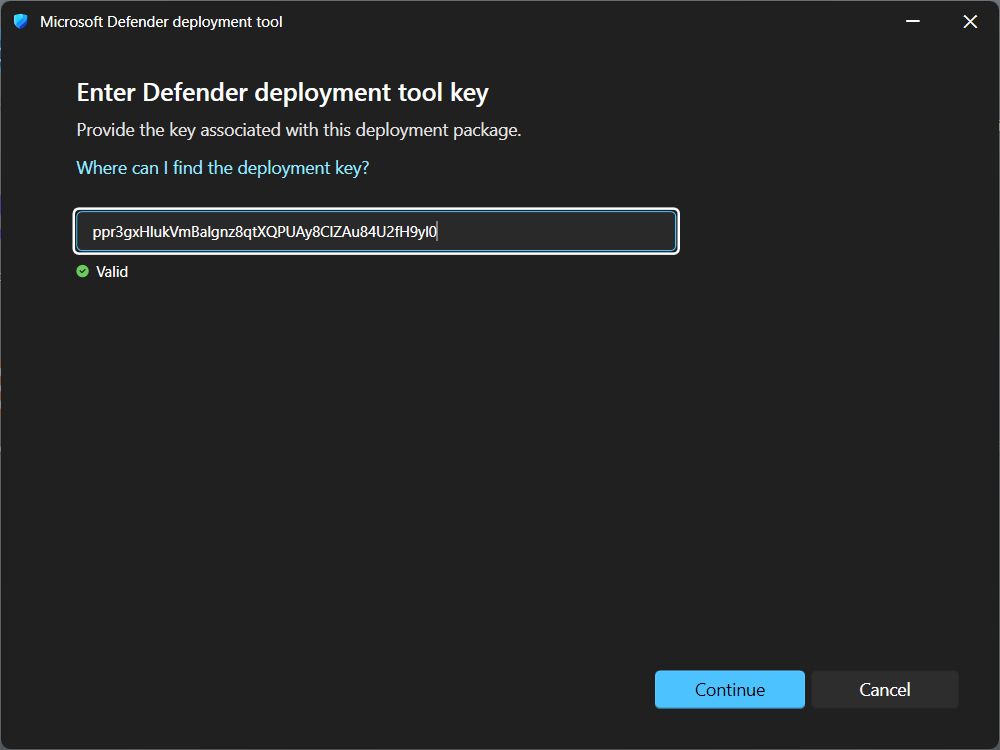
- Enter the access key you copied from the portal and continue
- Wait for installation to complete. No reboot is required in most cases, and if one is needed the tool tells you clearly rather than leaving you to guess from an exit code.
For anything beyond a handful of devices, the command-line interface is where this becomes usable at scale. A few examples straight from the tool’s own help output:
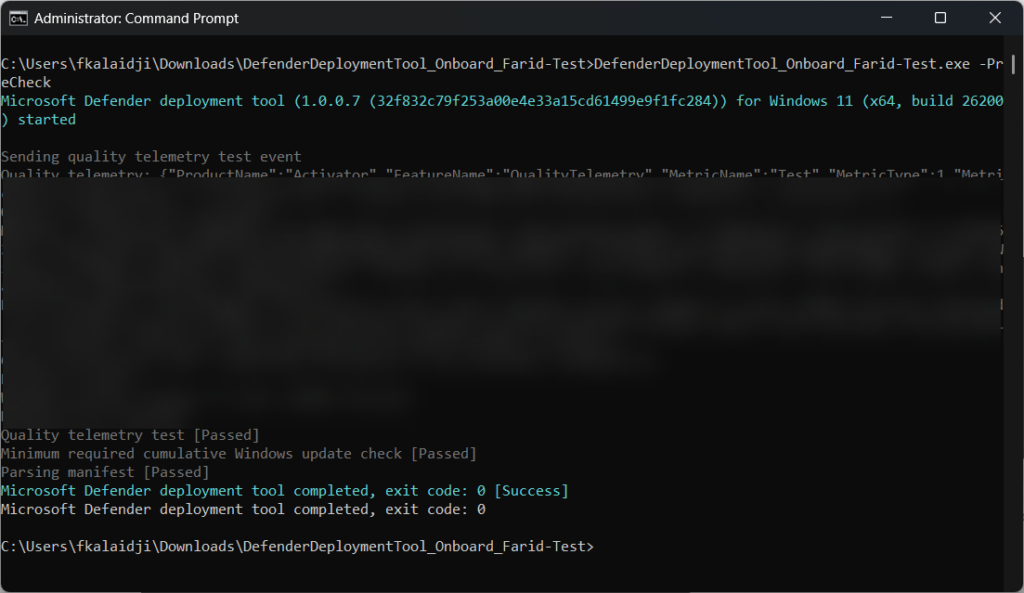
DefenderDeploymentTool_Name.exe -PreCheck
Checks for prerequisites and logs results but does not proceed with installation or onboarding.
DefenderDeploymentTool_Name.exe -Quiet
Runs onboarding without any prompts, using the onboarding file in the same directory.
DefenderDeploymentTool_Name.exe -Proxy:192.168.0.255:8080 -AllowReboot -Quiet
Onboards through a proxy and allows an automatic reboot if one is required, without showing a console window.
DefenderDeploymentTool_Name.exe -File:\\server\share\Defender.onboarding -Quiet
Points the tool at an onboarding file on a network share, useful if you are not distributing it alongside the executable itself.
One thing the docs don’t spell out: your actual download isn’t literally named DefenderDT.exe, that’s just the generic name Microsoft uses in its examples. After running it, the tool drops a DefenderDT.exe copy into C:\ProgramData\Microsoft\DefenderDeploymentTool alongside its log file, which you can use directly for any follow-up commands.
For repeatable deployments, generating a config file with -MakeConfig and editing the resulting MdeConfig.txt is worth doing early. It saves you from maintaining long command-line strings across GPO, SCCM or whatever orchestration tool you use, and it makes the deployment auditable, since the config file itself documents exactly what was run.
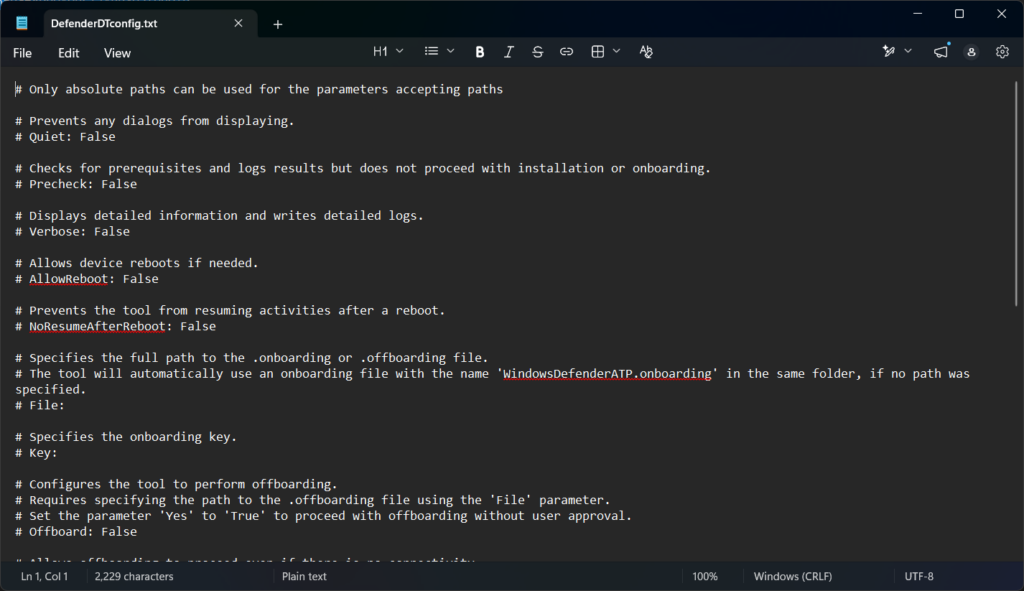
A couple of the less obvious parameters are worth calling out specifically, since they solve real operational problems rather than just being flags for the sake of flags:
DefenderDeploymentTool_Name.exe -PreCheck -Verbose -Quiet
Runs a full prerequisite check and logs the results without touching the device. I would run this as a standalone step ahead of any bulk rollout, since it turns “why did onboarding fail on these forty machines” into something you can catch beforehand instead of after the fact.
For low-bandwidth sites or staged rollouts, the tool can also pre-download the installation files without onboarding anything yet:
DefenderDeploymentTool_Name.exe -Stage
Documented as downloading updates and installation files to the current directory for later use, this is worth combining with a config file if you are pushing to devices over a slow or unreliable link, so the actual onboarding step doesn’t also have to pull the full package down first.
The -UpdateOnly parameter is documented the same way: it installs the latest updates and platform components without performing onboarding, even if an onboarding file is present, which is useful for keeping already-onboarded fleets current without re-running the full onboarding sequence.
The full set of parameters exposed through the config file, straight from Microsoft’s own reference:
| Parameter | What it does |
|---|---|
-Offboard | Configures the tool to perform offboarding (same parameter used as -offboard on the command line; casing doesn’t matter). |
-Yes | Used with Offboard and Uninstall to proceed without user approval. |
-Stage | Downloads installation files for all supported Windows versions to a location for staging. |
-Source | Specifies the path to a folder containing staged installation files. |
-File | Specifies the full path to the .onboarding or .offboarding file, if it isn’t in the current folder. |
-Proxy | Proxy to use during and after installation. |
-Quiet | Prevents any dialogs from displaying. |
-AllowReboot | Allows device reboots if needed. |
-NoResumeAfterReboot | Prevents the tool from resuming activities after a reboot. |
-Passive | Windows Server only. Sets Defender Antivirus to run in passive mode. |
-UpdateOnly | Installs updates but does not perform onboarding, even if an onboarding file is present. |
-Verbose | Displays detailed information. |
-Precheck | Checks for prerequisites and logs results but does not proceed with installation or onboarding. |
-Uninstall | Offboards the device and uninstalls components added during onboarding. |
-RemoveMMA | Optionally removes the specified workspace connection used by Microsoft Monitoring Agent. |
-Offline | Allows offboarding to proceed even without connectivity. |
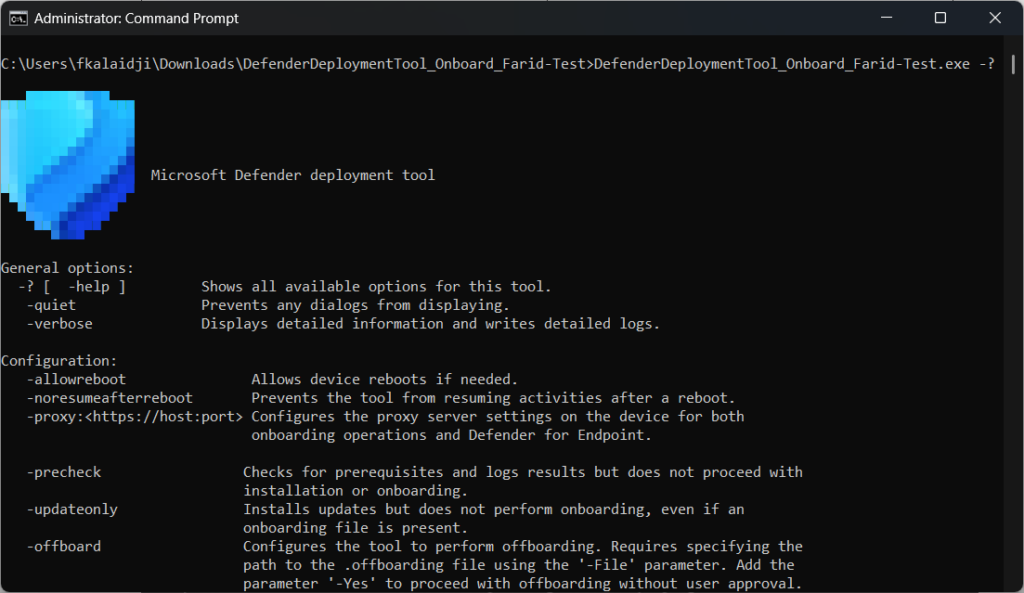
Run DefenderDeploymentTool_Name.exe -? on your own copy of the tool for the authoritative, up-to-date list, since this is exactly the kind of thing Microsoft tends to extend between releases.
Where this fits in a GPO or orchestrated rollout
If you are still using Group Policy for onboarding, the steps look like this:
- Place the executable and the onboarding file (and a config file, if you generated one) on a network share that the target devices can reach.
- In the Group Policy Management Console, create a new Group Policy Object or open an existing one for editing.
- Go to Computer configuration > Preferences > Control panel settings.
- Right-click Scheduled tasks, point to New, and select Immediate Task.
- On the General tab, set the task to run as the SYSTEM account, with Run whether user is logged on or not and Run with highest privileges both selected.
- On the Actions tab, point the task at the executable using its full UNC path, and add any command-line parameters you need in the arguments field, for example a
-file:pointing at an onboarding file that is not in the tool’s working directory. - Save the GPO and link it to the organizational unit containing your target devices.
The difference from the previous approach is mainly what you are pointing the scheduled task at: one self-contained executable with its own onboarding configuration, instead of a script plus a separate onboarding package.
If you are placing the tool behind a firewall or proxy allowlist, note that it downloads and updates itself from the definitionupdates.microsoft.com domain. Since those files are served from a content distribution platform, there is no static or predictable IP range to whitelist instead, so the domain needs to be reachable by name rather than by IP.
Offboarding a device
Offboarding follows a similarly short, two-part flow:
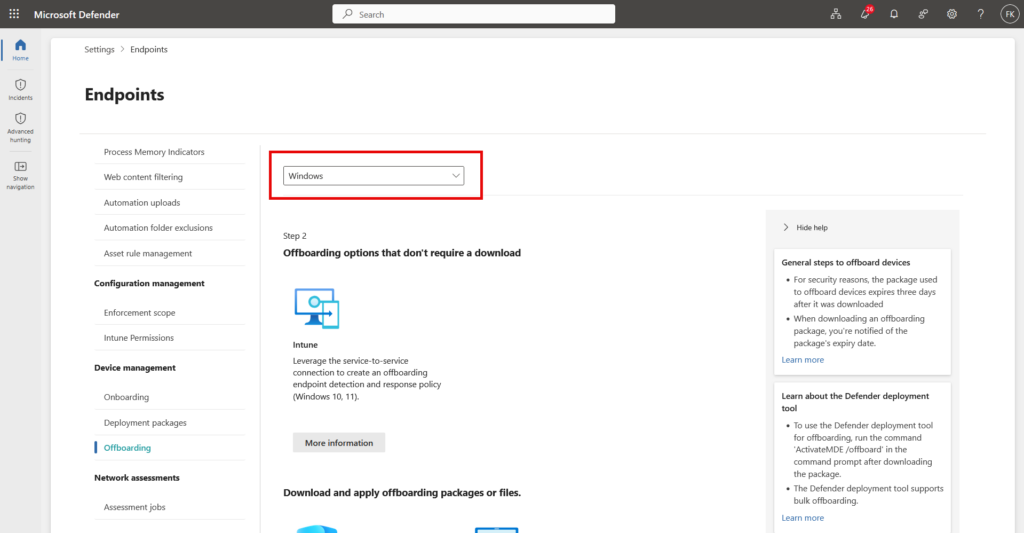
- In the Defender portal, go to System > Settings > Endpoints > Device management > Offboarding, select Windows, and download the offboarding package. This gives you a .zip file containing the
.offboardingfile (at least temporary – I am pretty sure Microsoft will release an easier way).
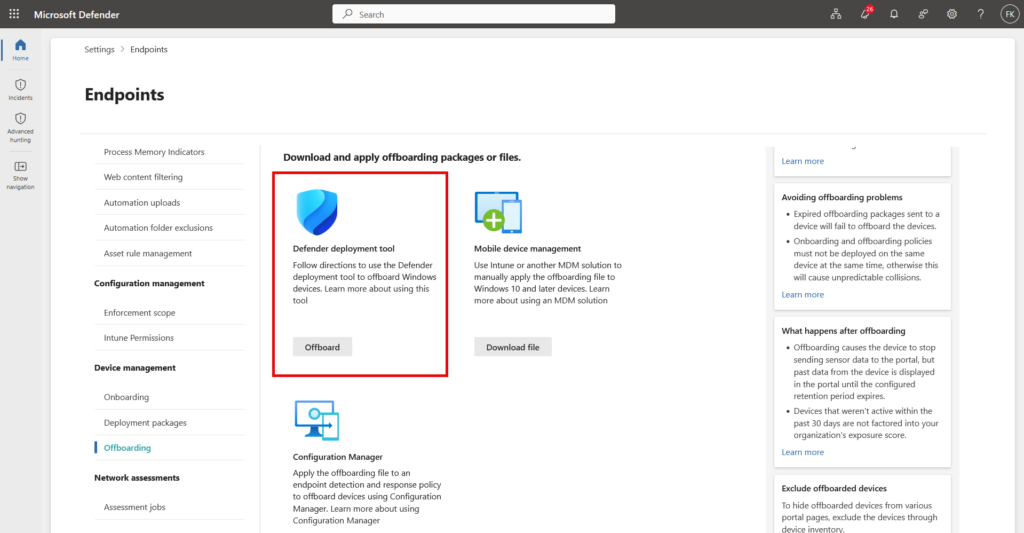
- Copy the extracted file to the target machine, open an elevated command prompt, and run the executable with the offboarding switch, for example:
DefenderDT.exe -Offboard -File:WindowsDefenderATP_valid_until_2025-05-06.offboardingWhen prompted Are you sure you want to offboard? Yes(Y)/No(N)?, type Y to proceed. A successful run reports:
Microsoft Defender deployment tool completed, exit code: 0 [Success]For a fully unattended offboarding, add -Yes -Quiet to the same command to skip the confirmation prompt entirely. As with onboarding packages, the offboarding file itself is time-limited (seven days from download), so this is not something you can generate once and keep on a share indefinitely.
Tracking packages centrally
For anyone managing many customer tenants, the deployment packages page is where the day-to-day value shows up: it replaces asking a customer what onboarding method they used eighteen months ago with a direct answer. Expired or forgotten onboarding packages are exactly the kind of loose end that shows up in a security review and is hard to explain away, so having them visible and filterable in one place closes a real gap.
Troubleshooting a failed run
Before opening a support case, Microsoft’s own guidance points to a few places worth checking first:
- The tool’s own log, at
C:\ProgramData\Microsoft\DefenderDeploymentTool\DefenderDeploymentTool-<COMPUTERNAME>.log. - The Windows Application event log, under the sources WDATPOnboarding and WDATPOffboarding.
- The services themselves, with
sc.exe query senseandsc.exe query windefend. Both should reportSTATE: 4 RUNNINGon a healthy device.
The tool also returns a documented exit code on completion, which is worth wiring into whatever orchestration or RMM tool triggers it, rather than only checking the log after the fact:
| Exit code | Meaning |
|---|---|
| 0 | Sequence completed successfully |
| 1 | Another instance is already running |
| 2 | Device is already onboarded: no action required |
| 3 | Offboarding is only available for onboarded devices |
| 10 | A reboot is required to continue: the tool resumes automatically unless -NoResumeAfterReboot was specified |
| 40 | Please run the tool with administrative permissions |
| 50 | Unsupported operating system |
| 70 | Configuration file error detected |
| 90 | Prerequisite check(s) failed |
| 200 | Onboarding failed: sensor initialization error |
| 201 | Onboarding file missing or not specified |
| 300 | Offboarding failed |
| 301 | Offboarding file missing or not specified |
| 400 | Download failed: unable to retrieve required component |
| 500 | Installation failed: unable to install required components |
| 710 | Failed to enable the Defender Antivirus feature |
| 730 / 740 | Sovereign cloud signature or registry configuration failure |
| 1000 | An unspecified error occurred |
This is a trimmed list of the ones I’d actually watch for in day-to-day operations; Microsoft’s reference has the complete set, including several more granular codes for update and uninstall failures.
Considerations and limitations
A few points worth being upfront about, straight from Microsoft’s own documentation, rather than presenting this as a finished, edge-case-free solution:
- If a reboot is required during the interactive experience, you have to sign back in after the reboot for the sequence to resume. Skipping that step leaves the device only partially onboarded.
- On Windows Server 2016 and later, if the Defender Antivirus feature was previously uninstalled or removed, you may hit a documented error during the Enabling Feature ‘Windows-Defender’ step (exit code 710, error 14081, “The referenced assembly could not be found”). Microsoft is explicit that this isn’t caused by the Defender Antivirus feature or source files themselves, and recommends opening a support case for Windows Servers if you hit it.
- On Windows 7, passive mode is set with the
-passiveparameter, but there is currently no equivalent to theForceDefenderPassiveModeregistry key that servers use to flip back to active mode afterwards. Switching back means offboarding, uninstalling, and running the tool again without the passive parameter. - No integration with existing onboarding methods yet means you cannot simply layer this on top of an Intune or SCCM-based fleet without deciding how the two coexist; the tool remains its own onboarding methodology for now.
References
- Deploy Microsoft Defender endpoint security to Windows devices using the Defender deployment tool — Microsoft Learn
- Onboard previous versions of Windows on Microsoft Defender for Endpoint — Microsoft Learn
- What’s new in Microsoft Defender for Endpoint — Microsoft Learn
Closing thoughts
This is a genuine improvement over the old script-and-blob approach, mainly because it finally gives onboarding a lifecycle: an expiry, an access key, and a place to see what is still active. For teams managing many customer tenants specifically, the centralised deployment packages view is the detail I would point a customer to first, since it directly addresses the “which onboarding package is this device even using” question that used to require manual digging.
If you are planning a migration to this tool across an existing estate, start small, keep expiry windows short, and treat the access key with the same care you would give any other deployment credential.
Worth noting for mixed estates: a Linux version of the deployment tool exists as well, combining installation and onboarding the same way. I have not tested it myself yet, but it is on my list for a follow-up post once I have run it against a real Linux fleet.