

If you have been reading ransomware incident reports over the past few months, you have probably noticed the same thing I have. Almost every write-up includes some version of the same sentence: the attacker loaded a signed kernel driver and used it to kill the EDR agent before deploying the encryptor.
Bring Your Own Vulnerable Driver, or BYOVD, is not new. But what is new is how reliably it shows up and how professionally it is being packaged and distributed. This post covers what has changed, why your current setup probably has a gap even with tamper protection enabled, and what to actually do about it step by step on the Microsoft stack.
What changed recently
BYOVD used to require real operational knowledge. You needed to find a suitable driver, understand its IOCTL interface, write code to interact with it, and test it against the target EDR. That kept the barrier high enough that most RaaS affiliates skipped it.
That is no longer the case.
In June 2026, ESET published a detailed investigation into a RaaS operation called Gentlemen. The short version: Gentlemen does not leave EDR evasion up to its affiliates. The operator centrally develops and maintains its own EDR killer framework, named GentleKiller by ESET, and ships it to every affiliate as part of the onboarding package. The framework has at least eight variants, targets more than 400 processes across 48 security products, and is designed to allow fast driver swaps when a new proof-of-concept goes public.
ESET confirmed the gang can operationalise a newly disclosed BYOVD PoC within days of it going public. The affiliate package also bundles three externally sourced tools: HexKiller, ThrottleBlood, and HavocKiller. By the time the ESET report was published, separate ransomware tracking data had linked the group to 478 victims across 66 countries.
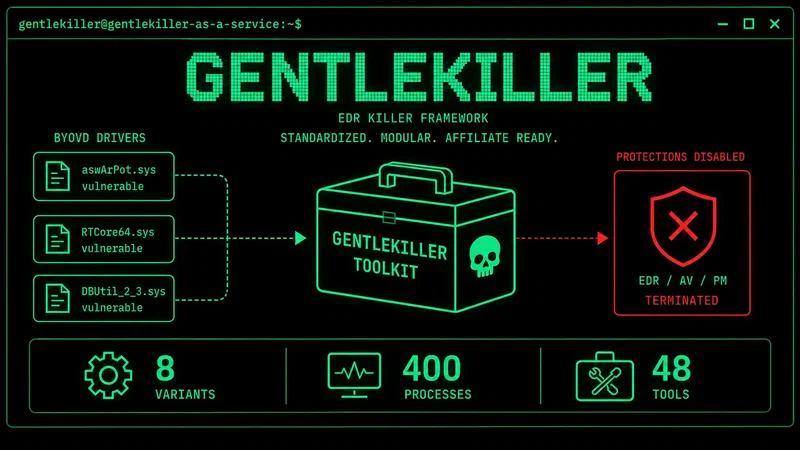
A separate ESET analysis from earlier in 2026 counted 54 distinct EDR killer tools abusing 35 separately signed vulnerable drivers. Attackers only need one that still works. Defenders need to cover all 35.
Also worth flagging: in February 2026 Huntress documented an intrusion where attackers loaded a revoked EnCase forensic driver from 2006, still loadable due to a legacy exception from 2015. Once running, it called its termination routine every second against 59 hardcoded security processes. Any service that tried to restart was killed immediately. The machine was completely blind before encryption started.
On June 30, 2026, Marcus Hutchins (MalwareTech) published a technical analysis via Expel documenting a zero-day used by the Gentlemen group in an April intrusion: ktapi.sys, a Kontron industrial driver that was not present on any public blocklist at time of publication. The relevant defender takeaway is that ktapi.sys was a legacy cross-signed driver.
Starting with Windows 10 1607, Microsoft tightened kernel-mode driver signing requirements so newly signed drivers generally had to go through Microsoft’s Hardware Dev Center signing process. Previously signed legacy drivers were grandfathered in. Starting from Windows 11 25H2 (kernel build 10.0.26100.32690+), that grandfathering ended. Millions of old, unmaintained drivers that were still loadable on earlier versions are now blocked by default, and ktapi.sys is one of them. If your fleet is already on 25H2, that is a free win with no configuration needed. If it is not, it is worth factoring into your upgrade planning.
That is where we are in 2026. EDR evasion via BYOVD is a feature in an affiliate kit, and the drivers being used are sometimes zero-days that no blocklist covers.
How BYOVD actually works
By the time BYOVD runs, the attacker already has local admin on the machine. This is post-compromise activity, not initial access. They have usually been in the environment for some time, done their reconnaissance, identified what EDR is running, and are now preparing for the final stage before encryption.
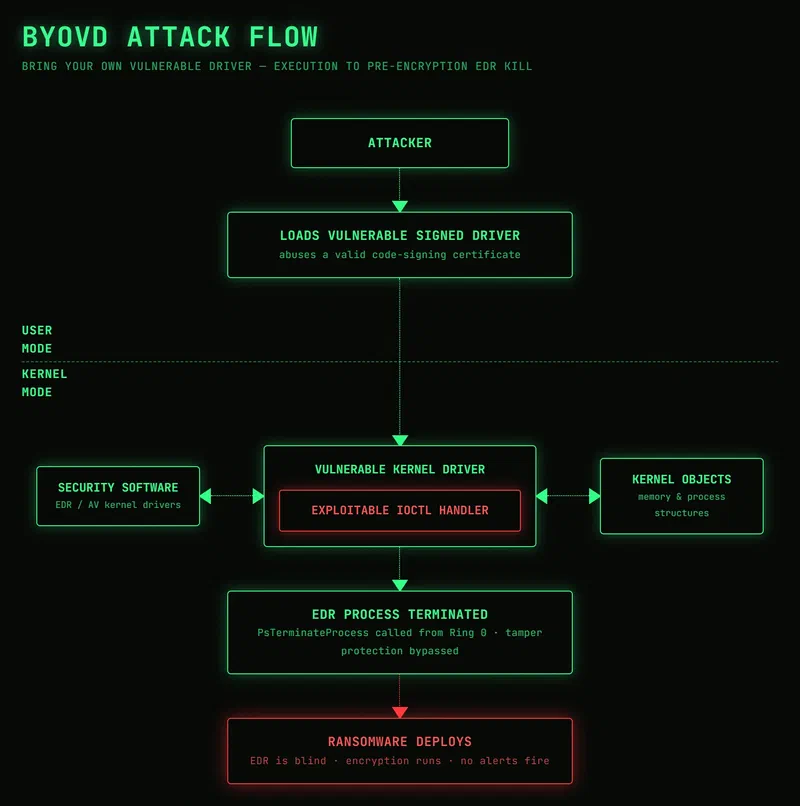
The sequence from that point:
- The attacker drops a legitimate, signed kernel driver to disk. Often an old anti-cheat driver, an OEM hardware monitoring tool, or a legacy security product component. Not malicious by design, just old and unpatched.
- Windows loads it without objection. The signature is valid, the certificate came from a real vendor. The OS trusts it.
- The attacker sends crafted IOCTL requests to the loaded driver. Depending on the flaw, this gives ring 0 capability to terminate arbitrary processes, remove kernel callbacks, suppress ETW providers, or patch memory in ways that blind the sensor entirely.
- The EDR or AV agent is killed from kernel mode. No alert fires. The thing that would raise the alarm is the thing that just got taken out.
- With the security tooling blind or dead, encryption starts. The window between EDR kill and encryption is frequently under an hour.
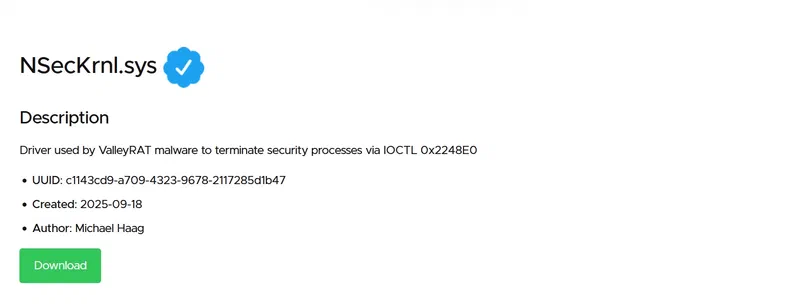
To make this concrete, look at the actual cases this post is about. The Gentlemen operators specifically choose drivers that are not on any public blocklist. Their GentleKiller variants use custom rootkits and obscure anti-cheat drivers that most defenders have never heard of. When the Expel team investigated the April 2026 intrusion, the attacker used ktapi.sys, a Kontron industrial driver not present on any public blocklist at the time. Gentlemen can operationalise a newly disclosed driver proof-of-concept within days of it going public.
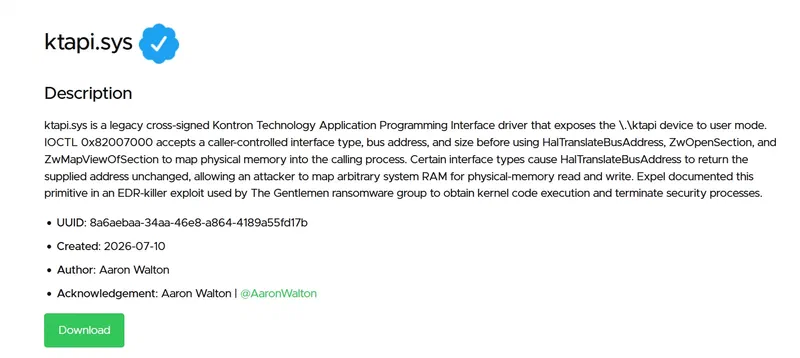
The attacker does not need a well-known, already-blocked driver. They need one driver that works and is not blocked yet. This is why HVCI and App Control are in this post: they do not depend on knowing a driver is bad in advance.
Why tamper protection does not help here
Tamper protection is designed to prevent unauthorized changes to Defender configuration and common attempts to impair its services and sensor. It is not a driver admission or kernel code-integrity control.
If an attacker succeeds in loading and exploiting a vulnerable kernel driver, the attack has crossed a trust boundary that requires controls such as ASR, the vulnerable driver blocklist, HVCI, and App Control. A kernel driver does not request permission to kill a process. It calls a kernel function directly.
Prerequisites: BYOVD needs local admin first
Loading a kernel driver via sc.exe create type= kernel requires SeLoadDriverPrivilege, which by default only local administrators hold. This is a post-compromise technique. The attacker has already obtained elevated access before BYOVD runs.
Two things follow from this:
First, local admin hygiene is a meaningful pre-control: remove admin rights from standard users, enforce LAPS, and limit admin role assignments. This raises the cost of reaching BYOVD without making it impossible. Credential Guard protects LSASS credentials from being dumped, limiting the attacker’s ability to use credential theft to move laterally and reach admin on other systems. It is covered in Step 2.
Second, if you detect an EDR kill event, assume the attacker has local admin at minimum. Treat it as a pre-encryption signal, not an isolated incident.
What drivers are actually being abused: LOLDrivers.io
LOLDrivers.io is the community-maintained catalogue of living-off-the-land drivers, signed drivers with known vulnerabilities or malicious uses. Searching by driver name or hash shows what CVEs are linked, what capabilities the flaw exposes, and whether a driver appears in known toolkits. It is a useful baseline check before deployment.
The caveat: sophisticated operators like Gentlemen specifically pick drivers not yet on any blocklist. ktapi.sys was not on LOLDrivers.io at time of discovery. GentleKiller’s variants use obscure anti-cheat and hardware drivers that ESET documented after the fact. The real threat is what is not on the list yet, which is why HVCI and App Control matter. They do not depend on knowing a driver is bad in advance.
Drivers appearing in 2025 and 2026 BYOVD toolkits include Iobitunlocker.sys (IObit Unlocker), revoked forensic drivers from Guidance Software (EnCase), and GentleKiller variants using Safetica ProcessMonitor and Zemana WatchDog drivers. The Microsoft vulnerable driver blocklist is largely derived from LOLDrivers plus Microsoft’s own research.
What we are going to deploy
Four controls, each intercepting at a different point in the attack chain. None is sufficient alone. They cover different stages and different threat scenarios.
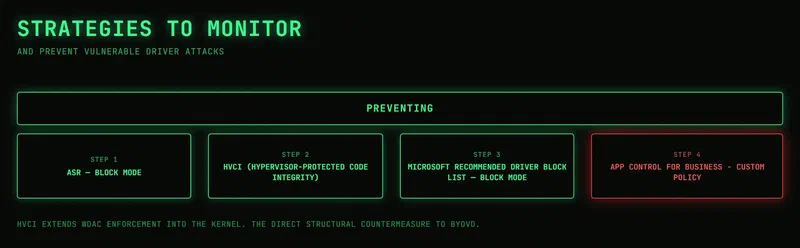
| Step | Control | Primary purpose |
|---|---|---|
| 1 | ASR vulnerable driver rule | Prevents known vulnerable signed drivers from being written to disk |
| 2 | HVCI / Memory Integrity | Hardens kernel execution and constrains exploit techniques. Also enforces Microsoft’s built-in vulnerable driver blocklist automatically |
| 3 | Microsoft recommended driver blocklist | Prevents known vulnerable drivers from loading. Most important for devices where HVCI cannot run |
| 4 | App Control for Business | Restricts driver loading to explicitly trusted policy rules, covering previously unknown vulnerable drivers |
Step 1: Enable the ASR rule that blocks the driver from landing on disk
Important for servers: ASR rules only enforce when Microsoft Defender Antivirus is running in Active mode. If a server has a third-party AV product installed and Defender is running in Passive or EDR-only mode, this rule will not block anything. Verify Defender is in Active mode before relying on this step, especially on Windows Servers where third-party AV is common.
The rule you need is Block abuse of exploited vulnerable signed drivers. GUID: 56a863a9-875e-4185-98a7-b882c64b5ce5.
This is one of three ASR rules Microsoft explicitly recommends enabling directly in Block mode without an audit period. The others are the LSASS credential theft rule and WMI persistence. The vulnerable driver rule has a low false positive rate in practice.
One thing to understand clearly before deploying: this rule prevents an application from writing a vulnerable signed driver to disk. It does not prevent a driver that is already sitting on the system from loading. Those are two separate problems and need two separate controls. This step closes the delivery problem. Steps 3 and 4 address the driver-load problem. Step 2 hardens what an exploited driver can do once it has loaded.
Deploy via Intune:
- Open the Intune admin center (intune.microsoft.com) and sign in with Endpoint Security Manager rights or equivalent.
- Navigate to Endpoint security > Attack surface reduction.
- Click Create Policy.
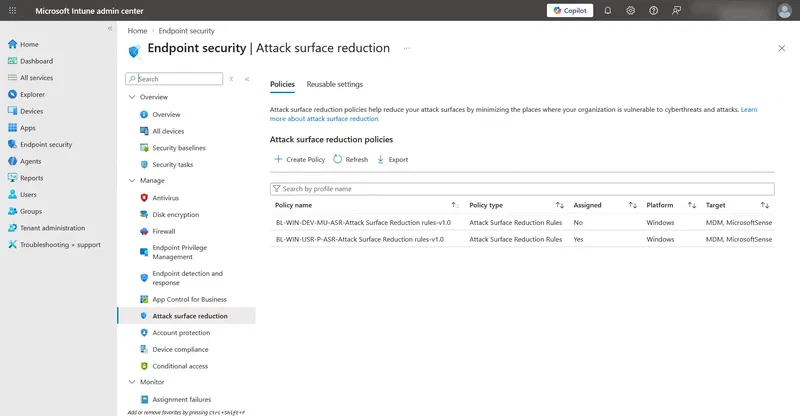
- Under Platform select Windows 10, Windows 11, and Windows Server. Under Profile select Attack Surface Reduction Rules. Click Create.
- Give the policy a clear name, for example
BL-WIN-USR-P-ASR-Attack Surface Reduction rules-v1.0. Click Next. - On the Configuration settings page, find Block abuse of exploited vulnerable signed drivers (and all the others if you haven’t configured it yet) and Block.
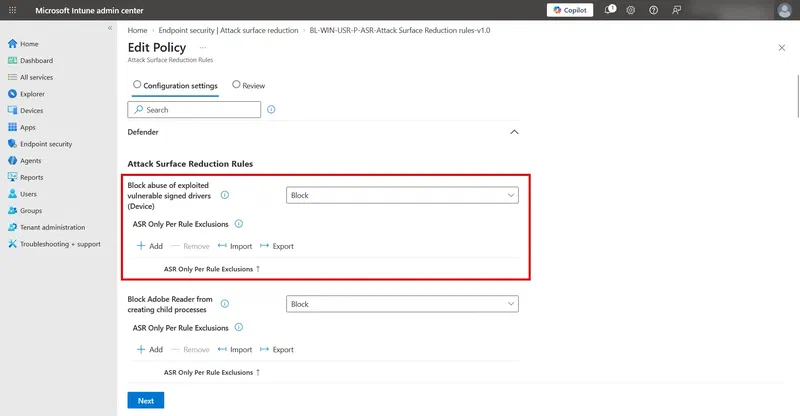
- Click Next through Scope tags. On Assignments, target your device groups. This rule does not typically generate helpdesk noise, so I would not scope it narrowly for a first deployment.
- Review and Create.
Verify with Advanced Hunting after deployment:
Give it 24 to 48 hours, then run:
DeviceEvents
| where Timestamp > ago(48h)
| where ActionType == "AsrVulnerableSignedDriverBlocked"
| project Timestamp, DeviceName, FileName, FolderPath,
    InitiatingProcessFileName, SHA256
| order by Timestamp desc
If this returns results, review each one. If something legitimate in your environment is being blocked, that is the exception to investigate rather than a reason to disable the rule.
You can also review ASR activity in the Defender portal under Reports > Attack surface reduction rules. The effective policies can also be checked here:
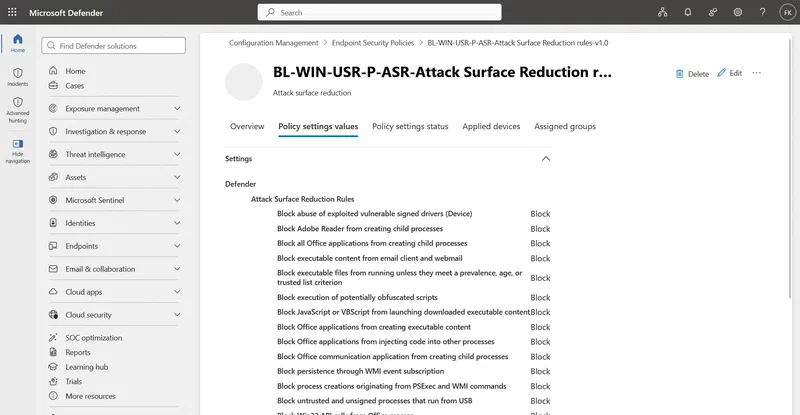
Step 2: Verify and enforce HVCI across your fleet
HVCI is a kernel hardening control, not a driver admission control. That distinction matters. A legitimately signed vulnerable driver, including ktapi.sys, satisfies HVCI’s code integrity requirements and can still load. What HVCI does is remove and constrain the exploit primitives that a driver would use to cause harm: it prevents unvalidated executable kernel code, restricts certain memory operations, and protects the code-integrity enforcement mechanism itself. It also enforces the built-in Microsoft vulnerable driver blocklist automatically as a side effect.
Concretely: in the Hutchins/Expel case, kCFG (which HVCI enables) would have stopped the shellcode execution step even after ktapi.sys loaded, because kCFG prevents kernel-mode indirect calls from targeting anything outside a list of valid approved entry points. Expel notes explicitly that a different exploit technique against the same driver could have worked around that. HVCI is not a guarantee. A sufficiently restrictive App Control policy is.
The value of HVCI for BYOVD defence is: it removes or constrains the exploitation chain, it enforces the blocklist automatically, and it makes writing reliable kernel exploits significantly harder. For most RaaS affiliates using off-the-shelf EDR killer toolkits, that is often enough. Against a determined operator writing custom exploits, it is one layer of several.
Most new Windows 11 hardware ships with HVCI enabled by default. The problem I keep running into in practice is that it gets silently disabled during imaging when a hardware vendor supplies a driver that is not HVCI-compatible, and nobody notices afterward.
One additional thing worth knowing: enabling HVCI also activates Kernel Control Flow Guard (kCFG). kCFG enforces that kernel-mode indirect calls can only target valid, approved function entry points. This is specifically what would have stopped the Hutchins/Expel exploit at its shellcode execution step, even if everything else in the chain had succeeded. It is not the headline feature of HVCI but it is part of why enabling memory integrity raises the bar beyond just blocklist enforcement.
Verify on a device via Windows Security:
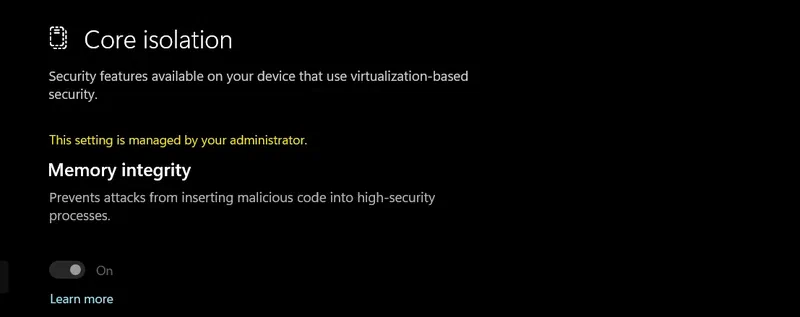
Open Windows Security > Device Security > Core isolation. Memory Integrity should show as On. If the toggle is greyed out and reads “Memory integrity is off. Your device may be vulnerable”, something is blocking it.
Enable HVCI via Intune (Settings Catalog):
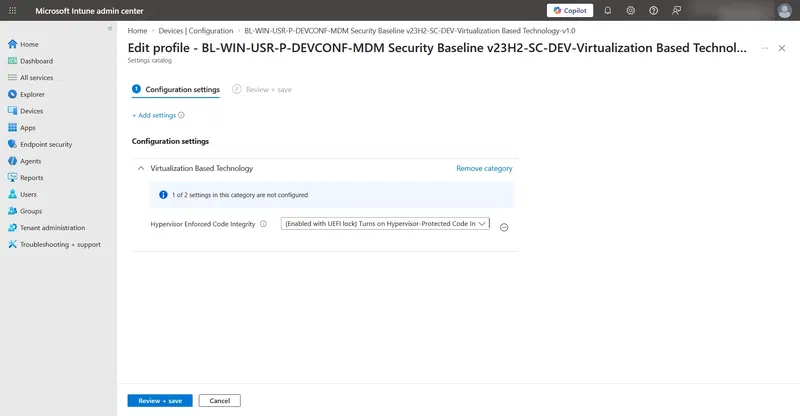
- Open the Intune admin center and navigate to Devices > Configuration > Create > New Policy.
- Platform: Windows 10 and later. Profile type: Settings Catalog. Click Create.
- Give the policy a name, for example
BL-WIN-USR-P-DEVCONF-MDM Security Baseline version number-SC-DEV-Virtualization Based Technology-v1.0. - Click Add settings and search for Hypervisor Enforced Code Integrity under the Virtualization Based Technology category.
- Add the setting and set Hypervisor Enforced Code Integrity to Enabled with UEFI lock. The UEFI lock option prevents local disablement without physical UEFI access, which is the right default for managed devices.
- Assign to your device groups and deploy.
Note: HVCI requires a reboot to take effect and some older or OEM drivers are not HVCI-compatible. Run the policy on a pilot group first and check Windows Security > Core isolation on affected devices before broad enforcement. If a driver is incompatible, Windows Security will report a specific conflict. You need to update or remove that driver before HVCI can fully activate.
Enable Credential Guard alongside HVCI:
Since HVCI and Credential Guard both depend on VBS and share the same hardware prerequisites, deploy them together on endpoint devices. Credential Guard isolates LSASS credentials in the VBS container, preventing tools like Mimikatz from dumping them even when an attacker has kernel-level code execution. Expel specifically calls this out in their ktapi.sys mitigations: if Credential Guard is active, the attacker’s ability to pivot to admin using stolen credentials is significantly limited, which means BYOVD becomes harder to reach in the first place.
Important: Microsoft does not recommend enabling Credential Guard on domain controllers and explicitly states it provides no additional security benefit on DCs. It is also unsupported on Exchange Server. Apply this to workstations and member servers only. Use a separate scoped policy, not the same policy as your HVCI deployment targeting server OUs.
- In a Settings Catalog policy scoped to workstations and member servers (not DCs), search for Credential Guard under the Device Guard category.
- Set Credential Guard to Enabled. Microsoft’s default enablement is deliberately without UEFI lock to allow remote disablement if needed. Use Enabled with UEFI lock only for high-security PAWs where you specifically need to prevent remote disablement and accept that rollback requires physical UEFI access.
- Assign and deploy.
The same compatibility notes apply: requires VBS, Secure Boot enabled, and virtualization extensions active in UEFI. Run on a pilot group first.
Step 3: Apply the current vulnerable driver blocklist
Since Windows 11 2022 Update, the blocklist ships enabled by default and is automatically enforced when HVCI is active. So if Step 2 (HVCI) is fully deployed, the built-in blocklist is already running on those devices.
Step 3 adds value in two scenarios. For devices where HVCI cannot run, the standalone blocklist gives you driver load protection independently. For devices where HVCI is active, the standalone XML from aka.ms/VulnerableDriverBlockList is slightly more complete than the OS built-in version. Microsoft holds back some entries for compatibility reasons while vendors ship patches.
If HVCI is confirmed active across your entire fleet, this step is a completeness measure. If you have devices where HVCI is not running, it is more important for those specifically.
Deploy via Intune (recommended):
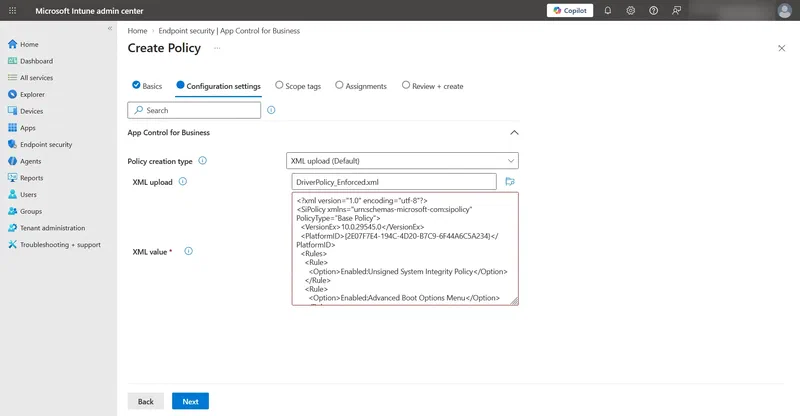
Intune deploys the driver block list as an App Control for Business policy using the XML file published by Microsoft. The XML contains Allow All rules plus specific deny rules for known vulnerable drivers, so it does not block legitimate software and can be deployed directly in enforce mode.
- Download the driver block rules XML from aka.ms/VulnerableDriverBlockList. Save the enforced version locally.
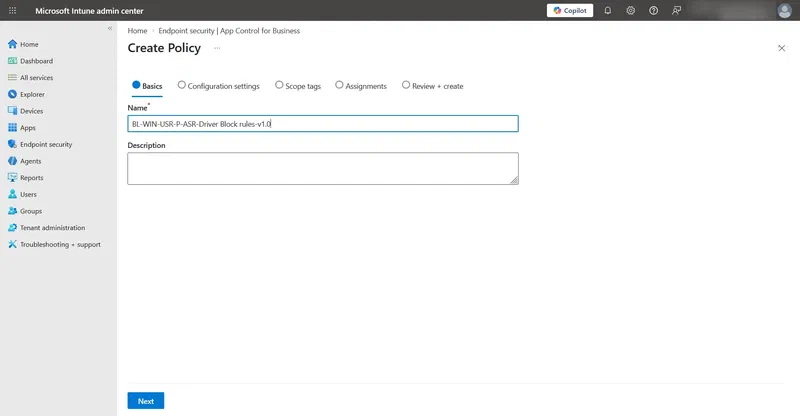
- In the Intune admin center, go to Endpoint security > App Control for Business.
- Select the App Control for Business tab and click Create Policy.
- Give the policy a name, for example
BL-WIN-USR-P-ASR-Driver Block rules-v1.0. Click Next. - On Configuration settings, set Configuration settings format to Enter xml data.
- Paste the full XML content from the file you downloaded in step 1.
- Click Next through Scope tags. On Assignments, assign to your device groups.
- Review + create.
Note: Microsoft recommends deploying this policy alongside any existing App Control policies rather than merging them. If you do plan to merge it with an existing allowlist policy, remove the Allow All rules from the XML before merging.
Deploy manually via SiPolicy.p7b (alternative for non-Intune environments):
If you need to deploy outside Intune or want the most current version of the blocklist rather than waiting for the next policy update:
- Download the App Control policy refresh tool.
- Download and extract the vulnerable driver blocklist binaries.
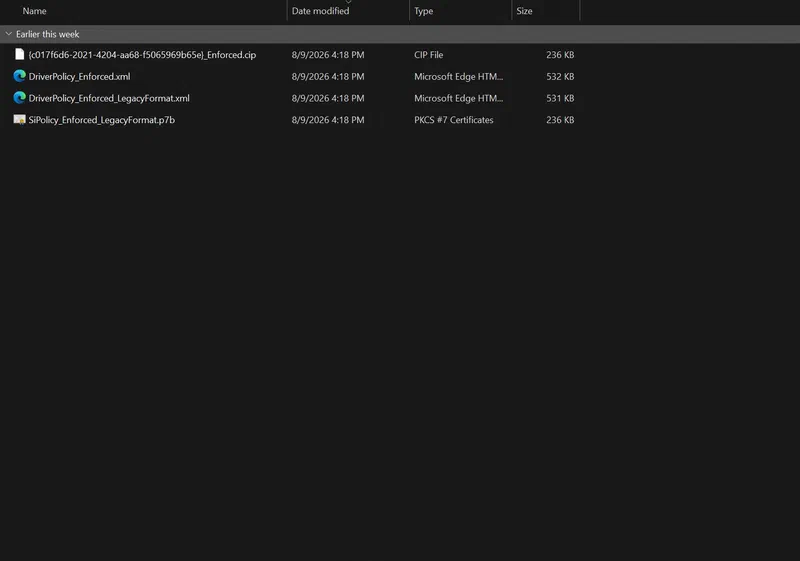
- Start with the audit only version. Rename the file to
SiPolicy.p7b. - Copy
SiPolicy.p7bto%windir%\system32\CodeIntegrity. - Run the refresh tool as administrator to activate and apply the policy.
- Open Event Viewer. Browse to Applications and Services Logs > Microsoft > Windows > CodeIntegrity > Operational. Filter on Event ID 3099.
- Confirm the PolicyNameBuffer and PolicyIdBuffer match the values in the policy XML you downloaded. If they do, the blocklist is active.
- Run in audit mode for a period that covers your normal driver install activity. If nothing legitimate triggers a block, swap in the enforced version and repeat the refresh step.
Note: if a vulnerable driver is already loaded when you apply the policy, it will not be evicted until reboot. Plan a reboot window into the rollout, especially on servers.
For fleet deployment via Intune or ConfigMgr, deploy SiPolicy.p7b to the CodeIntegrity folder using a Win32 app or a PowerShell remediation script, then run the refresh tool post-copy as a second step. Validate on a representative pilot group across your hardware diversity before broad enforcement.
Step 4: App Control for Business for your most critical assets
Steps 1 and 3 are blocklist-based. They stop drivers that are known to be bad. ktapi.sys, the zero-day used in the Gentlemen intrusion, was not on any public blocklist when it was deployed. A sufficiently restrictive App Control for Business policy stops it anyway, not because it knows ktapi.sys is bad, but because it was never on the approved list. With a restrictive policy, an unapproved driver simply does not load.
Most organisations are not here yet. Deployment complexity is real and a misconfigured policy can prevent Windows from booting. Get Steps 1 through 3 in place first, then plan this for your highest-risk assets. App Control lets you allowlist by publisher certificate so new driver versions from the same vendor pass automatically. You can also set a minimum build number to prevent downgrade attacks.
Start with the assets where the driver set is most predictable:
- Domain controllers: stable driver set, crown jewel of every ransomware intrusion
- Jump boxes and PAWs: standardised images, minimal variation
- File servers: high-value targets with generally predictable hardware
Step-by-step: App Control Wizard
Download the wizard from webapp-wdac-wizard.azurewebsites.net or install via winget install --id Microsoft.AppControlPolicyWizard. The welcome page has three options: Policy Creator, Policy Editor, and Policy Merger.
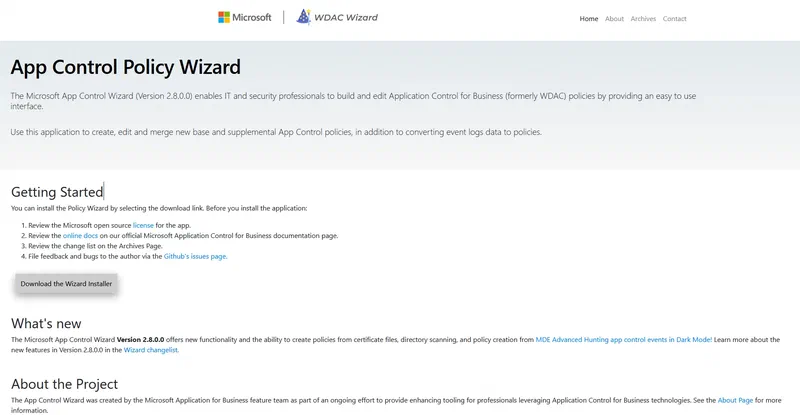
1. Create your base policy in audit mode (Policy Creator)
- Select Policy Creator.
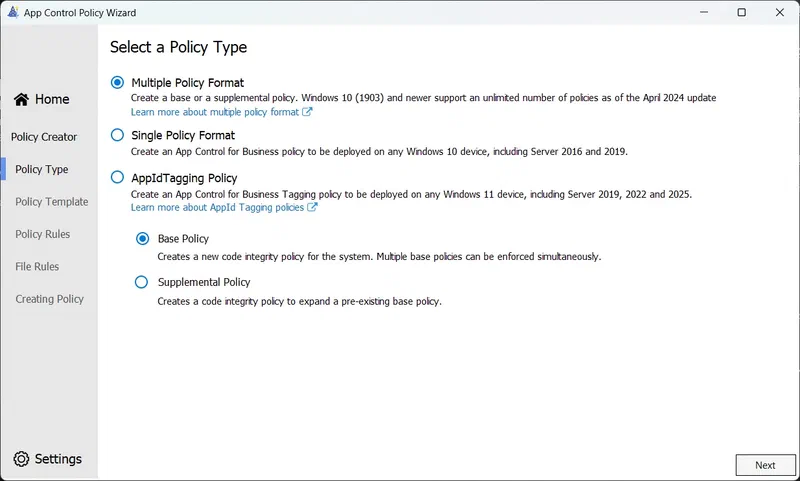
- On the Policy Type screen, select Multiple Policy Format and then Base Policy. Multiple Policy Format supports Windows 10 1903 and newer, including all modern Windows Server versions. Single Policy Format is for Windows Server 2016 and 2019 only. AppIdTagging is a different feature and not relevant here.
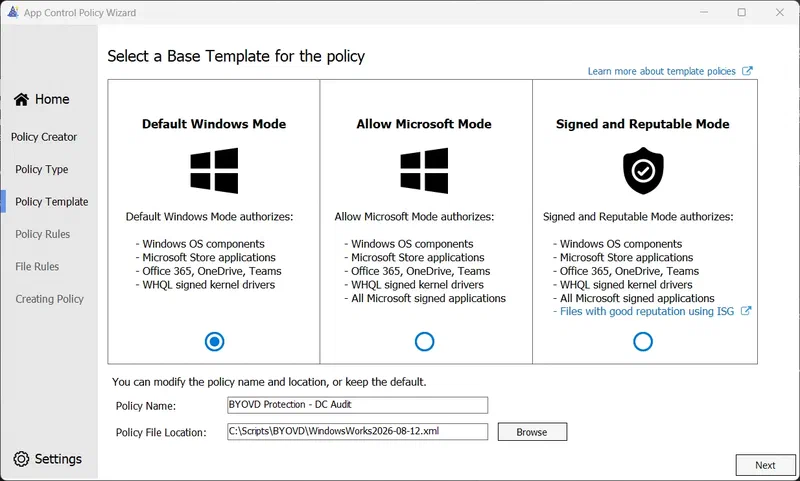
- Choose a template. For servers and DCs use Default Windows Mode, which allows Windows components, Store apps, and third-party WHQL-compatible drivers. Note: because it trusts WHQL-compatible drivers, an unknown vulnerable driver that passed WHQL could still load. For the tightest driver control, review and restrict the driver signing rules after creating the base policy. For workstations, Signed and Reputable Mode is a broader starting point that also trusts reputable signed software.
- Name the policy, for example
BYOVD Protection - DC Audit, and choose an output folder.
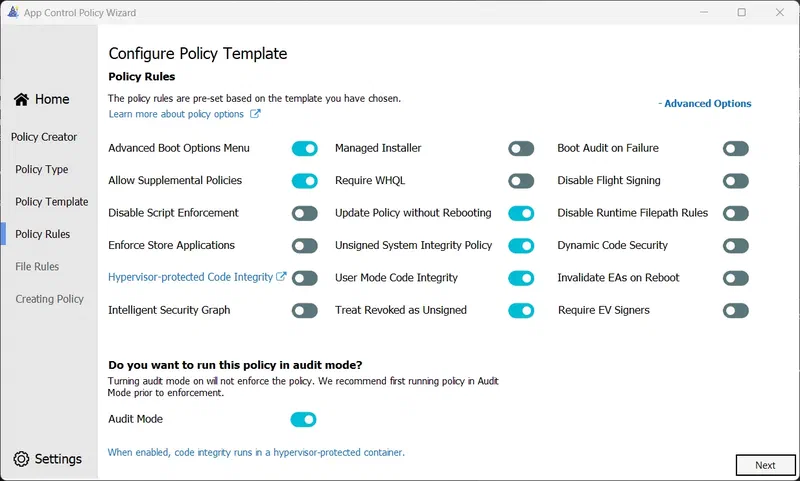
- On the Policy Rules page, leave Audit Mode enabled. No drivers are blocked yet while you collect data. Two specific toggles worth noting here:
- Hypervisor-protected Code Integrity is off by default. Leave it off. HVCI is managed separately through the Intune Settings Catalog policy in Step 2. Enabling it here as well creates a conflict in management scope.
- Require WHQL is off by default. Leaving it off does not introduce a gap. The driver block rules you merge in the next step add explicit deny entries for known-bad WHQL-compatible drivers, which is a more targeted approach than requiring WHQL for everything.
- On the File Rules page, add publisher rules for software you know runs on these assets. A standard DC may need nothing beyond the template defaults.
- Click Next. The wizard outputs both an
.xmlfile and a.cipbinary.
2. Merge the driver block rules (Policy Merger)
- On the welcome page, select Policy Merger.
- Add your base policy XML from the previous step.
- Add the driver block rules XML from aka.ms/VulnerableDriverBlockList.
- Set the output path and click Merge. The result allows your approved software and explicitly denies known-bad drivers.
3. Deploy in audit mode and collect events
DCs, file servers, and jump boxes are domain-joined, not Intune-managed. Deploy the compiled binary via PowerShell, either run directly or packaged as a startup script via Group Policy or SCCM targeting the relevant server OUs.
Convert the XML to binary. The filename must match the PolicyID GUID from inside the XML exactly. Use this snippet to extract it automatically:
$PolicyId = ([xml](Get-Content ".\MergedPolicy.xml")).SiPolicy.PolicyID
ConvertFrom-CIPolicy `
    -XmlFilePath ".\MergedPolicy.xml" `
    -BinaryFilePath ".\$PolicyId.cip"
Copy the binary to the target server and reboot:
Copy-Item ".\$PolicyId.cip" -Destination "C:\Windows\System32\CodeIntegrity\CiPolicies\Active\"
Restart-Computer
Monitor audit events in Advanced Hunting for two to four weeks:
DeviceEvents
| where ActionType == "AppControlCodeIntegrityPolicyAudited"
| where FileName endswith ".sys"
| where DeviceName in ("YourDC1", "YourDC2")
| project Timestamp, DeviceName, FileName, FolderPath, SHA256
| order by Timestamp desc
Review every driver that shows up. If everything is legitimate, proceed to enforcement.
4. Switch to enforcement (Policy Editor)
- In the wizard, select Policy Editor and load your merged policy XML.
- On the Policy Rules page, toggle Audit Mode off.
- The wizard saves a new versioned XML file, for example
MergedPolicy_v10.0.0.1.xml. - Convert to binary and redeploy using the same PowerShell steps above. The reboot activates enforcement.
Detection: catch the driver event before the kill
ASR vulnerable-driver activity
Start with the control itself. This query shows when the Block abuse of exploited vulnerable signed drivers ASR rule was triggered in Audit or Block mode.
DeviceEvents
| where Timestamp > ago(7d)
| where ActionType in (
    "AsrVulnerableSignedDriverAudited",
    "AsrVulnerableSignedDriverBlocked"
)
| project Timestamp, DeviceName, ActionType, FileName,
    FolderPath, InitiatingProcessFileName, SHA256
| order by Timestamp desc
Driver file dropped to an unusual location:
Legitimate driver installs rarely write .sys files to user-writable paths. This query catches the delivery step before the load.
DeviceFileEvents
| where Timestamp > ago(1d)
| where FileName endswith ".sys"
| where FolderPath has_any (
    "\\Temp\\", "\\AppData\\", "\\Users\\Public\\",
    "\\PerfLogs\\", "\\Downloads\\", "\\ProgramData\\"
)
| project Timestamp, DeviceName, FileName, FolderPath,
    InitiatingProcessFileName, SHA256
| order by Timestamp desc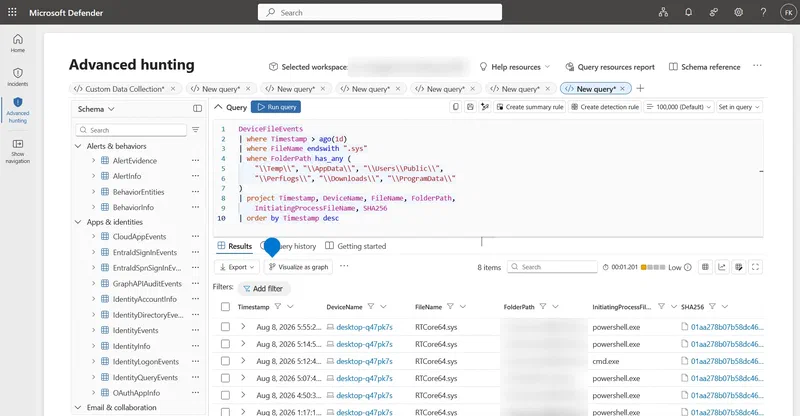
Behavioral BYOVD detection: correlate driver drop and load
Known hashes only catch drivers we have already seen. A stronger complementary approach is to correlate an unusual .sys file drop with a driver load shortly afterwards and prioritize drivers that are rare across the environment.
DeviceFileEvents
| where Timestamp > ago(7d)
| where FileName endswith ".sys"
| where FolderPath !startswith @"C:\Windows"
| where FolderPath !startswith @"C:\Program Files"
| where isnotempty(SHA1)
| project
    DropTime = Timestamp,
    DeviceId,
    DeviceName,
    SHA1,
    DriverFileName = FileName,
    DriverPath = FolderPath,
    DroppingProcess = InitiatingProcessFileName,
    DroppingProcessCommandLine = InitiatingProcessCommandLine
| join kind=inner (
    DeviceEvents
    | where Timestamp > ago(7d)
    | where ActionType == "DriverLoad"
    | where isnotempty(SHA1)
    | project
        LoadTime = Timestamp,
        DeviceId,
        SHA1,
        LoadedDriver = FileName,
        LoadedDriverPath = FolderPath
) on DeviceId, SHA1
| where LoadTime between (DropTime .. DropTime + 30s)
| project
    DropTime,
    LoadTime,
    DeviceName,
    DriverFileName,
    DriverPath,
    DroppingProcess,
    DroppingProcessCommandLine,
    LoadedDriver,
    LoadedDriverPath,
    SHA1
| order by DropTime desc
ktapi.sys and was.exe IOCs from the Hutchins/Expel report (June 2026):
The hashes below are published in the Expel investigation. Expel notes that the recovered ktapi.sys sample came from a third-party source and could not be confirmed as the exact copy used during the intrusion. Treat these hashes as hunting pivots rather than relying on hash-only blocking.
DeviceFileEvents| where Timestamp > ago(30d)| where FileName in~ ("ktapi.sys", "was.exe") or SHA256 in ( "7ee17efef04bb7c9de90d5210263ed6993f867e5a11f86e65e3bb1362c7de237", "9ca9432b0d29204cb5420a1a6b01533d4552130c2a8a5ecd7837efadefb4a046", "89ba754861e11d9db4440b2b5db61fd5bee16752e4623c4271b8fdd0a666c677", "c277ae5a4dd62f51de5278790796cd2700de7f77ea17762e97729f27872d076b" )| project Timestamp, DeviceName, FileName, FolderPath, InitiatingProcessFileName, SHA256| order by Timestamp descHunt for known LOLDrivers in MDE
LOLDrivers publishes a Microsoft Defender query that compares actual driver-load events against its live catalogue of vulnerable and malicious drivers. The query is credited by LOLDrivers to Mehmet Ergene (@Cyb3rMonk).
let LOLDrivers = externaldata (Category:string, KnownVulnerableSamples:dynamic, Verified:string ) [h@"https://www.loldrivers.io/api/drivers.json"]
    with (format=multijson, ingestionMapping='[{"Column":"Category","Properties":{"Path":"$.Category"}},{"Column":"KnownVulnerableSamples","Properties":{"Path":"$.KnownVulnerableSamples"}},{"Column":"Verified","Properties":{"Path":"$.Verified"}}]')
| mv-expand KnownVulnerableSamples
| extend SHA1 = tostring(KnownVulnerableSamples.SHA1), SHA256 = tostring(KnownVulnerableSamples.SHA256)
;
// you can filter the drivers further based on category or verified status
DeviceEvents
| where ActionType == "DriverLoad"
| join kind=inner (LOLDrivers | where isnotempty(SHA256)) on SHA256
| union (
  DeviceEvents
  | where ActionType == "DriverLoad"
  | join kind=inner (LOLDrivers | where isnotempty(SHA1)) on SHA1
)
This gives you a continuously updated hunt for known vulnerable or malicious drivers that were actually loaded in your environment.
Hunt for rare driver loads
A newly introduced driver that appears on only one or two systems deserves attention, particularly on servers and other assets with a stable driver baseline. Rarity is also one of the signals used in the Ransom-ISAC behavioral detection methodology.
DeviceEvents
| where Timestamp > ago(7d)
| where ActionType == "DriverLoad"
| where FileName endswith ".sys"
| summarize
    FirstSeen=min(Timestamp),
    LastSeen=max(Timestamp),
    Devices=dcount(DeviceId),
    DeviceList=make_set(DeviceName, 10)
    by SHA1, SHA256, FileName, FolderPath
| where Devices <= 2
| order by FirstSeen desc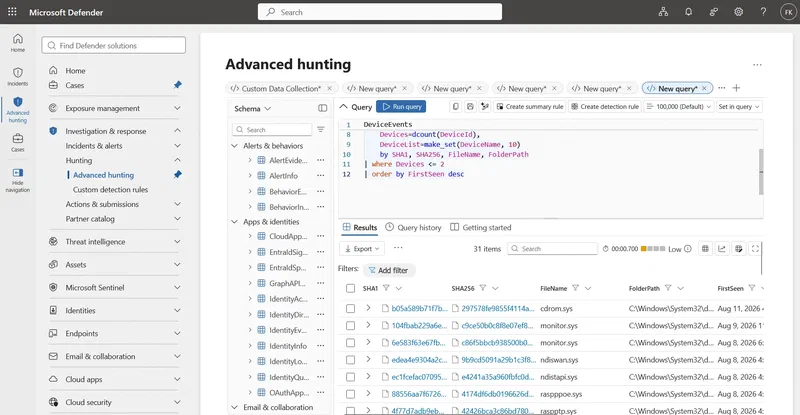
A more advanced variation published query by Bert-JanP identifies recently created driver files on an endpoint with low global prevalence. It then cross-references these files with Windows Event ID 3004, where Windows Code Integrity validates the digital signature of kernel-mode drivers during memory loading. This detection can potentially highlight BYOVD (Bring Your Own Vulnerable Driver) scenarios.
let DriverwithLowPrevalence =
DeviceFileEvents
| where ActionType == "FileCreated"
| where FileName endswith ".sys"
| invoke FileProfile(SHA1,1000)
| where GlobalPrevalence <= 150 or isempty(GlobalPrevalence)
| join kind=leftouter DeviceFileCertificateInfo on SHA1
| project FileName;
DeviceEvents
// Event ID 3004 - Kernel-mode Driver Validation
| where ReportId == "3004"
| where ActionType == @"DriverLoad"
| where FileName has_any(DriverwithLowPrevalence)
Kernel driver registration through sc.exe
Many BYOVD chains register the vulnerable driver as a kernel service before loading it. Hunting for explicit sc.exe create ... type= kernel activity gives you another attack-chain signal that does not depend on a known driver hash.
DeviceProcessEvents
| where Timestamp > ago(30d)
| where FileName =~ "sc.exe"
| where ProcessCommandLine has "create"
| where ProcessCommandLine has "type= kernel"
| project
    Timestamp,
    DeviceName,
    AccountName,
    ProcessCommandLine,
    InitiatingProcessFileName,
    InitiatingProcessCommandLine
| order by Timestamp desc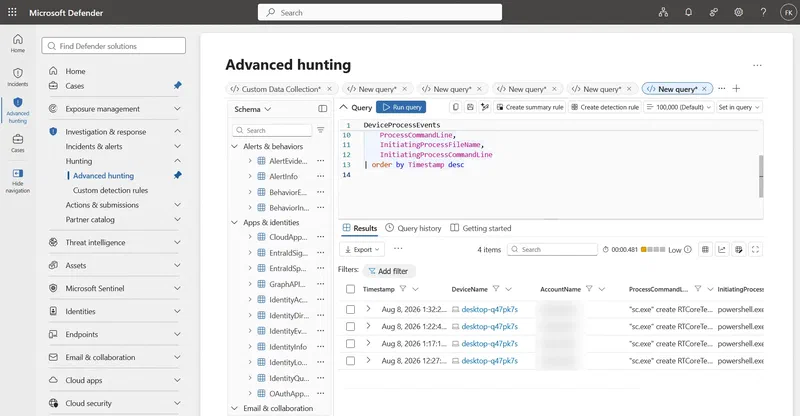
Ransom-ISAC also identifies service/driver loading and the surrounding process chain as useful telemetry when investigating BYOVD activity.
Low-prevalence driver followed by tampering
A particularly interesting correlation is a rare driver being loaded on a device followed by Defender tampering activity. SlimKQL published this approach specifically for detecting EDR-killing tooling that uses BYOVD.
let DriverwithLowPrevalence =
DeviceFileEvents
| where ActionType == "FileCreated"
| where FileName endswith ".sys"
| invoke FileProfile(SHA1, 1000)
| where GlobalPrevalence <= 150 or isempty(GlobalPrevalence)
| join kind=leftouter DeviceFileCertificateInfo on SHA1
| project FileName;

let DevicewithLPDriverActivated =
DeviceEvents
| where ActionType == "DriverLoad"
| where FileName has_any(DriverwithLowPrevalence)
| distinct DeviceName;

DeviceEvents
| where ActionType == "TamperingAttempt"
| where DeviceName in (DevicewithLPDriverActivated)
| project Timestamp, DeviceName, ActionType, FileName, AdditionalFields
| order by Timestamp desc
This is a higher-confidence hunt than rarity alone because it combines a low-prevalence kernel driver with subsequent security-control tampering.
Security-tool termination
BYOVD is often used specifically to disable EDR or antivirus processes. This query looks for common command-line attempts to stop security tooling. Adjust the process names to match the products deployed in your environment.
DeviceProcessEvents
| where Timestamp > ago(1d)
| where ProcessCommandLine has_any (
    "sc stop",
    "taskkill /F",
    "net stop"
)
| where ProcessCommandLine has_any (
    "MsMpEng",
    "Sense",
    "WdNisSvc",
    "CSFalconService",
    "SentinelAgent",
    "SepMasterService",
    "mbamservice",
    "Sophos"
)
| project
    Timestamp,
    DeviceName,
    AccountName,
    ProcessCommandLine,
    InitiatingProcessFileName,
    InitiatingProcessCommandLine
| order by Timestamp desc
This is not BYOVD-specific, but it is useful as a supporting signal and also catches simpler user-mode EDR-killing attempts.
Gentlemen-specific hunting
Finally, keep one campaign-specific hunt. ESET observed the Gentlemen ransomware operation staging tooling under GentlemenCollection, while the later Expel investigation documented ktapi.sys being used against EDR.
DeviceFileEvents
| where Timestamp > ago(30d)
| where FileName in~ ("ktapi.sys", "was.exe")
    or FolderPath contains "GentlemenCollection"
    or InitiatingProcessFolderPath contains "GentlemenCollection"
| project
    Timestamp,
    DeviceName,
    FileName,
    FolderPath,
    SHA1,
    SHA256,
    InitiatingProcessFileName,
    InitiatingProcessCommandLine
| order by Timestamp desc
One more thing worth mentioning here: if you are streaming telemetry to Microsoft Sentinel, events that have already left the endpoint before the EDR kill are still available in Sentinel even if Advanced Hunting goes dark. Getting telemetry off-box quickly is a meaningful compensating control when the on-box agent is compromised.
What to do when this fires
The detection section above establishes that BYOVD activity is a pre-encryption signal. That changes how you respond. You are not investigating an isolated event. You are racing encryption.
If you see any of the following: an ASR vulnerable driver block, an attempted driver-based tamper alert, an unexplained loss of MDE sensor telemetry, or an EDR process termination event, treat it as a high-severity ransomware precursor and act immediately.
Immediate steps:
- Isolate the host. Use MDE device isolation if the sensor is still alive. If the EDR agent has already been killed, device isolation may not be available. Have an out-of-band containment path ready through your network layer, NAC, firewall policy, or virtualisation platform. Do not assume MDE isolation is still functional once a kill event has fired.
- Investigate how admin was obtained. BYOVD requires local admin. Look for credential theft, lateral movement, and privilege escalation activity in the hours before the driver event.
- Hunt estate-wide immediately. Search for the same driver filename, hash, and service name across all enrolled devices. A single detection likely means the attacker has already moved laterally.
- Check whether other devices stopped reporting. If the EDR sensor was killed on one device, look for devices that went silent around the same time.
- Revoke compromised credentials. If the attacker reached local admin via credential theft, assume those credentials are compromised across the environment.
- Preserve evidence where it does not delay containment. Memory, event logs, and the driver binary are valuable. Do not delay isolation of an actively compromised system to collect them. Containment comes first.
What MDE alerts fire when this happens
Even when BYOVD is attempted, MDE will raise alerts at the tamper layer before or during the attack if it catches the behavior. Knowing the alert titles helps you recognize them in your queue and triage them appropriately.
Alert titles you may see related to BYOVD and EDR kill attempts:
- Attempt to bypass Microsoft Defender for Endpoint client protection
- Attempt to stop Microsoft Defender for Endpoint sensor
- Attempt to tamper with Microsoft Defender on multiple devices
- Attempt to turn off Microsoft Defender Antivirus protection
- Suspicious driver installation detected
For the vulnerable signed driver rule specifically, Microsoft’s ASR reference confirms that the activity is surfaced through the ASR Report and Advanced Hunting rather than as a dedicated EDR alert. Separate Defender tamper and suspicious-driver detections can still generate alerts when related behavior is detected:
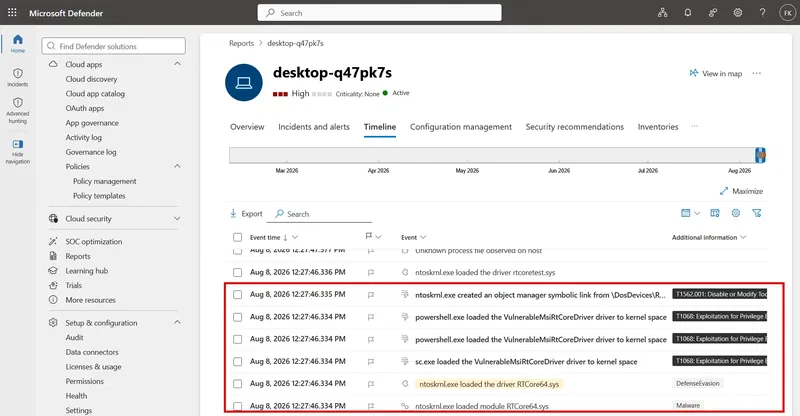
If your Sentinel workspace is connected, these tamper alerts will also appear as SecurityAlert records from the MicrosoftDefenderForEndpoint source, queryable via:
SecurityAlert
| where ProductName has "Microsoft Defender"
| where AlertName has_any (
    "Attempt to bypass",
    "Attempt to stop",
    "tamper with Microsoft Defender",
    "Suspicious driver"
)
| project TimeGenerated, AlertName, AlertSeverity, Entities, Description
| order by TimeGenerated desc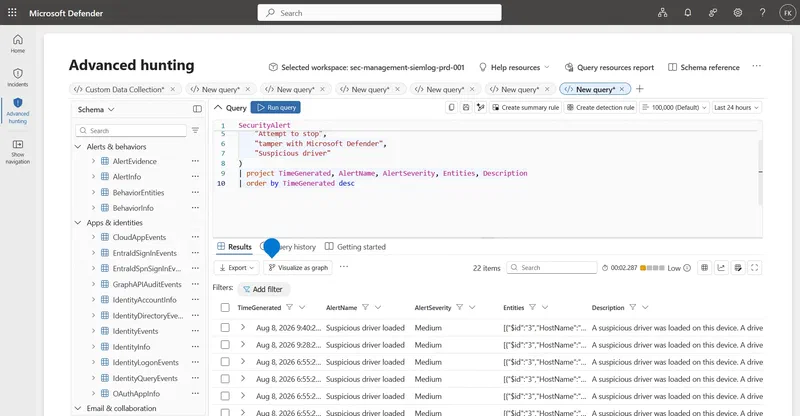
Validate your coverage across the fleet
Check your Secure Score in the Defender portal under Secure Score > Improvement actions, filtered by Device. It surfaces HVCI and ASR rule gaps as scored improvement actions with implementation guidance.
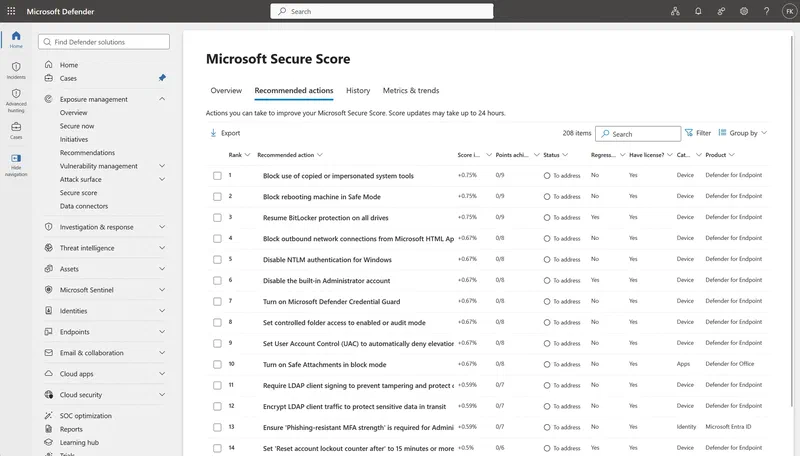
Coverage percentages per rule are also visible there. A 95% coverage reading means 5% of devices are not receiving the policy, which is worth understanding before you call it done.
Intune Security Baselines as a shortcut:
The Windows Security Baseline and MDE Baseline in Intune ship with HVCI and several core ASR rules pre-configured. If you are not already using them, check Endpoint security > Security baselines before manually configuring everything in this post. Step 3 still needs to be done manually, but the baselines close a lot of ground quickly.
Non-BYOVD EDR killers: the parallel trend to watch
BYOVD is not the only method in use. Several 2026 reports documented EDR killers that work without loading any kernel driver. Techniques include:
- Process suspension: repeatedly suspending EDR agent threads to avoid the process restart watchdog
- WFP-based blocking: using Windows Filtering Platform rules to block the EDR agent’s network traffic, cutting off telemetry without killing the process
- Handle manipulation: obtaining handles to protected processes through indirect means to inject or manipulate memory
The service termination query in the detection section catches some of these. HVCI and App Control do not protect against them. They require their own detection logic.
Troubleshooting
ASR rule is not triggering anything after deployment:
- Confirm Microsoft Defender Antivirus is in active mode. ASR does not function in passive mode.
- Confirm cloud-delivered protection is enabled. Several ASR rules depend on it, including this one.
- Allow 30 minutes for Intune policy sync after creation. Check rule status under Endpoint security > Attack surface reduction in the Intune portal.
- Run a test: use a known vulnerable driver hash from LOLDrivers.io in a test environment to confirm the rule fires before declaring production clean.
HVCI shows “Not enabled” after policy deployment:
- The most common cause is an incompatible driver. Check Event Viewer under System for Code Integrity or Hyper-V related warnings immediately after the policy applies and the device reboots.
- Check that VBS (Virtualization Based Security) itself is running in
msinfo32before HVCI. HVCI depends on VBS; if VBS is not active, HVCI cannot start. - Some devices require UEFI settings changes (enable Secure Boot and virtualization extensions) before VBS can activate. Check BIOS/UEFI for Intel VT-x or AMD-V, and for Secure Boot status.
- HVCI with UEFI lock requires a reboot to fully activate. Do not check immediately after policy sync, check after reboot.
Blocklist policy (SiPolicy.p7b) did not apply:
- Verify the file is in
%windir%\system32\CodeIntegrityon the target machine. - Run the refresh tool as an administrator, not as a standard user.
- Check for Event ID 3099 in the CodeIntegrity Operational log. If absent, the policy did not activate. If present but with unexpected policy names, you may have a policy conflict with an existing App Control policy on the machine.
A legitimate driver is being blocked by the blocklist:
- Do not exclude it by adding a hash exception to the ASR rule. The right fix is updating the driver to a version that is not on the blocklist.
- Contact the vendor for an updated driver version. If none exists yet, work with the vendor on getting the block lifted from the Microsoft blocklist for patched versions via the Microsoft Security Intelligence Driver Submission portal (link in references).
- As a temporary measure, apply the blocklist in audit mode while working through the vendor update.
References
- Attack surface reduction rules reference – Microsoft Learn
- Microsoft recommended driver block rules – Microsoft Learn
- Enable virtualization-based protection of code integrity (HVCI) – Microsoft Learn
- App Control for Business overview – Microsoft Learn
- Tamper resiliency in Microsoft Defender for Endpoint – Microsoft Learn
- Credential Guard overview – Microsoft Learn
- App Control Wizard (formerly WDAC Wizard)
- LOLDrivers.io – living off the land drivers catalogue
- ESET: Killing me gently – Inside Gentlemen’s EDR killer framework (June 2026)
- Marcus Hutchins / Expel: Not very gentlemanly – Analyzing a zero-day exploit used by The Gentlemen ransomware to disable targets’ EDRs (June 2026)
- Expel: The feature that stops BYOVD – App Control for Business deployed via Active Directory
- Huntress: How attackers disable AV and EDR (May 2026)
- The Hacker News: 54 EDR killers use BYOVD to exploit 35 signed vulnerable drivers (March 2026)
- Microsoft Vulnerable Driver Blocklist download
- Microsoft Security Intelligence Driver Submission
Conclusion
None of these four controls is enough on its own, and they are not all equal in priority either.
The ASR rule stops a vulnerable driver from being written to disk but not one already sitting on the system. The blocklist stops known-bad drivers from loading, but on devices where HVCI is already active the built-in OS blocklist is already running. The standalone version adds completeness for a small number of additional entries and is most important for devices where HVCI cannot run. HVCI hardens kernel execution, constrains exploit primitives, and enforces the blocklist automatically. It is the most impactful control to deploy for most environments but it does not prevent a legitimately signed vulnerable driver from loading. App Control gives you the strongest guarantee of all, because it controls which drivers are admitted in the first place.
Put together: ASR in Block mode closes the delivery step. HVCI enforced fleet-wide hardens kernel execution and gives you blocklist coverage automatically. The standalone driver block list covers devices where HVCI is not running. App Control for Business on your highest-risk assets removes the dependency on any list entirely, covering even zero-day drivers no blocklist has seen yet.
From an MDR perspective, I treat HVCI status and ASR vulnerable-driver-rule Block coverage as fleet-wide metrics tracked on a dashboard, not one-time onboarding checkboxes. Gentlemen adopted two new BYOVD techniques within days of their public release. The blocklist updates quarterly, with additional entries delivered through monthly Windows Update servicing. That gap is real and it drifts faster than most environments expect if nobody is watching it.
Have a question or something to add? Drop it in the comments below.

Comments
Comments need JavaScript to load.
Leave a comment
Comments are moderated and appear after approval. Plain text only; links are shown but not clickable.