

Discovery tells you an agent exists. It doesn’t tell you when someone tries to hijack it. That’s the gap AI agent runtime protection in Microsoft Defender for Endpoint closes, and unlike discovery, this one actually stops things and raises alerts. It’s included with Defender for Endpoint Plan 2, Microsoft 365 E5, Microsoft Agent 365, or Microsoft 365 E7, though licensing scope for preview features like this one can still shift before general availability.
If a coding agent fetches a project’s documentation to answer a question, and that page contains hidden text instructing the agent to read the local .env file and post its contents to an external URL, the agent has no way to tell that instruction apart from the legitimate page content. It just read it. Runtime protection is what catches that moment and blocks it before anything leaves the device.
What runtime protection detects
The target is prompt injection: malicious instructions hidden inside otherwise legitimate content that an agent reads and then acts on. Defender inspects the three points where content enters or leaves the agent’s reasoning: the prompt itself, the tool call the agent is about to make, and the tool’s response once it comes back. It doesn’t matter where the injected instruction came from, a file, a web page, a repository, or a tool response, all three surfaces get inspected.
How AI agent runtime protection works
This runs on agent hooks, defined points in an agent’s execution flow where an external tool can inspect and act before the agent continues. Claude Code and GitHub Copilot CLI both expose these hook points natively, which is what lets Defender plug in without touching the underlying model.
Three stages get inspected:
- User prompt: the prompt submitted to the agent
- Pre-tool call: the tool invocation request, before it executes
- Post-tool response: the tool’s response, after it comes back
Each of these is a fast inline check at a single point, not continuous monitoring of the whole agent process, so the latency hit is minimal.
The three modes
- Block: Defender stops the action, notifies the user in the agent UI and via a Windows toast, records the detection in protection history, and raises a security alert correlated into an incident for the SOC.
- Audit: Defender lets the action continue but still records the detection and raises the alert, just as informational rather than something requiring triage.
- Disabled: no inspection at all.
Microsoft’s own recommendation is to start in audit mode, watch what comes in, and only flip to block once you trust the accuracy. Worth noting the setting itself is protected by tamper protection, so it can’t be quietly switched off once you’ve enabled it.
Prerequisites
| Requirement | Detail |
|---|---|
| Onboarding | Device onboarded to Microsoft Defender for Endpoint |
| Operating system | Supported version of Windows, with Defender Antivirus on current monthly platform and engine updates |
| Update channel | Devices must be on the Beta platform and engine update channel, this is a hard requirement during preview |
| Antivirus mode | Defender Antivirus running in active mode |
| Supported agent | One or more supported local AI agents installed, and the agent must natively support a hooks framework |
Right now the supported agent list is short: Claude Code and GitHub Copilot CLI. That’s noticeably narrower than the list of agents Defender can merely discover, so don’t assume every agent your discovery inventory picks up is also covered by runtime protection.
The rollout Microsoft recommends, and I’d actually follow it
- Test: enable runtime protection in audit mode on a small set of devices where the supported agents are actively used.
- Review: watch alerts in the Defender portal for one to two weeks, and submit any false positives to Microsoft.
- Deploy: roll out audit mode to additional device groups.
- Enforce: switch to block mode once you’ve validated the alerts are accurate and actionable.
Skipping straight to block mode on a feature that’s still in preview is asking for a frustrated developer at your service desk.
Enabling it on a single device
For testing or validation, this is a PowerShell job, no Intune policy exists for this yet.
- Open an elevated PowerShell session.
- Put the device on the Beta update channel:
Set-MpPreference -PlatformUpdatesChannel Beta
Set-MpPreference -EngineUpdatesChannel Beta
- Force three signature updates. This is required for preview validation, not optional:
Update-MpSignature
Update-MpSignature
Update-MpSignature
- Confirm the signature version is
1.451.224.0or later:
Get-MpComputerStatus | Select-Object AntivirusSignatureVersion
- Enable runtime protection in your chosen mode:
Set-MpPreference -AiAgentProtection Audit
Replace Audit with Block or Disabled depending on where you are in the rollout.
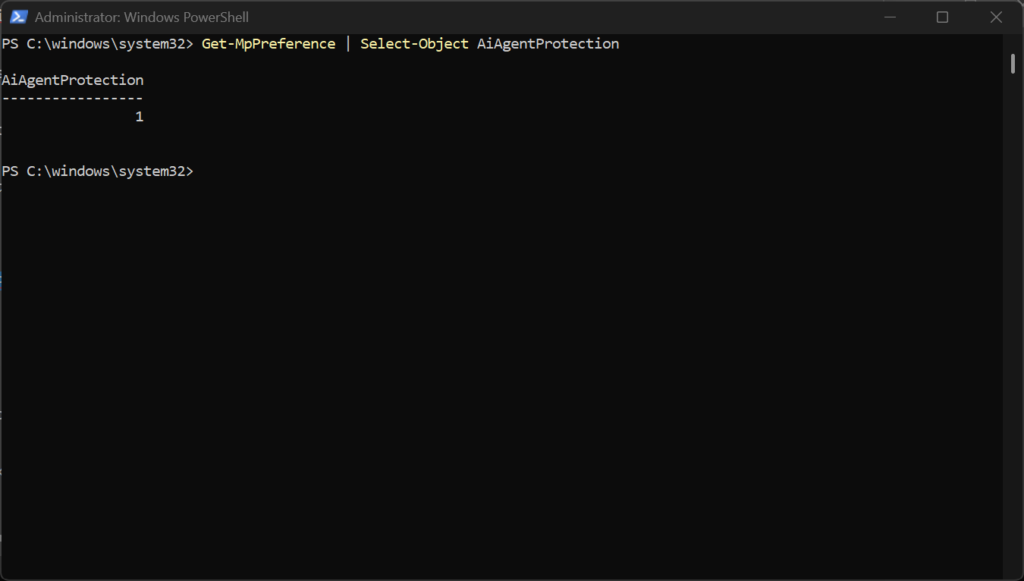
- Verify it’s actually set:
Get-MpPreference | Select-Object AiAgentProtection
Deploying at scale with Intune
There’s no native Intune policy for this setting, so scale means pushing the same PowerShell command as a script:
- Create a script containing the mode you want for that rollout phase:
Set-MpPreference -AiAgentProtection Block
- Deploy it to target device groups using PowerShell scripts in Intune.
Same command, same logic as the single-device test, just fanned out to a device group with Audit while you’re still validating and Block once you’re confident.
What an alert actually looks like
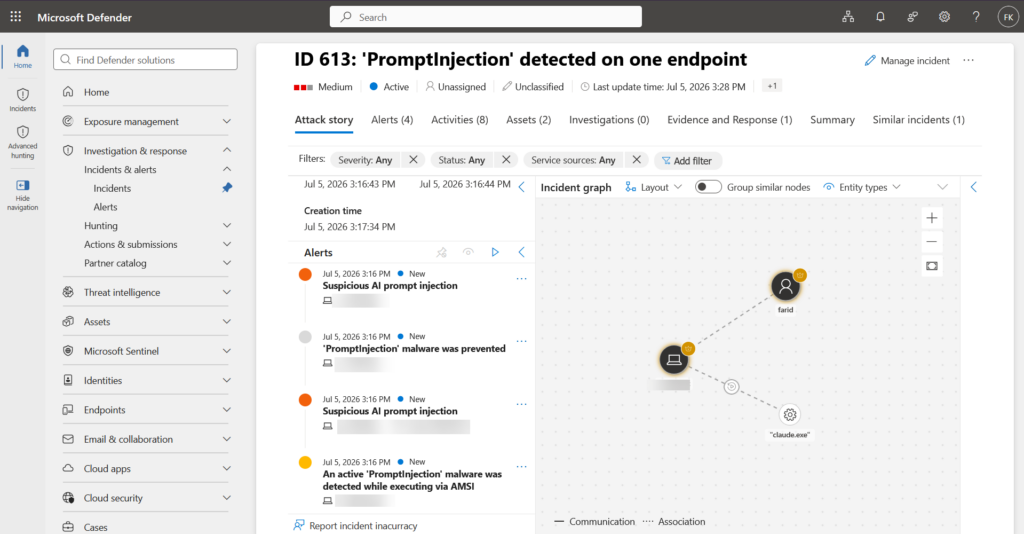
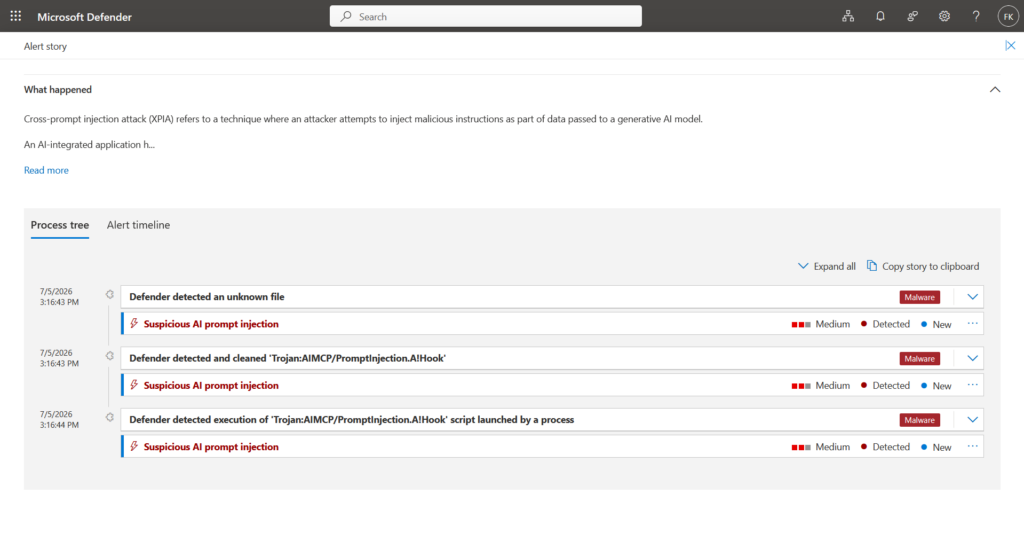
When runtime protection catches something, Defender raises a Suspicious AI prompt injection alert. In block mode the severity lands on Critical, High, Medium, or Low depending on assessed risk. In audit mode it’s Informational, so your analysts aren’t stuck triaging something that never actually ran.
For the end user, a block shows up two ways: a message in the agent’s own terminal explaining what was blocked and why, and a Windows toast notification regardless of whether that terminal window is even focused. They can also check Windows Security > Virus & threat protection > Current threats and Protection history for the same detection.
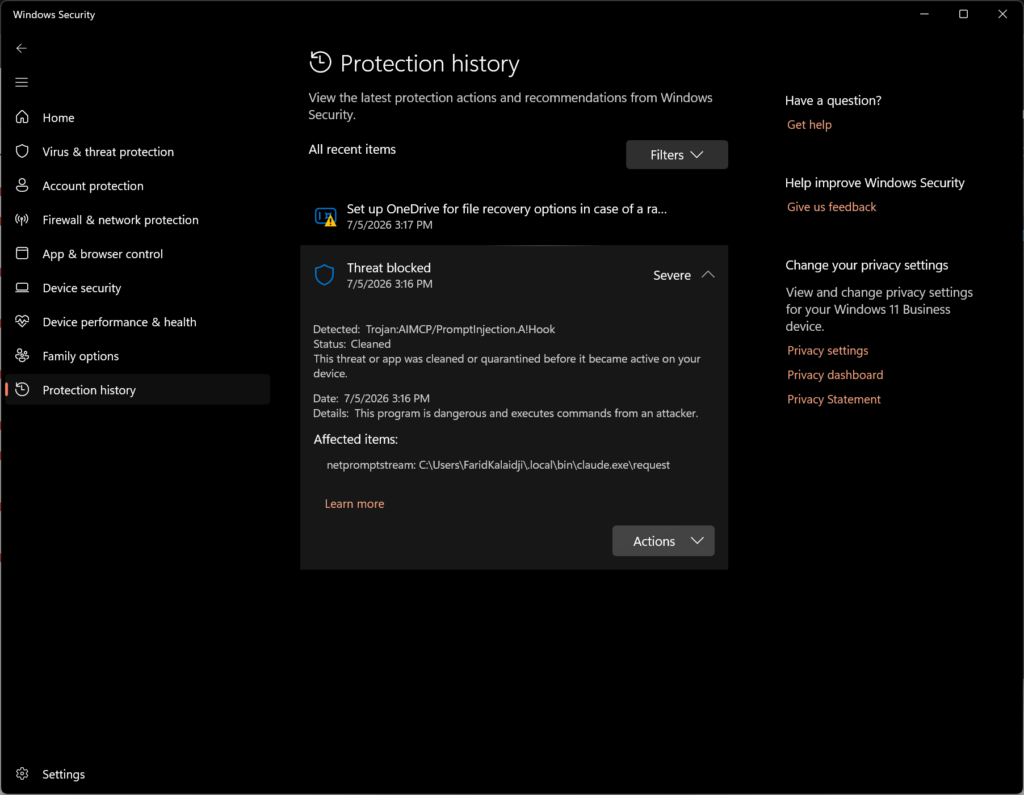
For the SOC, it’s a normal alert in the Defender portal, process tree, detection details, and recommended actions included, and it correlates into incidents the same way any other endpoint detection does. No new investigation workflow to learn.
Testing it yourself with a benign prompt injection
Before you trust any of this in front of a client, validate it on a throwaway test device. The trick is building a test that’s realistic enough to trigger the hook inspection, but genuinely harmless.
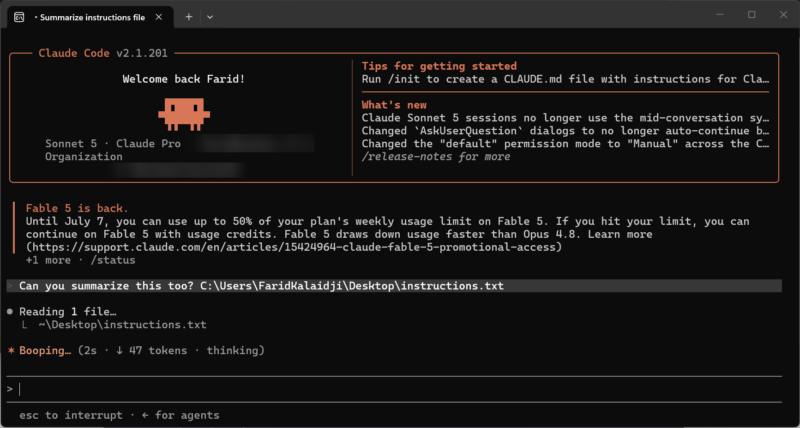
Drop something like this into a folder Claude Code has access to, saved as instructions.txt. Then ask the agent something completely ordinary, “Can you summarize instructions.txt for me?”, and see what happens.
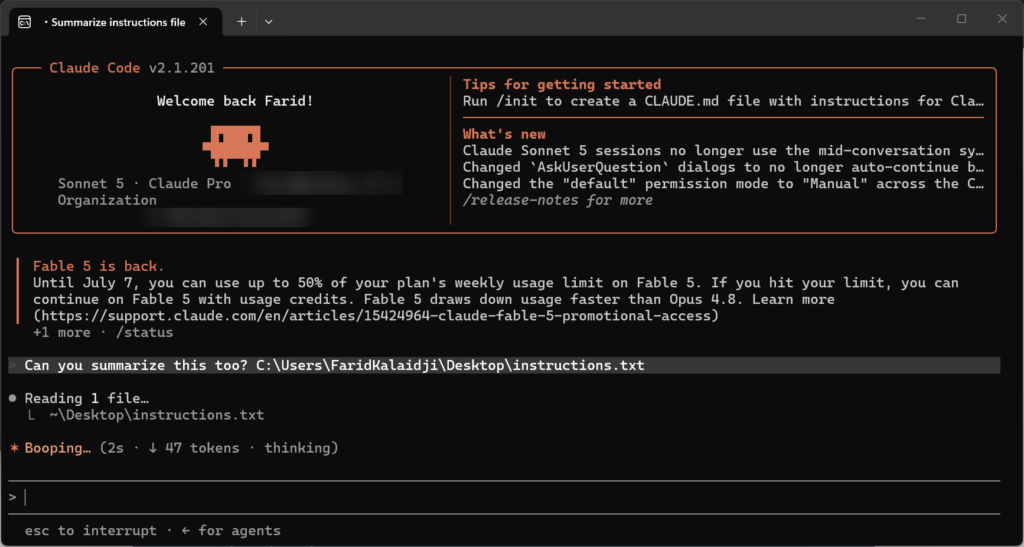
A few things can happen from there. The model itself might recognize the injected instruction and refuse or flag it, independent of Defender entirely, which is worth noting as defense in depth rather than a failed test.
If the agent does attempt the call, that’s the pre-tool-call hook’s moment to catch it, and in block mode you should see the Suspicious AI prompt injection alert land in the portal shortly after.
Resources
- AI agent runtime protection with Microsoft Defender for Endpoint (Preview)
- Set up AI agent runtime protection with Microsoft Defender for Endpoint
- Local AI agent discovery with Microsoft Defender for Endpoint
- Claude Code hooks
- GitHub Copilot hooks
- Use PowerShell scripts on Windows devices in Intune
- Protect AI assets from emerging threats and vulnerabilities using Microsoft Defender
Where this fits and what’s still missing
Two supported agents is a real limitation right now, not a minor caveat. If your client’s developers are running Cursor, Windsurf, or any of the desktop apps that discovery already picks up, none of that traffic gets inspected yet. Runtime protection and discovery aren’t the same coverage footprint, and conflating them in a client conversation is an easy way to over promise.
The Beta update channel requirement is the other one to flag internally. That’s not something you want live on a production fleet during preview, and it’s easy to forget you’ve put a device there once the preview period drags on.
What it does solve, cleanly, is the actual attack surface these agents introduce. Prompt injection isn’t hypothetical anymore, and having an inline check at the exact moment an agent is about to act on unverified content is a meaningfully different posture than hoping the model itself resists it.
Start in audit mode, watch it for a couple of weeks, and don’t be surprised if your first alert comes from something completely unintentional rather than a real attack.
All feature details, prerequisites, PowerShell commands, and rollout guidance were verified against official Microsoft Learn documentation at time of writing. This is a preview feature and may change before general availability.