

If you’ve read my Microsoft Sentinel data lake implementation guide, you know I covered a DCR-based workaround for storing Defender XDR Advanced Hunting data long-term without paying full analytics tier ingestion costs.
The approach: enable the XDR connector and use a Workspace Transformation DCR to redirect data from the original XDR table into that custom table. It worked — the analytics tier was skipped and data landed in the lake at a much lower cost.
But it was a workaround. You had to create and maintain custom tables, manually map schemas, and keep the transformation DCR in sync with any table changes. The XDR connector still needed to be active, and the whole setup was kind of fragile compared to a native solution.
This month Microsoft made that workaround obsolete 🙂
Lake-only ingestion for Defender XDR Advanced Hunting tables is now generally available. You can configure supported tables to stream directly into the Sentinel data lake from the Defender portal — no custom tables, no DCR, no schema mapping to maintain. The same outcome, natively supported.
This post covers what changed, which tables are supported, the key limitations to understand before switching, and a step-by-step configuration walkthrough the portal.
The problem with the old approaches
Before this release, there were four ways to handle Defender XDR Advanced Hunting data in Sentinel:
| Approach | How it worked | Downside |
|---|---|---|
| XDR default (30 days) | Data stays native in Defender XDR | No long-term retention |
| Extend to 90 days in analytics tier | Included free in XDR license, data ingested into Log Analytics | Still limited to 90 days, goes through analytics tier |
| Analytics tier via XDR connector | Set retention > 30 days, data ingested into Log Analytics + mirrored to lake | Full analytics ingestion cost |
DCR workaround (custom _CL table) | Workspace Transformation DCR redirects XDR data to a custom lake-only table | Analytics cost avoided, but complex: custom tables, schema mapping, DCR maintenance |
| Lake-only ingestion (GA Feb 2026) | Data streams directly from XDR to Sentinel data lake | No analytics ingestion cost, no DCR, no custom tables |
What lake-only ingestion actually means
When you configure a table for lake-only ingestion, a copy of the data is streamed directly from Defender XDR into the Sentinel data lake tier. The data never touches the analytics tier in your Log Analytics workspace.
Defender XDR still retains the data in its own native tier for 30 days. Advanced Hunting in the Defender portal continues to work normally for that window. Custom detection rules and automated response rules are unaffected.
What changes is what happens beyond 30 days: instead of the data disappearing or requiring an expensive analytics pipeline, a copy flows continuously into the data lake for up to 12 years. There are important limitations to understand before switching — see the limitations section below.
Supported tables at GA
Lake-only ingestion is supported for the following Defender XDR Advanced Hunting tables across three Defender workloads. Microsoft Defender for Identity (MDI) and (UEBA) behaviors support is not yet available but is on the roadmap.
Defender for Endpoint (MDE)
| Table | What it contains |
|---|---|
| DeviceInfo | Device inventory, OS details, domain membership, and sensor health per device |
| DeviceNetworkInfo | Network adapters, IP addresses, MAC addresses, and DNS configuration per device |
| DeviceProcessEvents | Process creation events including parent/child process relationships and command lines |
| DeviceNetworkEvents | Outbound and inbound network connections including remote IPs, ports, and protocols |
| DeviceFileEvents | File creation, modification, and deletion events across monitored endpoints |
| DeviceRegistryEvents | Registry key and value creation, modification, and deletion events |
| DeviceLogonEvents | Interactive and remote logon events including logon type and account details |
| DeviceImageLoadEvents | DLL and driver load events per process — high volume, rarely used for real-time detection |
| DeviceEvents | Broad category of additional endpoint events not covered by dedicated tables |
| DeviceFileCertificateInfo | Certificate information for signed files observed on endpoints |
Defender for Office 365 (MDO)
| Table | What it contains |
|---|---|
| EmailAttachmentInfo | File attachments in emails including name, size, SHA256, and malware verdict |
| EmailEvents | Email delivery events including sender, recipient, subject, and delivery action |
| EmailPostDeliveryEvents | Actions taken on emails after delivery, such as manual remediation or ZAP |
| EmailUrlInfo | URLs found in emails and their associated threat verdicts |
| UrlClickEvents | User clicks on URLs in emails, Teams messages, and Office documents |
Defender for Cloud Apps (MDA)
| Table | What it contains |
|---|---|
| CloudAppEvents | Activity events across connected SaaS applications including OAuth, file access, and admin actions |
Prerequisites
Before configuring lake-only ingestion, the following must be in place:
| Requirement | Details |
|---|---|
| Sentinel data lake enabled | Must be provisioned in your tenant. See my implementation guide if you haven’t set this up yet. |
| Sentinel workspace connected to Defender portal | The table management experience is only available in the unified Defender portal. |
| Microsoft Sentinel contributor role or higher | Required to modify table retention and tier settings. |
| Defender portal only | This configuration is not available in the Azure portal. |
How to configure lake-only ingestion (step by step)
The entire configuration lives in the Defender portal under table management. No DCR creation, no Azure Monitor Agent, no connector deployment in the Azure portal.
Step 1 — Open table management
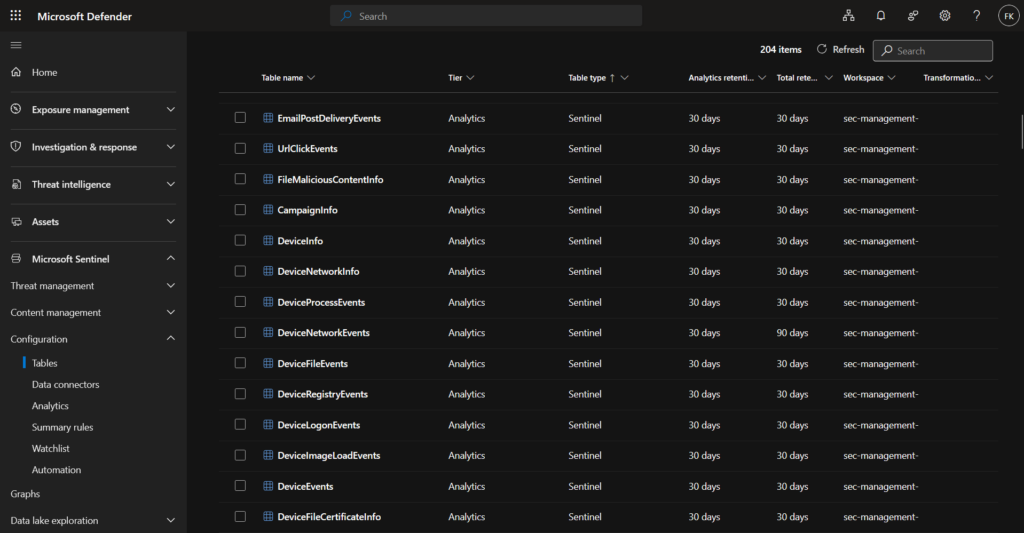
In the Defender portal, expand Microsoft Sentinel in the left navigation bar. Go to Configuration > Tables.
Step 2 — Find the table you want to configure
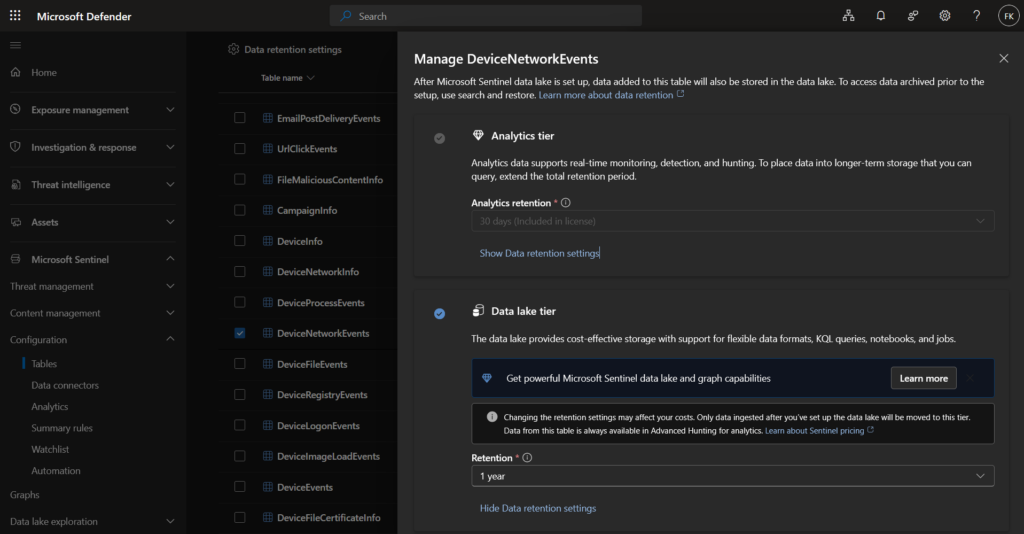
Use the search bar to filter by table name, for example DeviceNetworkEvents. The overview shows the current tier, analytics retention, and total retention for all tables in your workspace.
Step 3 — Open data retention settings
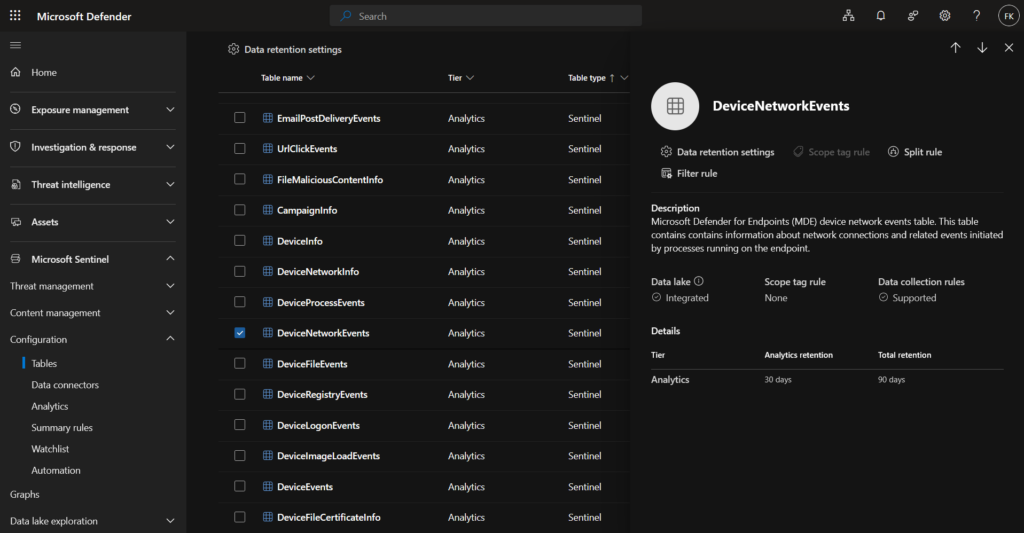
Select the table to open the side panel, then click Data retention settings.
Step 4 — Select data lake tier
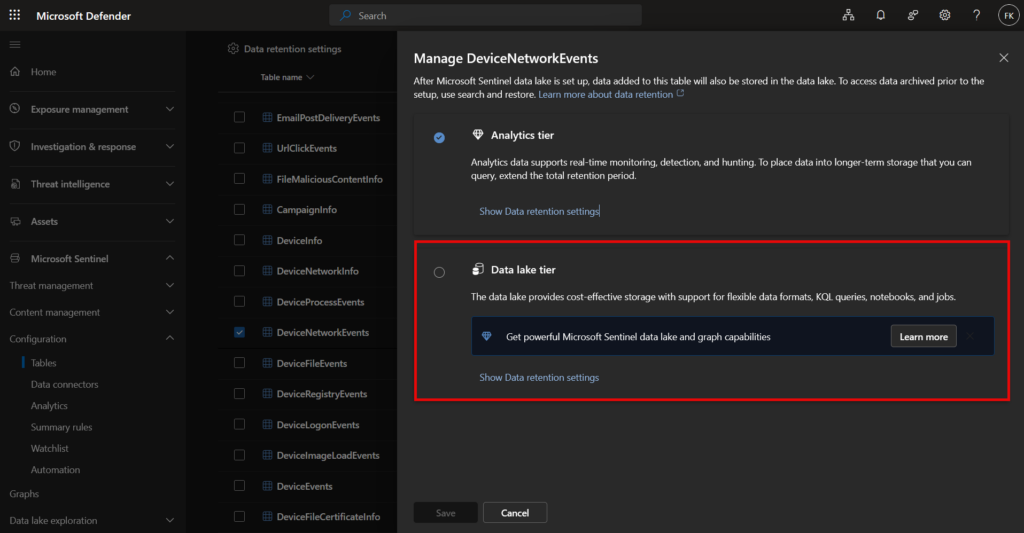
In the retention settings panel, select the Data lake tier option. You will notice that the analytics retention control is locked at 30 days — this is the included XDR license retention. Set the total retention period you want in the data lake (up to 12 years).
Step 5 — Save
Click save. New data will start flowing directly into the data lake. Expect a delay of 90–120 minutes before data appears in the lake.
Note: switching to data lake tier only applies to new incoming data. Existing data already in the analytics tier is not moved or back filled. If you previously had a table ingesting into the analytics tier and want to migrate, plan the transition window accordingly.
How to query data in lake-only tables
Data in the data lake tier is not available through the regular Sentinel Logs blade or through Log Analytics workspace queries. You access it through the data lake exploration experience in the Defender portal.
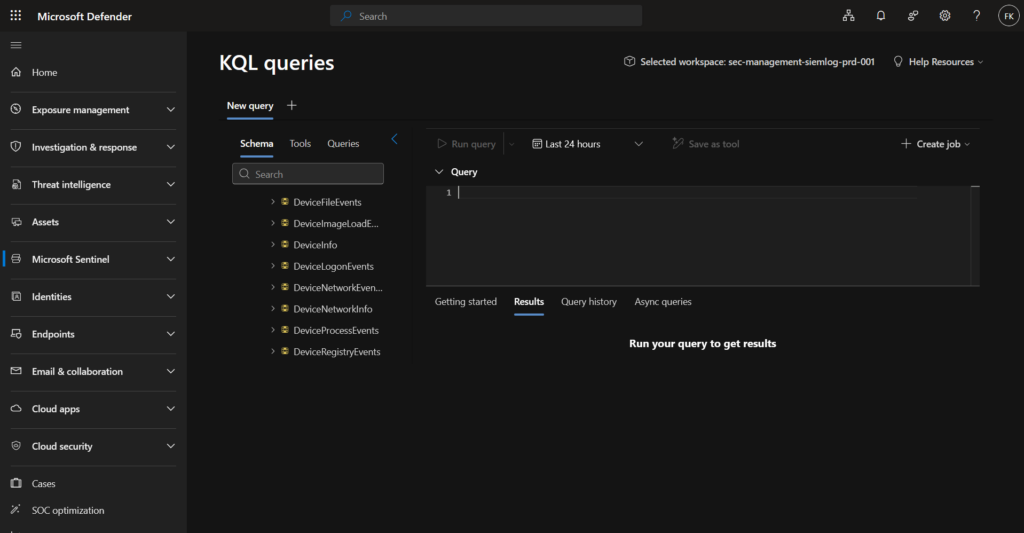
Navigate to Microsoft Sentinel > Data lake exploration > KQL queries and run your KQL query against the table name as normal. Full KQL capabilities are supported including join and union operators.
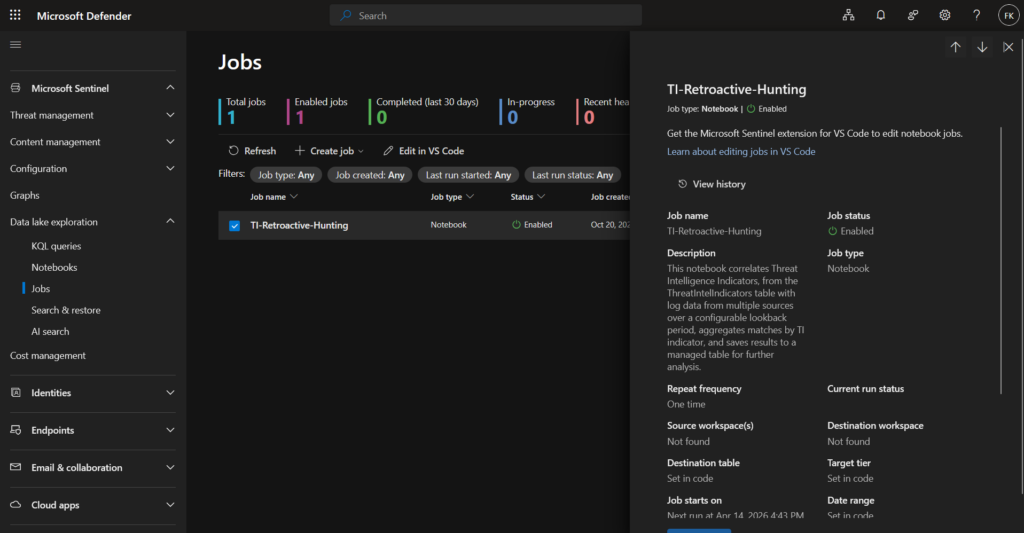
For scheduled or large-scale retrospective queries, use KQL jobs — these run against the full retention window in the lake and can promote results back into the analytics tier if needed for further investigation.
Limitations to know before you switch
This is the part that matters operationally. The lake-only tier is not a full replacement for the analytics tier.
| Capability | Analytics tier | Data lake tier |
|---|---|---|
| Analytics rules | ✅ | ❌ |
| Hunting queries (Sentinel) | ✅ | ❌ |
| Workbooks | ✅ | ❌ |
| Playbooks / automation | ✅ | ❌ |
| Data export | ✅ | ❌ |
| Real-time alerting | ✅ | ❌ |
| KQL queries (data lake explorer) | ✅ | ✅ |
| KQL jobs (scheduled) | ✅ | ✅ |
| Jupyter notebooks | ✅ | ✅ |
| Summary rules | ✅ | ✅ |
| Search jobs | ✅ | ✅ |
| Retention up to 12 years | ✅ (with data lake mirroring) | ✅ |
One important distinction: Defender XDR custom detection rules continue to work when you switch to lake-only, as they run against the native XDR tier in the Defender portal — not against Sentinel’s analytics tier.
What stops working is the Sentinel side: analytics rules, hunting queries, workbooks, and playbooks that reference that table. If any of those are in use, switching to lake-only will break them silently — the table simply won’t have data in the analytics tier anymore.
The practical guidance: if you run active Sentinel analytics rules or Sentinel hunting queries referencing a specific XDR table, keep that table in the analytics tier. If a table is primarily used for investigation, forensics, or retrospective hunting — and detections only live on the Defender XDR side — lake-only is the right choice.
Good candidates for lake-only: DeviceFileCertificateInfo, DeviceImageLoadEvents, DeviceNetworkInfo, EmailUrlInfo, UrlClickEvents.
Tables to evaluate carefully before switching: DeviceProcessEvents, DeviceNetworkEvents, DeviceLogonEvents — these are commonly used in custom Sentinel analytics rules.
Cost considerations
The cost difference is significant for high-volume tables.
When data goes through the analytics tier first, you pay the analytics ingestion rate for every GB. When data goes directly to the data lake tier, you pay the data lake ingestion rate ($0.05/GB in East US) plus storage, but avoid analytics tier ingestion costs entirely. There is also a data processing charge ($0.10/GB) for data ingested directly to lake tier — this does not apply to data mirrored from the analytics tier.
For tables like DeviceNetworkEvents or CloudAppEvents that generate significant daily volume, this difference is substantial. If you were previously not ingesting these tables at all due to cost, lake-only ingestion makes long-term retention financially realistic.
Note: always verify current pricing in the Microsoft Sentinel pricing page as rates vary by region and are subject to change.
Migrating from the DCR workaround
If you followed the approach in my older post and are currently running the Workspace Transformation DCR workaround with custom _CL tables, here is how to migrate cleanly to the native solution.
Before you switch:
- Verify that no active Sentinel analytics rules or Sentinel hunting queries reference the custom
_CLtable you created. If they do, update them first to reference the new native table. - Note your current retention setting on the custom table — you will want to match this when configuring the native lake-only retention.
- Accept that historical data in the custom
_CLtable stays there. Switching to native lake-only ingestion does not migrate or merge existing data. The two datasets will exist in parallel until the custom table’s retention expires.
Steps to migrate:
- Configure the original XDR table (e.g.
DeviceProcessEvents) for lake-only ingestion using the steps in this post. - Wait 90–120 minutes for data to start flowing into the native table in the data lake.
- Verify data is arriving in the data lake by running a KQL query in Microsoft Sentinel > Data lake exploration > KQL queries.
- Once confirmed, remove the Workspace Transformation DCR rule for that table — or update it to drop all rows to
source | take 0if other tables share the same DCR and you are not ready to remove it entirely. - Optionally reduce the retention on the custom
_CLtable once the historical data is no longer needed.
The main benefit beyond simplicity: the native table preserves the original schema exactly, including all columns. The DCR workaround required manual schema mapping and often dropped columns or required ongoing maintenance when Microsoft updated the source table structure.
Sources
Microsoft Sentinel data lake overview — Microsoft Learn
Microsoft GA announcement — Tech Community, February 11, 2026
Manage data tiers and retention in Microsoft Sentinel — Microsoft Learn
Summary
Lake-only ingestion for Defender XDR Advanced Hunting tables removes the biggest practical barrier to long-term XDR data retention. You no longer need a DCR pipeline, you no longer pay analytics ingestion rates for data that’s primarily used for historical hunting, and you configure everything natively in the Defender portal in a few clicks.
If you have Sentinel data lake enabled, this is one of the first things worth reviewing. Go through the supported table list, identify which tables you don’t have active Sentinel analytics rules on, and switch those to lake-only. Start with the high-volume candidates and work from there.
For the full Sentinel data lake setup and background, check out my implementation guide.