

Introduction
With the continuous evolution of Microsoft Defender for Office 365, a powerful automation feature has been introduced quietly called Auto‑Remediation. Shipped in May 2025, this capability allows Defender to automatically remove malicious emails identified within a cluster—without requiring human intervention.

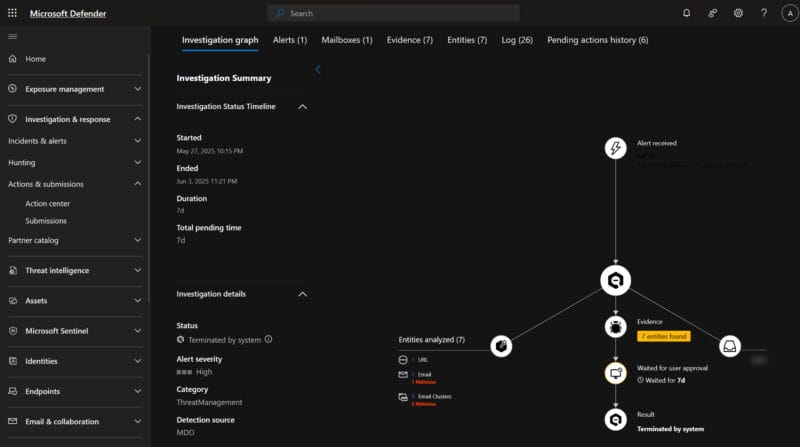
While Automated Investigation & Response (AIR) has long offered the ability to cluster and investigate threats, final approval of remediation actions traditionally required manual analyst (delayed) input like you see in my banner picture. Auto‑Remediation eliminates this dependency—reducing human bottlenecks, improving dwell time metrics, and increasing consistency in post-delivery defense.
This article explains how the feature works, how to enable it, and how to confirm its operational effectiveness using Defender tools and hunting telemetry.
From manual oversight to autonomous containment
Without Auto‑Remediation, even verified phishing messages require analyst action before removal. This introduces a measurable delay in response time—often extending dwell time for malicious emails from a few minutes to over an hour.
In a SOC context, every minute an active threat remains in a user’s mailbox represents elevated risk. Reducing dwell time is not only a best practice, but a critical benchmark in phishing defense maturity.
Organizations enabling Auto‑Remediation often experience:
- Up to 90% faster remediation in phishing investigations
- Reduced analyst workload in Action Center
- Improved MTTC (mean time to containment) at scale
Capability overview
Auto‑Remediation operates silently, retains full auditability, and aligns with modern SOC requirements for precision and accountability.
Once Auto‑Remediation is enabled, Microsoft Defender for Office 365 will:
- Identify and act on malicious clusters of email based on shared attributes (file hash, URL)
- Automatically trigger soft delete actions for clusters under 10,000 messages
- Rely on Defender’s ML-based scoring to determine action confidence
- Preserve full telemetry in Defender and Purview logs for compliance and analysis
This shift to hands-off, policy-driven execution provides consistent and timely remediation during active attacks.
Technical workflow
Auto‑Remediation builds on AIR and is structured as follows:
- Detection: Initiated via ZAP, Safe Links, user report, or external intelligence
- Clustering: Messages grouped into a cluster based on shared indicator (e.g. attachment hash, phishing URL)
- Confidence evaluation: Microsoft’s backend scores the threat; a threshold score of ~0.83 or higher triggers classification as malicious
- Policy enforcement: If Auto‑Remediation is enabled for the relevant cluster type, the action is executed
- Action execution: Soft delete removes the email and places it in
Recoverable Items > Purges(non-restorable by user) - Audit logging: Defender logs actions in
EmailPostDeliveryActions,ActionCenterEvents, and Purview for traceability
False positives can be rolled back via portal or PowerShell, maintaining SOC control while automating the default response.
Licensing and prerequisites
| Requirement | Description |
|---|---|
| License | Microsoft Defender for Office 365 Plan 2 (included in Microsoft 365 E5/E5 Security) |
| Admin Role | Security Administrator or Global Administrator |
| AIR must be enabled | Automated Investigation & Response (AIR) is a prerequisite |
Step-by-Step configuration guide
Step 1 – Open Automation Settings
- Sign in to security.microsoft.com
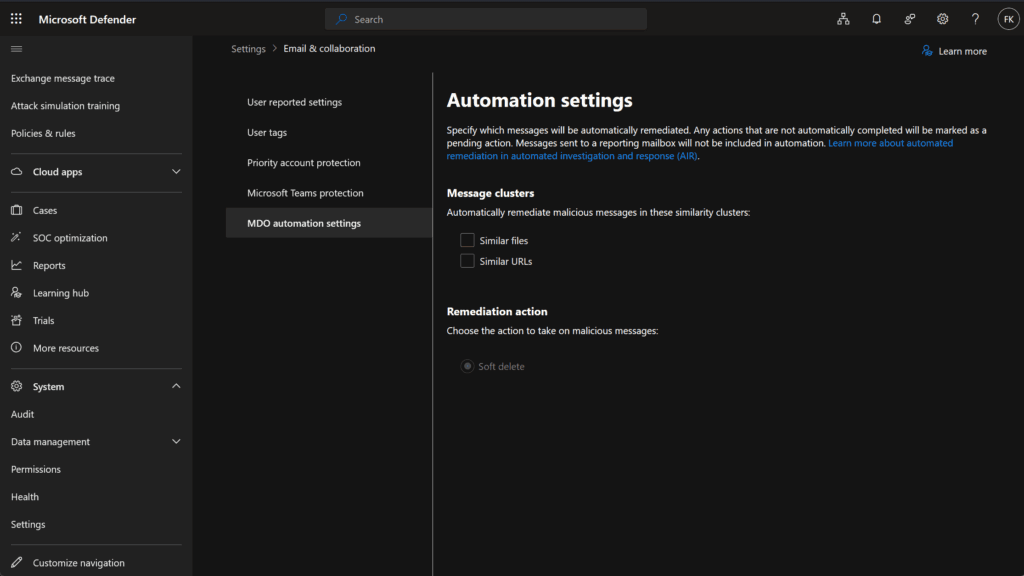
- Navigate to Settings → Email & collaboration → MDO automation settings
Step 2 – Enable Remediation for Cluster Types
Choose which detection types should trigger Auto‑Remediation:
- Similar URLs (recommended as a low-risk starting point)
- Similar files (enable after validation and testing)
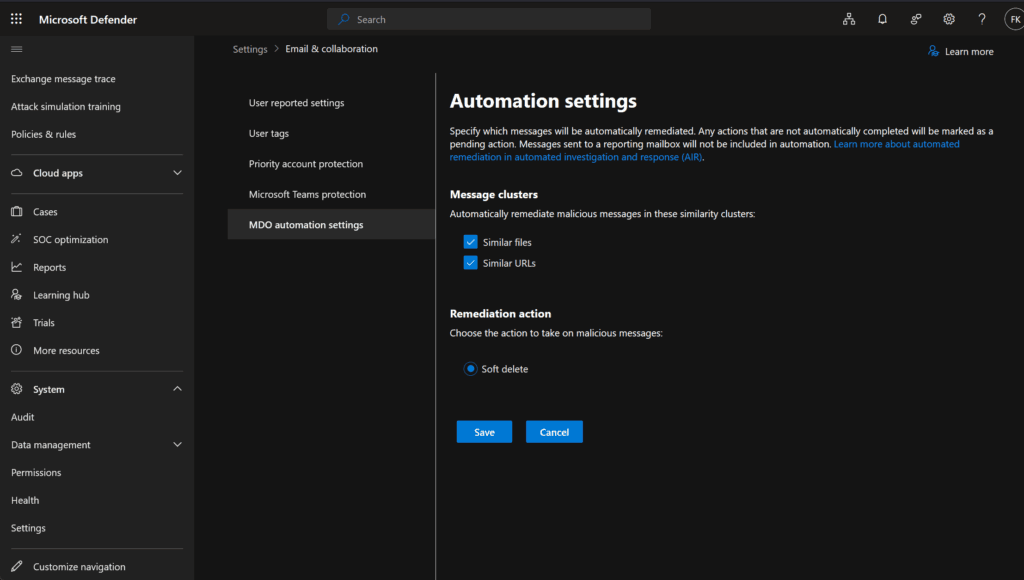
Step 3 – Apply and Save
Currently, Soft delete is the only supported remediation action. Confirm your settings and click Save.

Optional – Configure via PowerShell
Connect-ExchangeOnline
Set-OrganizationConfig -AutoRemediateMaliciousEmail $true `
                       -AutoRemediateMaliciousEmailWithURLs $true
Monitoring and verification
Auto‑Remediation actions are fully traceable. To monitor:
| Location | Validation Target |
|---|---|
| Action Center (History) | Actions with Decided by: Automation and Completed status |
| Threat Explorer | Filter by Additional Action = Automated remediation |
| Advanced Hunting | KQL on EmailPostDeliveryActions and EmailPostDeliveryEvents |
| Microsoft Purview Audit | Filter for Automated EOP Action operations |
To reverse an action:
- Use the Revert button in Action Center
KQL queries for hunting and reporting
// Auto‑Remediation events in the past 7 days
EmailPostDeliveryEvents
| where ActionType == "Automated Remediation" and ActionTrigger == "Automation"
| where Timestamp > ago(7d)
// Messages manually restored by administrators
EmailPostDeliveryEvents
| where ActionTrigger == "Admin:Revert"
For detailed schema definitions and additional examples of queryable fields, refer to the official Microsoft documentation on the EmailPostDeliveryEvents and EmailPostDeliveryActions tables.
Known limitations (may 2025)
| Limitation | Description |
|---|---|
| Cluster size threshold | Clusters with ≥ 10,000 messages require manual review |
| Supported actions | Only Soft delete is currently available |
| Global policy scope | Tenant-wide application; no targeting by mailbox or group |
Additional resources
Final thoughts
Auto‑Remediation represents a mature evolution in Microsoft Defender’s automated response framework. For SOCs seeking to minimize dwell time and reduce analyst fatigue, this feature provides an immediate operational benefit—without compromising control.
What’s surprising, however, is that despite its clear value, Auto‑Remediation remains disabled by default. Given Microsoft’s strong focus on reducing attack impact and response time, it’s notable that organizations must manually activate this feature—especially considering its alignment with modern security automation standards.
If you’re currently running Defender for Office 365 Plan 2 and already trust AIR’s clustering and investigation fidelity, enabling Auto‑Remediation should be your next step.