


Low-code platforms like Microsoft Copilot Studio make it easy for business users to build and deploy AI agents without going through IT or security. That’s useful, but it also means agents are getting created outside of any centralized review — with access to data, external systems, and tool calls that security teams often know nothing about.
Microsoft Defender for Cloud Apps AI agent monitoring was introduced as a preview feature to address exactly this. With real-time protection landing this month, the full stack is now available. This guide covers how it works and how to set it up.
Why Copilot Studio AI agents are a security risk
Copilot Studio agents can call external APIs, process user input, and take actions — often with permissions that were set up quickly and never reviewed. Attackers can abuse this in a few ways:
- Injecting malicious prompts to manipulate what the agent does
- Triggering tool calls the agent wasn’t designed to make
- Exploiting connected data sources to escalate privileges or exfiltrate data
The people building these agents are usually not security-aware, and there’s no enforcement gate before an agent goes live. Microsoft Defender for Cloud Apps AI agent monitoring is designed to fill that gap.
What Microsoft Defender for Cloud Apps AI agent monitoring does
Defender for Cloud Apps covers three things here:
AI agent inventory
Defender automatically discovers all Copilot Studio agents in your tenant and surfaces them in a central view. You can see what agents exist, who owns them, and what their security posture looks like — without requiring agent builders to do anything.
Audit logging and threat detection
Once the inventory is enabled and the Microsoft 365 connector is active, Defender collects audit logs for all Copilot Studio agents and monitors them for suspicious activity. Detections come through as alerts in the XDR incidents and alerts experience.
Real-time protection during runtime
This is what landed in December 2025. Defender inspects tool invocations before the agent executes them. If a prompt looks suspicious, the tool call is blocked, the user gets a notification, and an alert is created in the Defender portal. Active blocking — not detection after the fact.
One important caveat: if Defender doesn’t respond to a tool invocation check within one second, the agent proceeds and the tool call is allowed. This fail-open behavior is worth understanding if you’re relying on real-time protection as a hard control.
Prerequisites
Before enabling Defender for Cloud Apps AI agent monitoring, make sure you have:
- Microsoft Defender for Cloud Apps license until the 1st of july 2026 (included in Microsoft 365 E5) > Note this has been changed and you need the Agent 365 / E7 license to use this feature
- Microsoft Defender preview features enabled for Defender for Cloud Apps, Defender for Cloud, and Microsoft Defender XDR
- Microsoft 365 app connector connected in Defender for Cloud Apps
- Access to your Power Platform administrator onboarding spans both the Defender portal and the Power Platform admin center
Step 1: Enable the AI agent inventory
This is the foundation. Without it, monitoring and real-time protection won’t work.
- Sign in to the Microsoft Defender portal as a system administrator
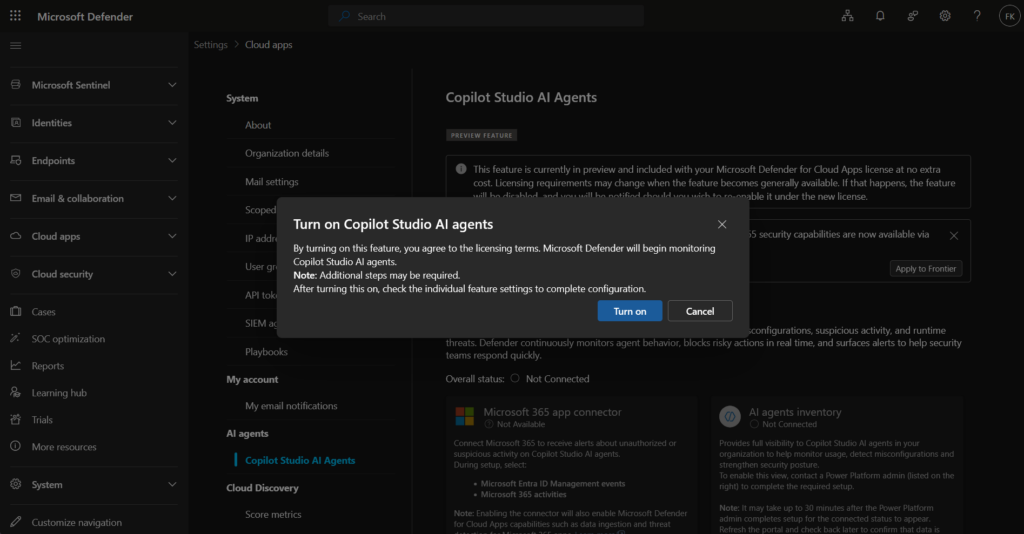
- Go to System > Settings > Cloud Apps > Copilot Studio AI agents
- Toggle Copilot Studio AI agents on — this confirms you’ve accepted the terms
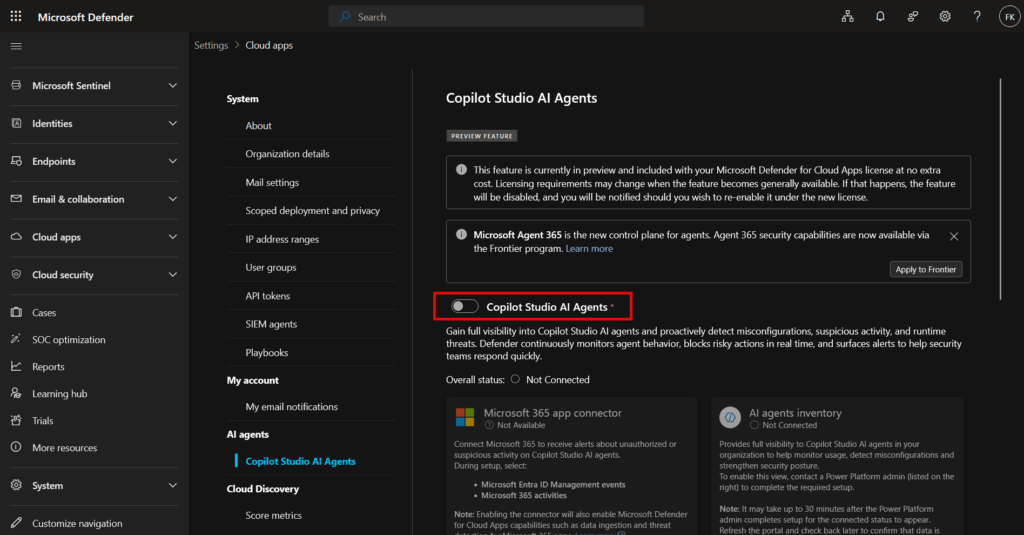
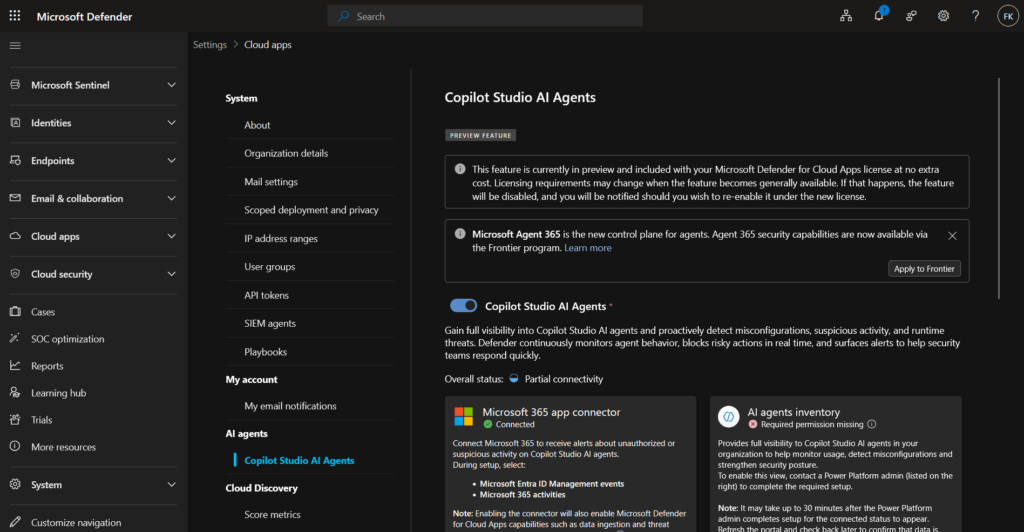
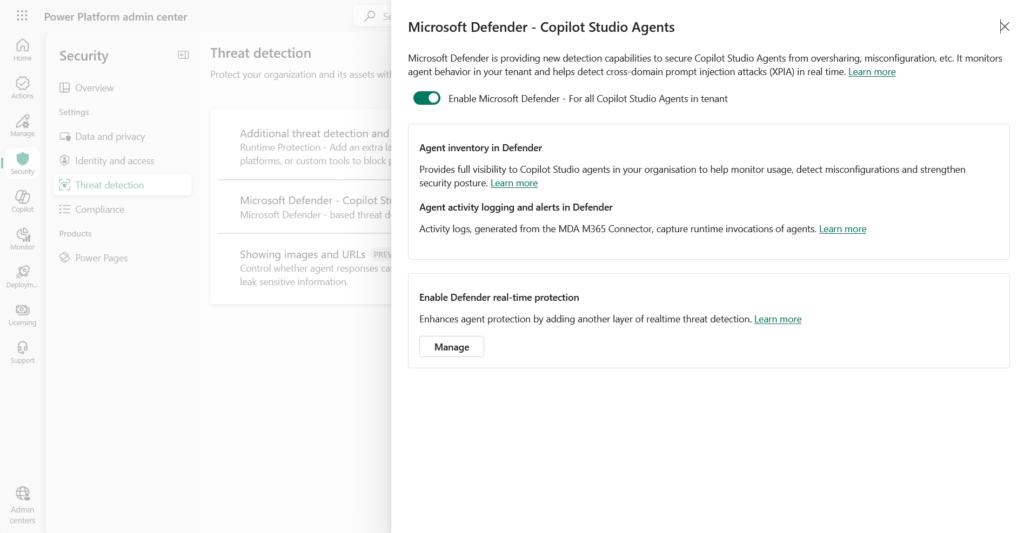
Your Power Platform administrator then needs to complete the other side:
- Go to the Power Platform admin center
- Navigate to Security > Threat Protection
- Select Microsoft Defender – Copilot Studio AI agents
- Enable it
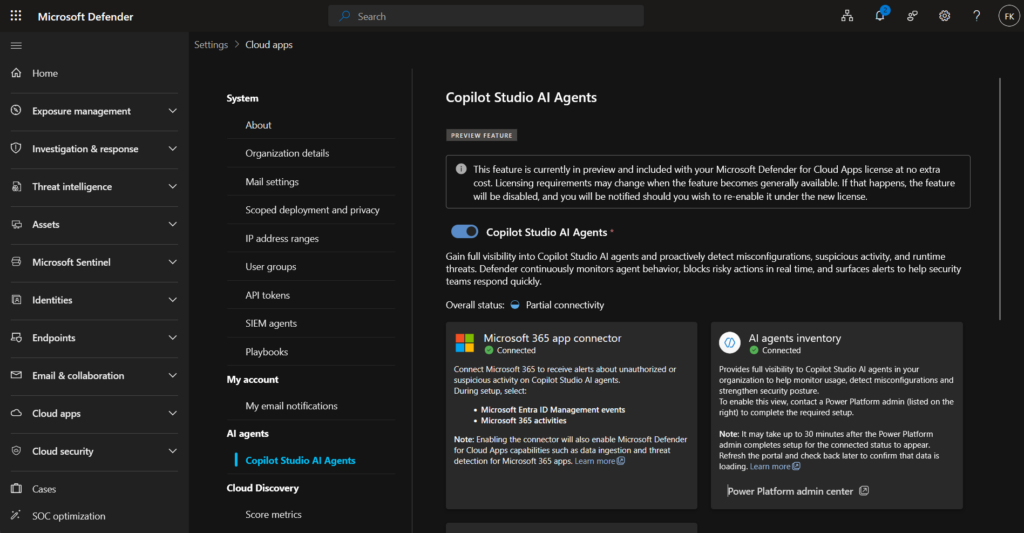
When connected, a green status indicator appears in the AI agents inventory section in the Defender portal. Allow up to 30 minutes for the initial connection, and potentially longer for the full inventory to populate in larger environments.
Step 2: Enable real-time protection during runtime
This step involves three parties: you as the security admin, a Power Platform administrator, and an Entra admin (or someone with app registration permissions). The order matters.
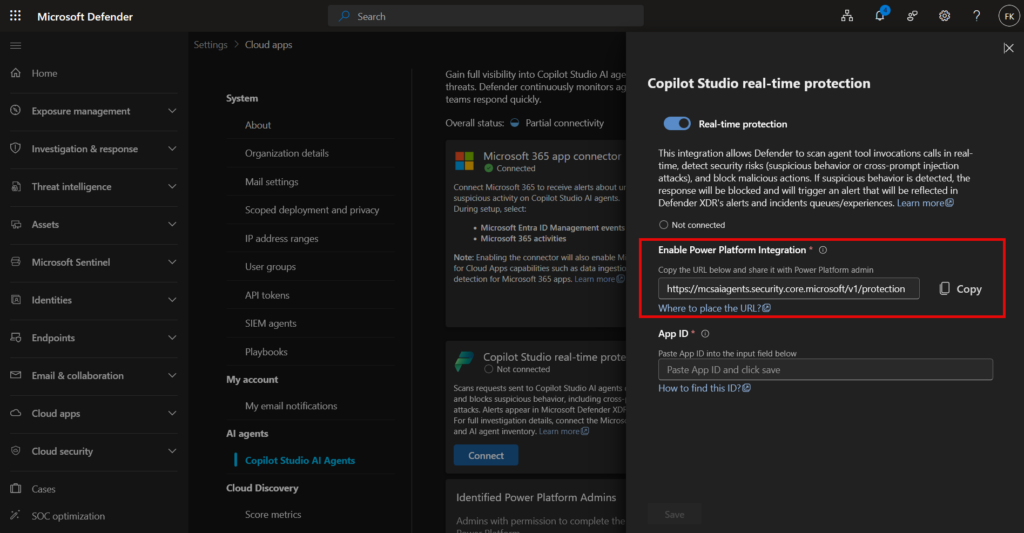
Get the webhook URL from the Defender portal
- In the Defender portal, go to System > Settings > Cloud Apps > Copilot Studio AI agents
- Check the Microsoft 365 app connector status — if it’s not connected, enable it first. Without it, real-time blocking still works, but alerts won’t appear in the Defender portal
- Copy the webhook URL (endpoint) shown in the real-time protection section — you’ll need this for the Entra app registration
Register a Microsoft Entra application
This step creates the secure, secretless authentication bridge between Copilot Studio and Defender. You need someone with app registration permissions in Entra.
Option A — PowerShell (recommended):
Download the Create-CopilotWebhookApp.ps1 script and run it with the following parameters:
.\Create-CopilotWebhookApp.ps1 `
  -TenantId "your-tenant-id" `
  -Endpoint "https://endpoint-from-defender-portal" `
  -DisplayName "Copilot Studio - Defender Real-time Protection" `
  -FICName "DefenderFIC"
The script outputs an App ID — copy it, you’ll need it in the next steps.
Option B — manually via Azure portal:
- Go to Azure portal > Microsoft Entra ID > App registrations > New registration
- Give it a name, select Accounts in this organizational directory only, and register
- Copy the App ID
- Go to Certificates & secrets > Federated credentials > Add credential
- Select Other issuer as the scenario
- Set the issuer to:
https://login.microsoftonline.com/{your-tenant-id}/v2.0 - Set the subject using the following PowerShell to generate the base64-encoded values:
# Encode tenant ID
$tenantId = [Guid]::Parse("your-tenant-id")
$b64TenantId = [Convert]::ToBase64String($tenantId.ToByteArray()).Replace('+','-').Replace('/','_').TrimEnd('=')

# Encode endpoint URL
$endpoint = "https://endpoint-from-defender-portal"
$b64Endpoint = [Convert]::ToBase64String([Text.Encoding]::UTF8.GetBytes($endpoint)).Replace('+','-').Replace('/','_').TrimEnd('=')

Write-Output "/eid1/c/pub/t/$b64TenantId/a/m1WPnYRZpEaQKq1Cceg--g/$b64Endpoint"
Paste the output as the subject value and save the credential.
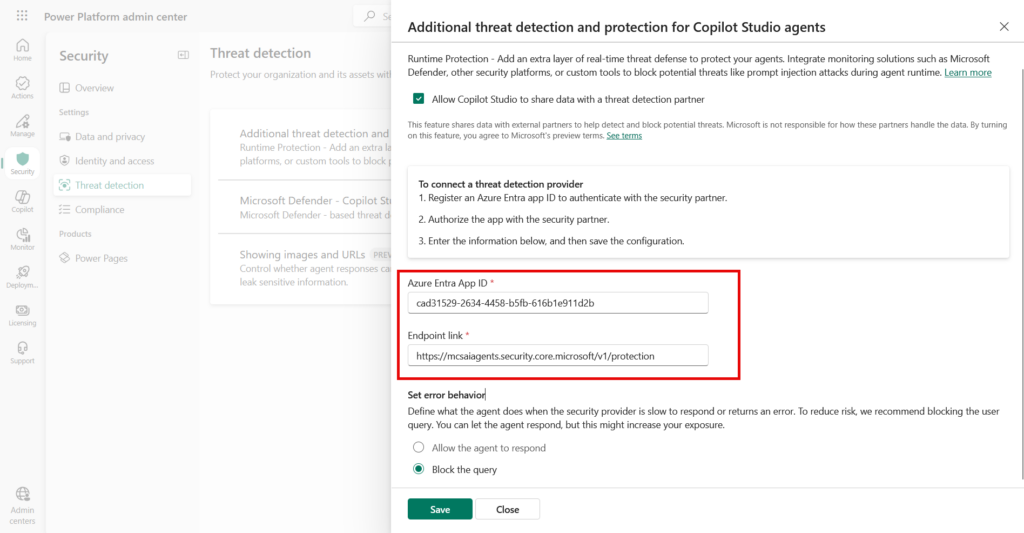
Configure threat detection in the Power Platform admin center
Share the App ID and the webhook URL from the Defender portal with your Power Platform administrator. They need to complete the following:
- Sign in to the Power Platform admin center
- Go to Security > Threat detection > Additional threat detection
- Select the environment and click Set up
- Enable Allow Copilot Studio to share data with a threat detection provider
- Enter the Azure Entra App ID and the endpoint link from the Defender portal
- Under Set error behavior, choose what happens if the threat detection system doesn’t respond in time — the default is Allow the agent to respond, but you can set it to Block the query for a stricter posture
- Click Save
Register the App ID in the Defender portal
- Back in the Defender portal, go to System > Settings > Cloud Apps > Copilot Studio AI agents
- Enter the App ID in the designated field and click Save
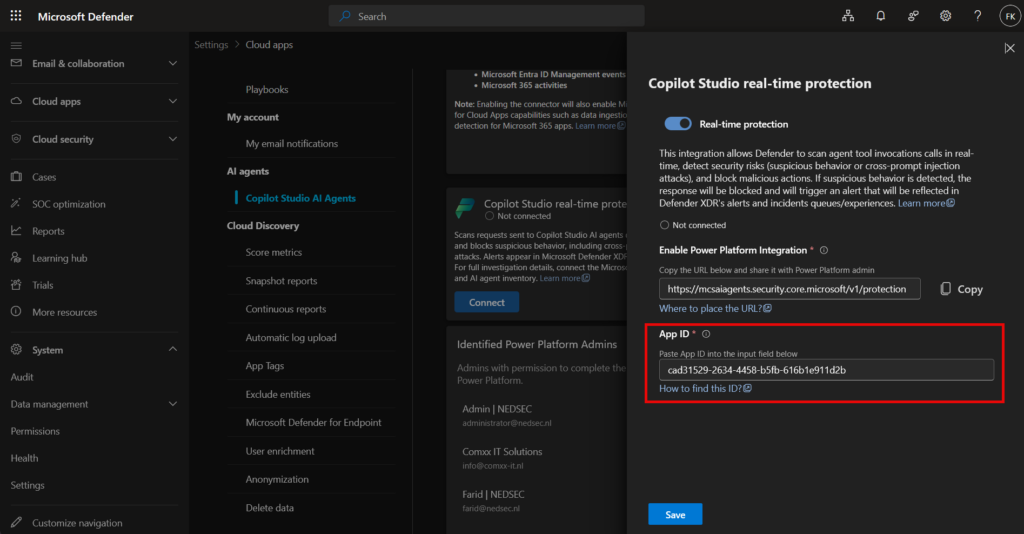
When everything is connected correctly, the real-time protection section shows a green connected status.
If you update the App ID in Power Platform, wait about a minute before saving in the Defender portal — propagation takes a moment and you’ll get a validation error if you’re too fast.
Important: Real-time protection currently only applies to agents using generative orchestration. Classic agents that use fixed, deterministic flows are not covered.
Hunt for risky agents with advanced hunting
Once the AI agent inventory is live, you can use advanced hunting to look for misconfigurations and risky Copilot Studio agents.
The AIAgentsInfo table in the Apps & identities section contains data for all discovered agents. You can write custom queries or use the pre-built community queries:
- Go to Investigation & response > Hunting > Advanced hunting
- In the Queries tab, open Community queries
- The AI agents folder contains ready-made queries for common risk scenarios
The misconfigurations below are all detectable via this table and are worth running as a first sweep after the inventory comes online.
What happens when a threat is detected
When Defender for Cloud Apps flags a suspicious Copilot Studio agent prompt or tool invocation:
- The tool call is blocked before it runs
- The end user gets a notification that their message was blocked
- An alert is created in the Defender portal under XDR incidents and alerts
- The alert is correlated with other XDR signals, so your SOC gets full incident context
With the Microsoft 365 connector active, these alerts also land in the unified incident queue alongside endpoint, identity, and cloud alerts.
Common Copilot Studio agent misconfigurations
Getting the monitoring in place is step one. What you’ll actually find in the inventory is often more concerning than expected. These are the most common misconfigurations to look for once you have the AIAgentsInfo table available.
Agents without authentication
When no authentication is configured on a Copilot Studio agent, it doesn’t authenticate as the user interacting with it — it authenticates as the creator. That means any user of that agent can effectively access resources and data as the maker, including things they wouldn’t normally have access to. Agents intended for internal use should always require authentication. Use this query to find them:
AIAgentsInfo
| summarize arg_max(Timestamp, *) by AIAgentId
| where AgentStatus != "Deleted"
| where UserAuthenticationType == "None"
| project-reorder AgentCreationTime, AIAgentId, AIAgentName, AgentStatus, CreatorAccountUpn, OwnerAccountUpns
Microsoft’s recommendation: confirm with the owner whether public access is intentional, and review all topics, actions, and knowledge sources to ensure no sensitive data is exposed.
Agents without an owner
Every published agent should have a designated owner — someone accountable for what it does and what it has access to. Agents without an owner are a governance gap: if something goes wrong, there’s no one to contact and no one managing its lifecycle. Find them with:
AIAgentsInfo
| where AgentStatus == "Published"
| where isempty(OwnerAccountUpns)
| project AgentCreationTime, AIAgentName, AIAgentId, CreatorAccountUpn, OwnerAccountUpns
Hard-coded credentials in topics or actions
Agents with credentials hard-coded into their topics or actions can expose those credentials to unintended parties — anyone who can read the agent configuration or intercept its traffic. This is a pattern that’s easy to introduce quickly and hard to spot manually at scale. The query below scans for common credential patterns including API keys, tokens, and basic auth strings:
let suspicious_patterns = @"(AKIA[0-9A-Z]{16})|(AIza[0-9A-Za-z_\-]{35})|(xox[baprs]-[0-9a-zA-Z]{10,48})|(ghp_[A-Za-z0-9]{36,59})|(sk_(live|test)_[A-Za-z0-9]{24})|(SG\.[A-Za-z0-9]{22}\.[A-Za-z0-9]{43})|(\d{8}:[\w\-]{35})|(eyJ[A-Za-z0-9_\-]+\.[A-Za-z0-9_\-]+\.[A-Za-z0-9_\-]+)|(Authorization\s*:\s*Basic\s+[A-Za-z0-9=:+]+)|([A-Za-z]+:\/\/[^\/\s]+:[^\/\s]+@[^\/\s]+)";
AIAgentsInfo
| summarize arg_max(Timestamp, *) by AIAgentId
| where AgentStatus != "Deleted"
| mv-expand tool = AgentToolsDetails
| mv-expand topic = AgentTopicsDetails
| where isnotempty(tool) and isnotempty(topic)
| where tool matches regex suspicious_patterns or topic matches regex suspicious_patterns
| extend SuspiciousMatchTool = tool, SuspiciousMatchTopic = topic
| project-reorder AgentCreationTime, AIAgentId, AIAgentName, AgentStatus, CreatorAccountUpn, OwnerAccountUpns, SuspiciousMatchTool, SuspiciousMatchTopic
If credentials are needed, the right approach is to store them in Azure Key Vault and retrieve them at runtime via environment variables — not embed them in the agent configuration.
Email actions with AI-controlled recipients
This one is particularly relevant for agents using generative orchestration. If an agent can send email and the recipient address is determined dynamically by the LLM rather than hard-coded, a successful prompt injection attack (XPIA) can instruct the agent to forward data to an attacker-controlled address. This query finds agents in that configuration:
AIAgentsInfo
| summarize arg_max(Timestamp, *) by AIAgentId
| where AgentStatus != "Deleted"
| extend IsGenAIOrchestrator = tostring(todynamic(RawAgentInfo).Bot.Attributes.configuration) has '"GenerativeActionsEnabled": true'
| where IsGenAIOrchestrator
| mvexpand Action = AgentToolsDetails
| extend OperationId = tostring(Action.action.operationId), ActionName = tostring(Action.modelDisplayName)
| where OperationId == "SendEmailV2"
| where isempty(Action.inputs)
| project-reorder AgentCreationTime, AIAgentId, AIAgentName, AgentStatus, CreatorAccountUpn, OwnerAccountUpns, ActionName
If a hard-coded recipient isn’t feasible, at minimum confirm with the owner that the use case warrants AI-controlled addressing and document it.
Agents using MCP tools
Model Context Protocol (MCP) tools give agents access to external resources and APIs. That’s powerful, but each MCP server is an additional attack surface — and agents connecting to MCP servers that are no longer needed, or that were added without security review, represent unnecessary exposure. Use this to get an overview:
AIAgentsInfo
| summarize arg_max(Timestamp, *) by AIAgentId
| where AgentStatus != "Deleted"
| mvexpand Action = AgentToolsDetails
| where Action.action.operationDetails["$kind"] == "ModelContextProtocolMetadata"
| extend MCPName = Action.action.operationDetails["operationId"]
| summarize MCPTools = make_set(MCPName) by AIAgentName, AIAgentId, EnvironmentId, CreatorAccountUpn
Follow up with the agent owner on each MCP tool and remove any that are no longer required.
HTTP actions on nonstandard ports
Agents making HTTP requests to ports other than 80 or 443 are worth investigating. It could indicate the agent is calling internal services, non-standard APIs, or infrastructure that shouldn’t be accessible via an agent. Find them with:
AIAgentsInfo
| summarize arg_max(Timestamp, *) by AIAgentId
| where AgentStatus != "Deleted"
| mvexpand Topic = AgentTopicsDetails
| where Topic has "HttpRequestAction"
| extend TopicActions = Topic.beginDialog.actions
| mvexpand action = TopicActions
| where action['$kind'] == "HttpRequestAction"
| extend Url = tostring(action.url.literalValue)
| extend ParsedUrl = parse_url(Url)
| extend Port = tostring(ParsedUrl["Port"])
| where isnotempty(Port) and Port != 443
| project-reorder AgentCreationTime, AIAgentId, AIAgentName, ParsedUrl, Url, Port, AgentStatus, CreatorAccountUpn, OwnerAccountUpns
Resources:
Protect AI agents in Microsoft Defender XDR – Microsoft Learn
Protect your Copilot Studio AI agents (Preview) – Microsoft Learn
Discover and protect your AI agents (Preview) – Microsoft Learn
Real-time protection during agent runtime (Preview) – Microsoft Learn
Wrapping up
If your organization is building agents in Copilot Studio — or you expect business users to start — Microsoft Defender for Cloud Apps AI agent monitoring is worth setting up before you’re flying blind. The inventory alone gives you visibility into what’s running. Real-time protection goes further by actively blocking suspicious activity at the moment it happens.
Loop in your Power Platform admin, enable the preview features, and get the inventory running. It’s a quick setup for a threat surface that most security teams aren’t watching yet.