



Introduction
Browser extensions have quietly evolved into one of the most dangerous and overlooked attack vectors in modern enterprise environments. What started as simple tools for productivity or convenience now often function as fully-fledged malware—capable of harvesting data, hijacking sessions, and persisting through identity tokens and cloud sync.
We’ve seen a sharp rise in advanced threats hidden in extensions that appear legitimate. Some exploit OAuth permissions to maintain persistent access to Microsoft 365 environments. Others load malicious scripts only when specific conditions are met, like visiting a login page or opening a corporate web app. Many abuse the trust placed in browser extension ecosystems.
This blog post provides a few examples how to manage browser extension risk using Microsoft Defender Vulnerability Management (TVM), Microsoft Defender for Endpoint (MDE), and Intune. It offers some guidance, examples, and detection tactics that you can immediately apply to harden your environment.
Common threats posed by malicious browser extensions
Malicious or poorly managed browser extensions can lead to a wide range of security and compliance issues:
- Data exfiltration: Many extensions request broad permissions (like access to all websites) which can be abused to harvest sensitive information including cookies, passwords, and session tokens. This is particularly concerning for enterprise environments handling confidential data.
- Session hijacking and credential theft: Extensions may inject JavaScript into web pages to intercept user credentials during login or hijack sessions by stealing authentication tokens.
- AI-powered threats and plugin blind spots: With the rapid rise of AI-enhanced plugins, including those for LLMs like ChatGPT or copilots integrated in browsers, we are witnessing new risks:
- Extensions that use AI for productivity can generate, analyze, and leak sensitive context.
- LLM-enhanced plugins might dynamically alter content or provide deceptive outputs.
- Organizations often lose visibility into these tools due to rapid user adoption, poor audit logging, and unverified code origins.
- Unauthorized lateral movement: Malicious extensions can exfiltrate browser data to command and control (C2) servers, from which adversaries escalate privileges or move laterally across an environment.
- Persistence via OAuth abuse: Some extensions exploit OAuth permissions to maintain persistent, often silent access to a user’s Microsoft 365 or Google Workspace account—even after password resets.
Only in the beginning of 2025 there have been already plenty reported malicious browser extensions:
| Extension / Campaign | Attack Type | Description |
|---|---|---|
| Cyberhaven Extension | Supply Chain / OAuth Abuse | Legit extension compromised post-release. Injected content scripts at document_start, harvested Facebook OAuth tokens, cookies, and form data. |
| Blipshot | Data Theft / Script Injection | Screenshot tool updated to exfiltrate data to C2 via injected remote JavaScript. |
| WAToolkit | Session Hijacking | WhatsApp Web companion hijacked to steal sessions and redirect users. |
| Emojis Emoji Keyboard | Credential Stealing | Re-uploaded with new permissions to extract user credentials and clipboard data. |
| Color Changer (YouTube) | Tracking / Redirect Injection | Hijacked to inject tracking scripts and monetize search traffic through redirects. |
| Video Effects for YouTube | Data Exfiltration / Ad Fraud | Previously benign extension modified to serve custom ads and skim affiliate revenue. |
| GraphQL Network Inspector | Credential Theft / Token Logging | Fake dev tool extracting network data, tokens, and cookies from major cloud services. |
| Operation RedDirection (Cluster) | Tracking / Ad Fraud | 18 extensions (color pickers, VPNs, emoji tools) used to track URLs and inject ads. Estimated 2.3M users affected. |
OAuth-based attacks and extension exploitation
OAuth is a secure delegation protocol, but its misuse is increasingly being weaponized by attackers. The pas few months we’ve seen some interesting cases with OAuth attacks, which lead to serious issues.
Common exploitation patterns include:
- Fake extension pairing: Extensions can present themselves as benign tools (e.g., productivity or translation apps) but request OAuth permissions to data not related to their declared function.
- Consent phishing: Threat actors craft OAuth apps impersonating trusted platforms, tricking users into granting high-privilege access like Mail.ReadWrite, Files.Read.All, or even offline_access. Once consent is granted, the attacker has persistent access.
- Token reuse and refresh exploits: Malicious apps can refresh tokens automatically, retaining access for long periods. When combined with browser-based access, this undermines even strong identity policies.
Threat & Vulnerability Management (TVM) for browser extensions
Microsoft Defender’s TVM provides organizations with real-time visibility into browser extensions installed across their network.
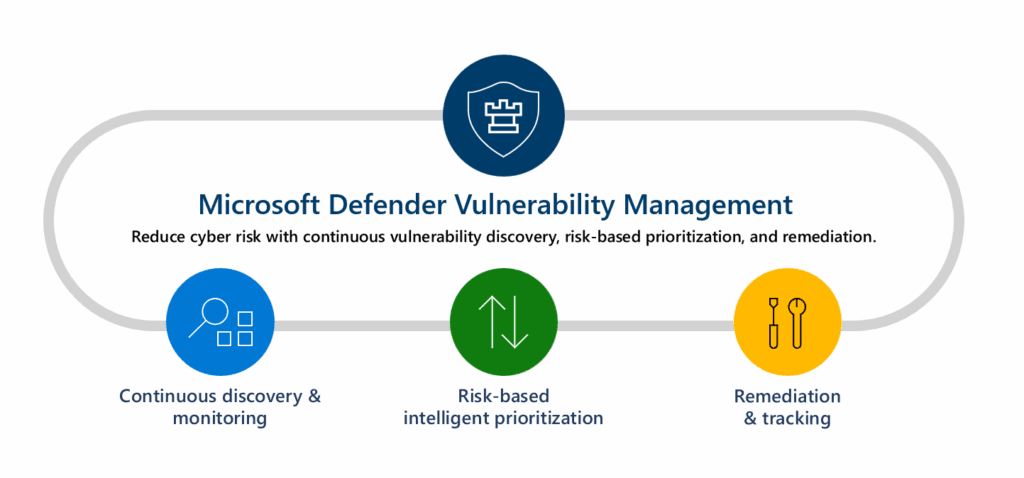
Key features include:
- Comprehensive extension inventory: A centralized list of all browser extensions detected within the organization.
- Risk assessment: Evaluation of each extension’s risk level based on permissions requested and observed behaviors.
- Permission analysis: Detailed insights into the specific permissions each extension requires and their potential security implications.
- Usage monitoring: Tracking of extension deployment across devices, including user-specific installation data.
This comprehensive assessment enables organizations to make informed decisions about which extensions to allow or block, enhancing overall security posture.
Prerequisites
Before stepping into Defender TVM, make sure you’ve met the following prerequisites:
Licenses
| Feature | Requirement |
|---|---|
| TVM for browser extensions | Included in Microsoft Defender Vulnerability Management (Add-on) |
| Defender for Endpoint integration | Required (Plan 2 or Microsoft 365 E5) |
| Advanced hunting with Defender XDR | Microsoft 365 Defender (E5 or Defender for Endpoint P2) |
| Intune policy management | Intune via Microsoft 365 E3/E5 or EMS |
| App Governance (optional) | Included in Microsoft 365 E5 or Microsoft Defender for Cloud Apps |
Technical prerequisites
- Devices must be onboarded into Microsoft Defender for Endpoint
- Defender sensor must be actively running and reporting
- Minimum supported OS: Windows 10 1809+
- Supported browsers: Microsoft Edge / Google Chrome
- Chrome requires cloud sync and Chrome ADMX or ExtensionSettings policy
Required permissions
| Portal | Role Required |
| Microsoft Defender portal | Security Reader / Security Admin / Global Admin |
| Microsoft Intune portal | Intune Admin / Policy & Profile Manager |
| Microsoft Entra portal | App Administrator (for OAuth app consent investigation) |
| Microsoft Defender for Cloud Apps | Security Reader or Admin |
Step-by-Step: Accessing and using the browser extensions inventory
- Sign in to the Microsoft Defender portal:
- Navigate to Microsoft Defender
- Access the browser extensions inventory:
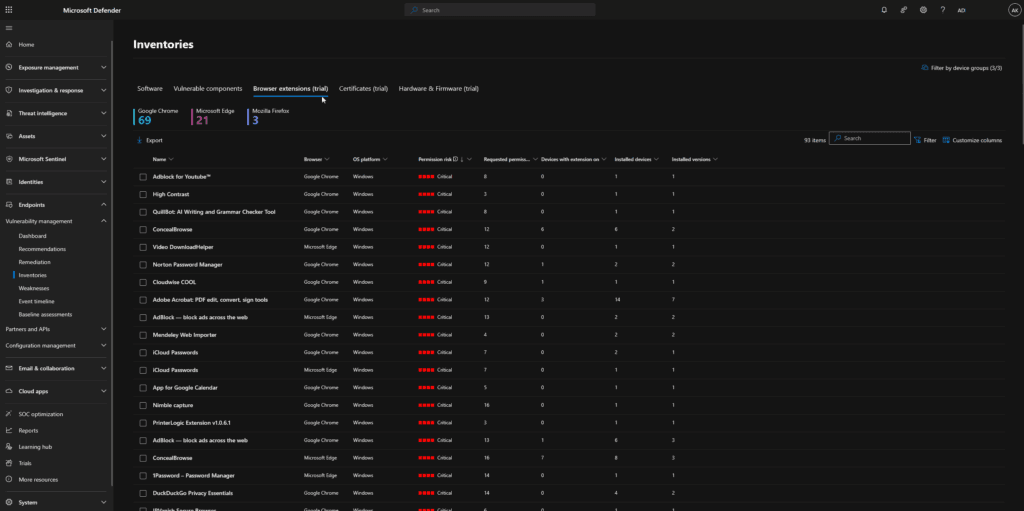
- Go to Endpoints > Vulnerability Management > Inventories
- Click on the Browser extensions tab
- Review the extension data:
- Review the list of extensions, including names, browser types, number of installations, enabled status, and associated risk levels.
- Investigate a high-risk extension:
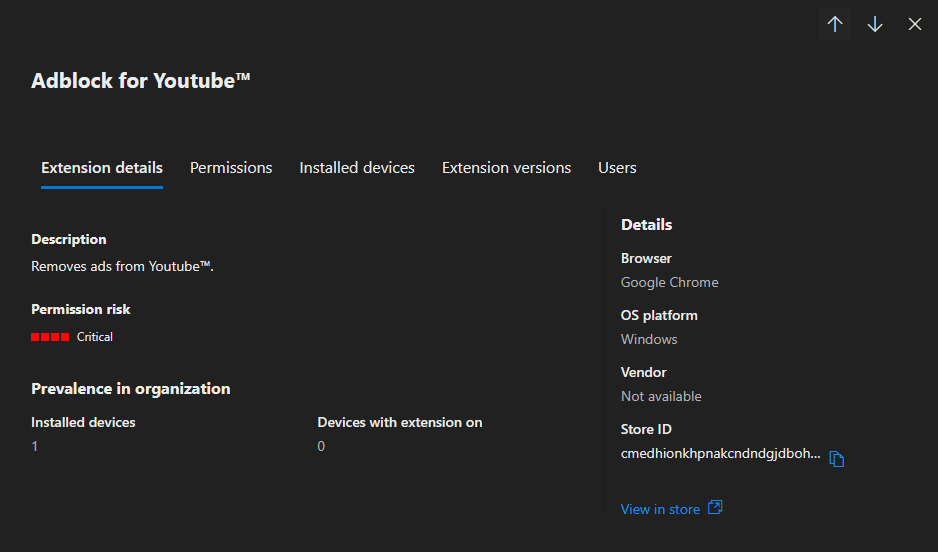
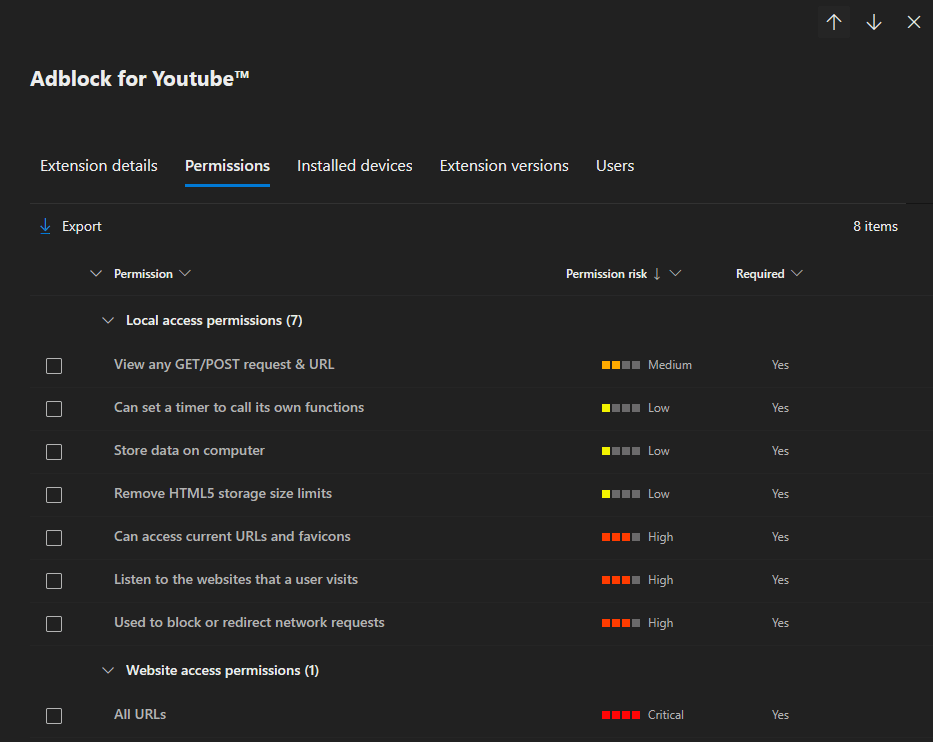
- Click on a high-risk extension to view:
- Risk justification
- Permissions used
- Publisher information
- List of affected devices
- Click on a high-risk extension to view:
- Export the inventory:
- Use the export button to download data for reporting or offline analysis.
- Remediation actions:
- Tag devices for follow-up
- Open a security task
- Assign to a remediation team or automation rule
Advanced Hunting with Kusto Query Language (KQL)
Advanced hunting enables security analysts to proactively search for threats and vulnerabilities related to browser extensions using KQL:
Example: Top 100 critical browser extensions with the most critical permissions required
DeviceTvmBrowserExtensions
| where ExtensionRisk == "Critical"
| summarize TotalExtentions = count(), ExtentionNames = make_set(ExtensionName) by DeviceId
| join DeviceInfo on DeviceId
| project DeviceName, TotalExtentions, ExtentionNames
| top 100 by TotalExtentions
Source: KQL Search
Example: Top 100 devices with the most browser extensions installed
DeviceTvmBrowserExtensions
| summarize
     TotalExtensions = dcount(ExtensionId),
     ExtensionNames = make_set(ExtensionName)
     by DeviceId
| join DeviceInfo on DeviceId
| project DeviceName, TotalExtensions, ExtensionNames
| top 100 by TotalExtensions
Source: KQL Search
Example: Classifying browser extension by type and risk severity
let Browser_Extension_info = externaldata(browser_extension:string ,metadata_category:string ,metadata_type:string ,metadata_link:string ,metadata_comment:string)[@"https://raw.githubusercontent.com/mthcht/awesome-lists/refs/heads/main/Lists/Browser%20Extensions/browser_extensions_list.csv"] with (format="csv", ignoreFirstRecord=True);
Browser_Extension_info
| join kind= inner (DeviceTvmBrowserExtensions) on $left.browser_extension == $right.ExtensionName
| project metadata_type, Extension_Group= browser_extension, Severity= metadata_link, metadata_comment, DeviceId, ExtensionDescription, ExtensionVersion
Source: KQL Search
Example: Identify browser extensions with “Can turnoff malware protections” permissions in endpoints with no tamper protection
let BrowserExtMalwareProtectionKB = DeviceTvmBrowserExtensionsKB
    | where PermissionName contains "Can turn off malware protections"
    | project ExtensionId, ExtensionName, ExtensionRisk, PermissionName;
let BrowserExtMalwareProtection = DeviceTvmBrowserExtensions
    | project ExtensionId, DeviceId;
let DeviceWoTamperProtection = DeviceTvmSecureConfigurationAssessment
    | where ConfigurationId has "scid-2003"
    | where IsCompliant == "0"
    | where IsApplicable == "1"
    | project DeviceId, DeviceName, OSPlatform, Timestamp;
union BrowserExtMalwareProtection, BrowserExtMalwareProtectionKB,
        DeviceWoTamperProtection
    | summarize by ExtensionId, DeviceId
    | join ( BrowserExtMalwareProtectionKB ) on ExtensionId
    | join kind=rightouter ( BrowserExtMalwareProtection ) on ExtensionId
    | join ( DeviceWoTamperProtection ) on DeviceId
    | summarize DeviceCount=dcount(DeviceName), arg_max(Timestamp, *) by ExtensionName, ExtensionRisk
    | sort by DeviceCount asc, ExtensionRisk
Source: KQL Search
Example: Query the installed extensions with the most required permissions
let ExtentionsWithNotification = DeviceTvmBrowserExtensionsKB
     | where PermissionId contains "Notification"
     | summarize make_set(ExtensionId) by ExtensionId;
DeviceTvmBrowserExtensions
| where ExtensionId in (ExtentionsWithNotification)
| distinct DeviceId, ExtensionName
| summarize TotalInstalledDevices = count() by ExtensionName
| sort by TotalInstalledDevices
Source: KQL Search
For more queries, visit the Advanced Hunting documentation.
Step-by-Step: Controlling browser extensions with Microsoft Intune
Microsoft Intune allows administrators to enforce policies that control browser extension installations across an organization:
Blocking Google Chrome Extensions
- Open the Microsoft Intune Admin Center:
- Create a Configuration Profile:
- Navigate to Devices > Configuration profiles
- Click on + Create profile
- Choose Platform: Windows 10 and later
- Profile Type: Settings catalog
- Add Settings:
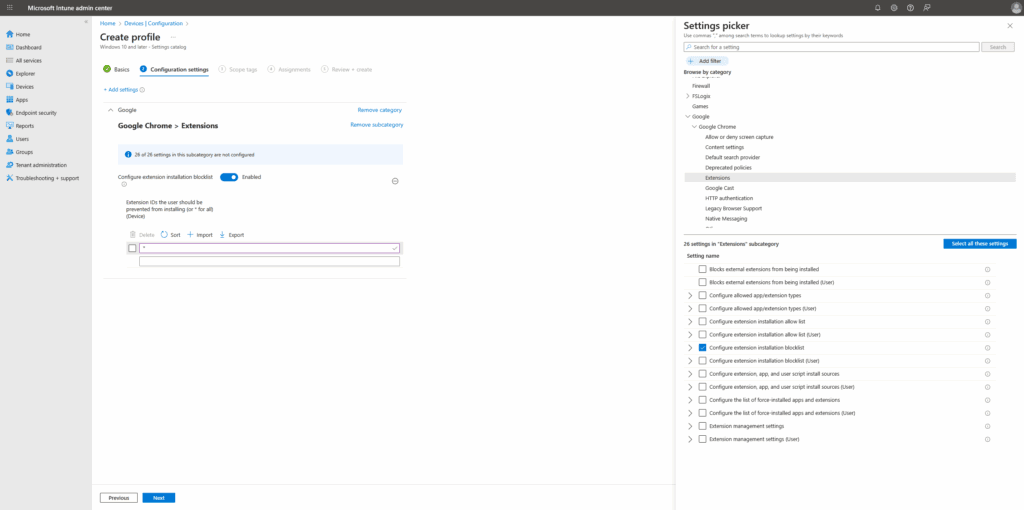
- In the Settings picker, search for Google Chrome\Extensions
- Select Configure extension installation blocklist
- Block All Extensions:
- Enable the setting
- Add a wildcard (
*) to block all Chrome extensions
Allow Specific Chrome Extensions (Exceptions)
- Modify or create a policy as above
- Add Settings:
- Search and add:
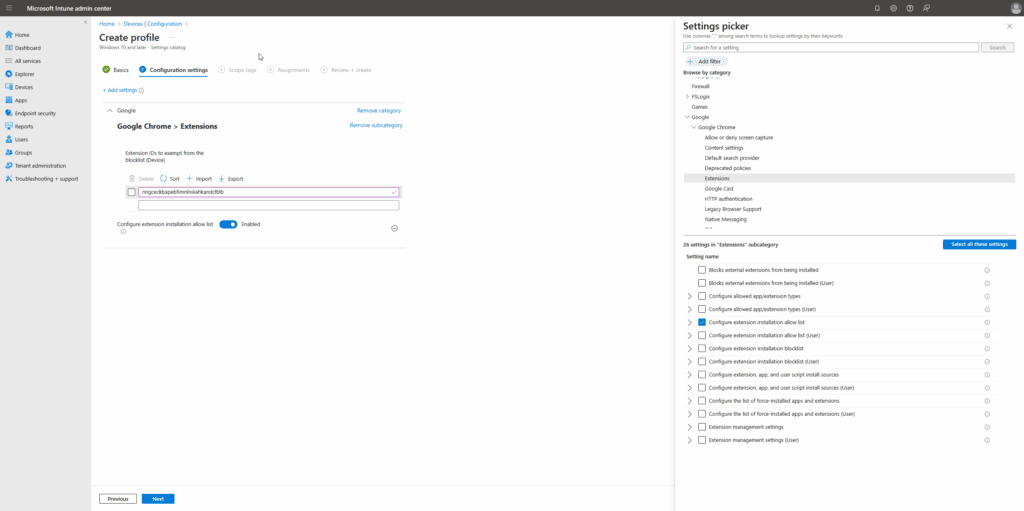
- Configure extension installation allow list
- Extension IDs to exempt from the blocklist (device)
- Search and add:
- Enable Allow List:
- Add extension IDs (from Chrome Web Store URL)
- One ID per rule (e.g.,
nngceckbapebfimnlniiiahkandclblb)
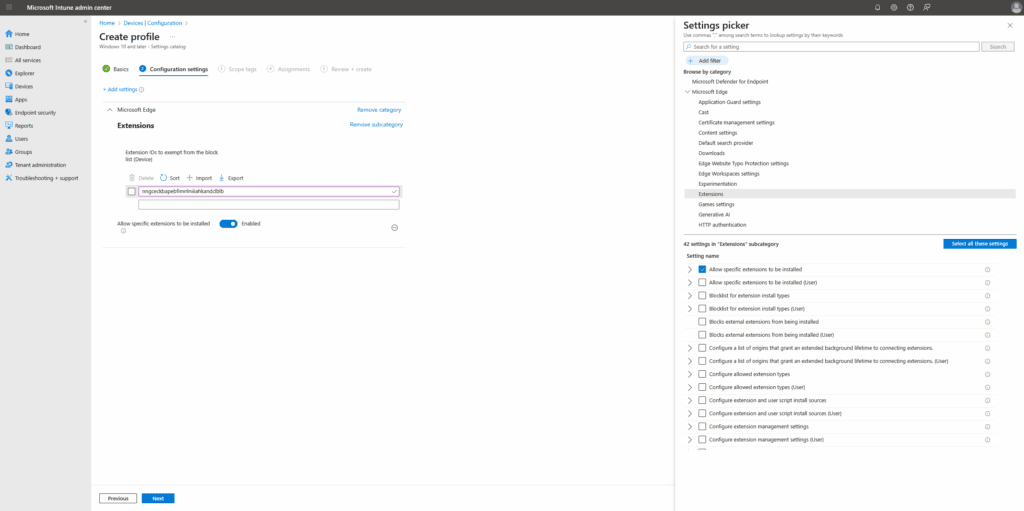
Blocking Microsoft Edge Extensions
- Open the Microsoft Intune Admin Center:
- Create a Configuration Profile:
- Navigate to Devices > Configuration profiles
- Click on + Create profile
- Choose Platform: Windows 10 and later
- Profile Type: Settings catalog
- Configure Extension Settings for Microsoft Edge:
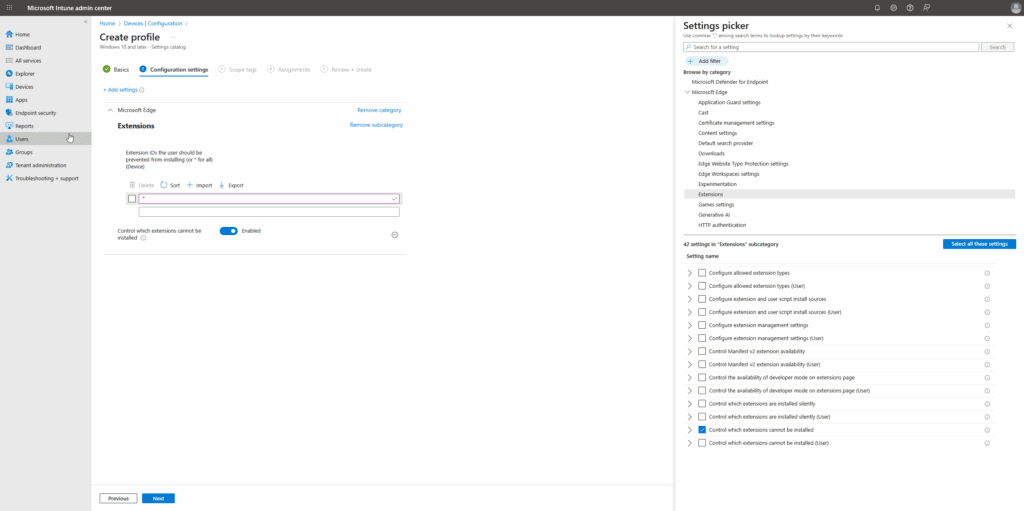
- In the Settings picker, search for Microsoft Edge\Extensions
- Add settings like:
- Control which extensions cannot be installed (blocklist)
- Deploy the Policy:
- Assign the profile to the appropriate user/device groups
- Monitor deployment status under Device status
And the same goes for allowing ID’s to be installed:
Block Extensions via MDE Custom Detection
We can also block extensions through MDE and Indicators, but for first for that we need to know a bit more about the anatomy of an extension:
A standard browser extension is packaged as a .crx (Chrome Extension) file, which is essentially a ZIP archive. It typically contains:
manifest.json– The core configuration file defining the extension’s metadata, permissions, scripts, and runtime behavior.- Content scripts – JavaScript files injected into webpages to interact with the DOM.
- Background scripts – Run persistently or event-driven in the background (e.g.,
background.jsorworker.js). - UI elements – HTML/CSS for popups or browser buttons.
- Assets – Icons, images, localization files, and sometimes configuration files (like
config.txt).
When installed, extensions are stored locally under the user’s profile:
- On Windows:
C:\Users\\AppData\Local\Google\Chrome\User Data\Default\Extensions\ - On macOS:
~/Library/Application Support/Google/Chrome/Default/Extensions/ - On Microsoft Edge:
Similar path underMicrosoft\Edge\User Data
Once installed, the browser evaluates the manifest.json, grants permissions (like tabs, cookies, storage), and loads content or background scripts accordingly.
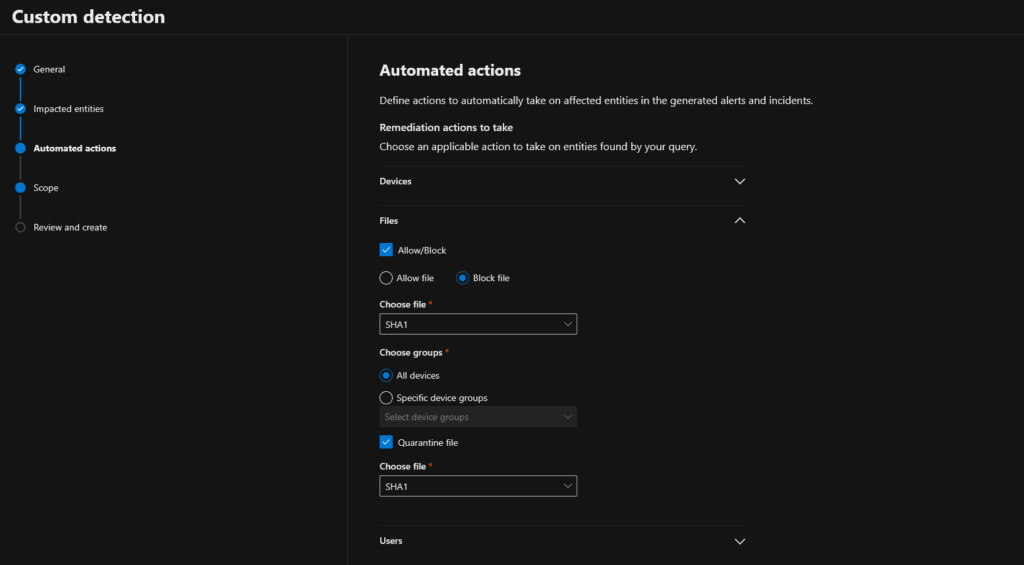
So…. if we hunt for .crx files we can lookup the SHA1 hashes and block them:
- Open the Microsoft 365 Defender Portal:
- Use Advanced Hunting:
- Navigate to Hunting > Advanced Hunting
- Use the table:
DeviceFileEvents
- Apply Query to Detect Malicious Extensions:
- Use this query example by Steven Lim: GitHub KQL – Malicious Chrome Extension Detection
- Create Custom Detection Rule:
- When detection is matched, trigger remediation
- Action: Block SHA1 hash or create alert
- Apply block on detection:
- Configure automated response settings
- Suitable for organizations not using TVM add-on
Recommendations
- Monitor new browser plugins—especially those involving AI or LLM tools
- Perform regular browser extension reviews via TVM Inventory
- Detect risky behavior using KQL + advanced hunting
- Enforce restrictions using Microsoft Intune, GPO, or MDE Indicators
- Conduct OAuth permission reviews through App Governance
Additional resources
- https://gitlab-com.gitlab.io/gl-security/security-tech-notes/threat-intelligence-tech-notes/malicious-browser-extensions-feb-2025/
- https://blog.pulsedive.com/compromised-browser-extensions-a-growing-threat-vector/
- https://arstechnica.com/security/2025/01/dozens-of-backdoored-chrome-extensions-discovered-on-2-6-million-devices/
- https://blog.sekoia.io/targeted-supply-chain-attack-against-chrome-browser-extensions/
Conclusion
Malicious browser extensions are no longer just annoying adware—they’re part of sophisticated campaigns targeting enterprise credentials, OAuth tokens, and session cookies. The combination of user trust, browser permissions, and persistent access makes them especially dangerous.
Organizations need to move beyond passive awareness. By actively leveraging tools like Microsoft Defender Vulnerability Management (TVM), Microsoft Defender for Endpoint, and Microsoft Intune, you can:
- Detect high-risk extensions before they spread
- Enforce strict install policies across Chrome and Edge
- Continuously hunt for suspicious behavior or token abuse
- Remove extensions and revoke OAuth grants at scale
Modern threats demand modern visibility. If you haven’t yet reviewed your browser extension exposure across your environment, now is the time. The tools are there – and as attackers evolve, our defenses must too.