


Introduction to Honeytoken Accounts in Microsoft Defender for Identity (MDI)
Microsoft Defender for Identity provides organizations with an effective way to detect and deter identity-based attacks through the use of honeytoken accounts. Honeytokens are decoy accounts, configured to look valuable to attackers, which trigger alerts whenever they’re accessed without authorization. This proactive defense strategy helps organizations identify potential breaches early, enabling rapid response to suspicious activity.
By leveraging these accounts in security teams can monitor lateral movement attempts, credential harvesting, and other suspicious behavior within their Active Directory environments. Honeytoken accounts are essential to a layered defense approach, offering high-value insights into potential attack paths and improving an organization’s overall security posture.
Benefits of Honeytoken Accounts in MDI
Implementing honeytoken accounts offers several security advantages:
- Early detection of unauthorized access: Honeytokens are designed to alert security teams at the first sign of an attack, allowing for a quick and effective response.
- Enhanced threat visibility: Honeytoken alerts provide insights into attacker tactics, such as lateral movement and privilege escalation, enabling better threat analysis.
- Reduced false positives: Since honeytokens are unused by legitimate users, alerts associated with these accounts are high-fidelity, reducing false positives and enabling faster action.
These benefits make it a valuable component in securing identity-based assets
Prerequisites and licensing
To deploy this solution with Microsoft Defender for Identity, ensure your organization meets the prerequisites and licensing requirements:
| Requirement | Licensing requirement |
|---|---|
| Microsoft Defender for Identity | Microsoft 365 E5 or E5 Security |
| Microsoft Sentinel Integration | Azure Subscription |
| Active Directory Environment | Required for honeytoken account setup |
Supported requirements for the deployment:
- Microsoft 365 E5 or E5 Security License: Required for access to MDI’s functionality
- Active Directory or Hybrid Identity setup: Configuring tokens requires AD or hybrid identity support
- Microsoft Sentinel Integration: Optional but recommended to centralize alert monitoring
Meeting these prerequisites ensures that honeytokens are fully supported and effectively monitored
Strategic placement and naming of accounts
The solution works best when strategically configured:
- Repurpose inactive accounts: Use existing, unused (stale) accounts to enhance realism by giving the accounts a history within AD
- Enticing names: Assign names that look valuable to attackers, such as “Temp Admin” or “Back Office”
- Group placement for visibility: Add honeytokens to (fake) sensitive groups like “Remote Desktop Users” to increase their visibility to attackers
- Assign Service Principal Names (SPNs): Assign SPNs to honeytokens, making them targets for Kerberos-based attacks, such as Pass-the-Ticket
- Plant credentials on shared resources: Place honeytoken credentials in realistic-looking files on file shares or SharePoint to attract attackers during internal reconnaissance and trigger early alerts.
Properly configuration is essential to successfully attracting and detecting malicious access attempts.
Creating accounts for Microsoft Defender for Identity
Scenario 1: Service Account with SPN (on-premises AD, non-synced)
This scenario creates a fake service account with a realistic SPN, simulating a common target for attackers attempting Kerberoasting or LDAP reconnaissance.
Step 1: Create the AD account
New-ADUser `
  -Name "svc_backup" `
  -SamAccountName "svc_backup" `
  -UserPrincipalName "[email protected]" `
  -AccountPassword (ConvertTo-SecureString "VeryStrongPassword!123" -AsPlainText -Force) `
  -Enabled $true `
  -PasswordNeverExpires $true `
  -CannotChangePassword $true `
  -Path "OU=NotSynced,DC=contoso,DC=local"
Step 2: Restrict the account
Set-ADUser -Identity "svc_backup" -LogonWorkstations ""
Step 3: Assign fake SPNs
setspn -S MSSQL/fake-database01.contoso.local contoso\svc_backup
setspn -S HTTP/fake-webapp.contoso.local contoso\svc_backup
Step 4: Add to permissive-looking groups
$groups = @("Remote Desktop Users", "Backup Operators")
$user = "svc_backup"

foreach ($group in $groups) {
    if (-not (Get-ADGroupMember -Identity $group -Recursive | Where-Object { $_.SamAccountName -eq $user })) {
        Add-ADGroupMember -Identity $group -Members $user
    }
}
Scenario 2: Legacy or stale-looking acccount (on-premises AD, non-synced)
This scenario leverages an old or unused account, renamed to appear legitimate, and left visible in AD to catch unauthorized access or enumeration.
Step 1: Identify an unused or stale account
You can locate unused accounts with PowerShell:
Search-ADAccount -AccountInactive -UsersOnly -TimeSpan 180.00:00:00Step 2: Rename the account
Choose a generic name that reflects legacy usage:
Rename-ADObject -Identity "CN=John.Doe,CN=Users,DC=contoso,DC=local" -NewName "Back Office"
Set-ADUser -Identity "BackOffice" -SamAccountName "Back Office" -UserPrincipalName "[email protected]"
Or create a new one, depending on your environment:
New-ADUser
  -Name "Temp Admin"
  -SamAccountName "TempAdmin"
  -UserPrincipalName "[email protected]"
  -AccountPassword (ConvertTo-SecureString "YetAnotherStrongPass#2024" -AsPlainText -Force)
  -Enabled $true
  -PasswordNeverExpires $true
  -CannotChangePassword $true
  -Path "OU=NotSynced,DC=contoso,DC=local"
Step 3: (Optional) Add to permissive-looking groups
Add-ADGroupMember -Identity "Help Desk" -Members BackOfficeSetting up accounts in MDI
Configuration Steps
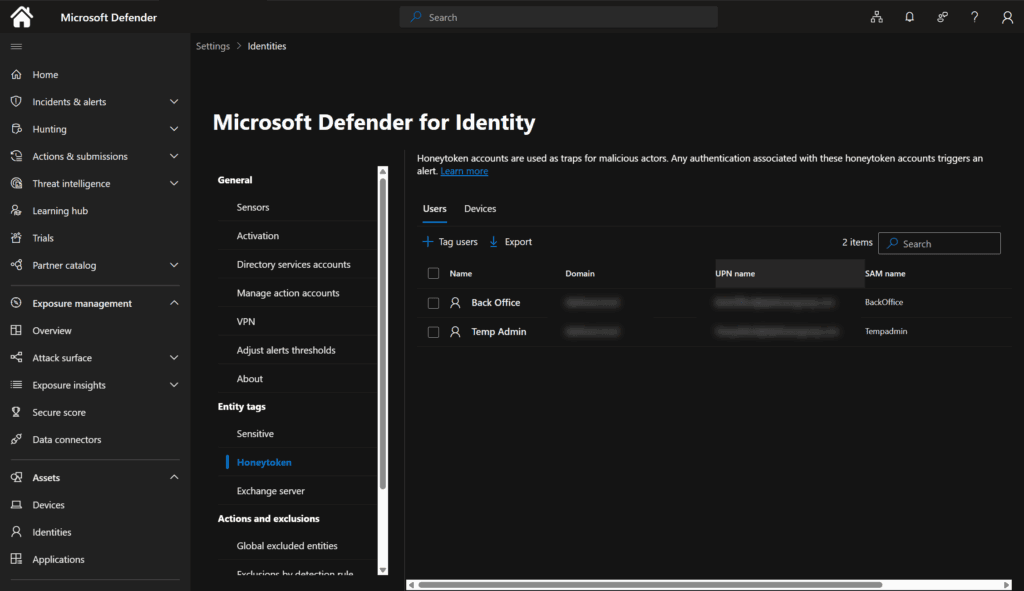
Access Defender for Identity settings:
- Go to Microsoft 365 Defender > Identity > Settings
- Use the button Tag users to tag the above created users
Strategic placement of Honeytoken credentials
Creating and tagging honeytoken accounts is only part of an effective deception strategy. To increase the likelihood of detection, organizations should intentionally plant fake credentials in locations attackers are likely to explore — such as file shares, SharePoint, and network drives.
These planted credentials act as bait during internal reconnaissance and privilege escalation attempts.
Recommended locations
File servers and network shares
Place fake credential files on accessible shares that mimic sensitive or forgotten data repositories:
\\fileserver\IT\old_credentials.txt\\fileserver\Finance\VPN_Access.xlsx\\nas01\Archive\admin_creds.docx
Use realistic formats and filenames, such as:
Username: [email protected]
Password: P@ssw0rd1234!
SharePoint document libraries
Upload decoy files to shared SharePoint folders that appear internal or technical in nature:
HR_Accounts_Export.xlsxSupport_Logins_March.docxInfrastructure_Passwords_Archive.zip
Make sure the files are readable but isolated from legitimate workflows. Limit indexing and sharing where possible to reduce noise.
Mapped drives
Mapped drives often appear during lateral movement and are browsed manually or with tools. Place credentials in deep folder paths like:
S:\Projects\Legacy\Support\credentials.txtR:\InternalDocs\Infra\Old_DB_Logins.docx
The goal is to make the data visible to intruders who gain file-level access, while ensuring it’s meaningless and unused by legitimate users.
Configuring monitoring in MDI and Sentinel
Native alerting in MDI
Once the accounts are registered in Microsoft Defender for Identity, the platform automatically generates alerts when the account is:
- Queried via LDAP or SAM-R
- Used for authentication
- Targeted by a Kerberos TGS request (Kerberoasting)
- Modified or added to groups
These alerts are built-in, preclassified by Microsoft, and do not require any custom rule creation.
Connect MDI to Microsoft Sentinel
- Use the Microsoft Defender for Identity data connector in Sentinel
- Alerts from MDI are ingested automatically through the Microsoft 365 Defender integration
Sample KQL query: view all Honeytoken alerts
kqlKopiërenBewerkenSecurityAlert
| where ProductName == "Azure Advanced Threat Protection"
| where AlertName contains "Honeytoken"
| project TimeGenerated, AlertName, CompromisedEntity, Entities, AlertSeverity, Description
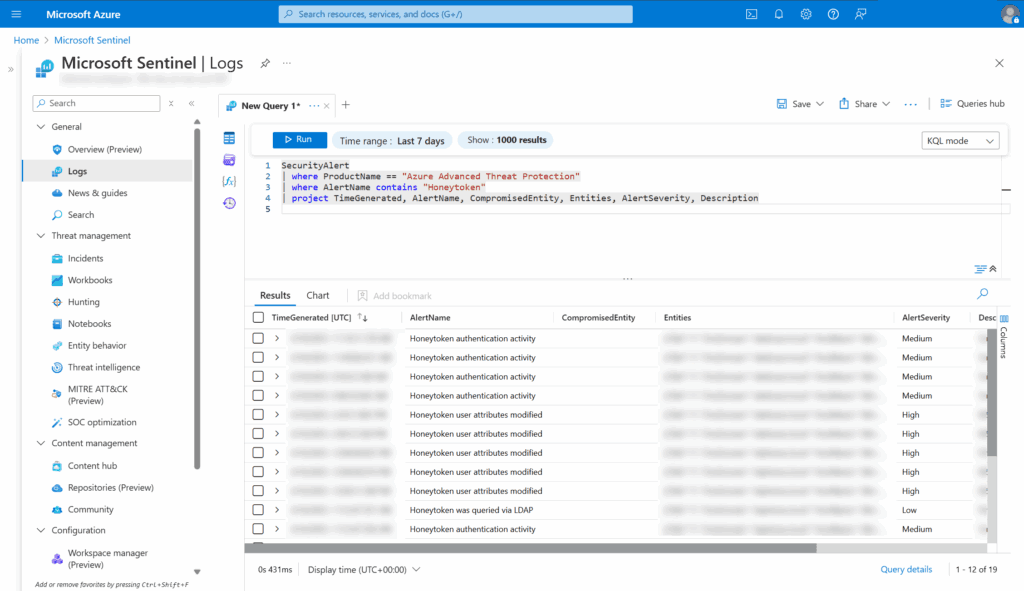
This query surfaces all alerts triggered specifically by above criteria
Tools and techniques for testing effectiveness
Event IDs for monitoring (manually monitoring)
| Event ID | Description | Source |
|---|---|---|
| 4624 | Successful account logon | Security Log |
| 4768 | Kerberos authentication (TGT request) | Security Log |
| 4776 | NTLM authentication attempt | Security Log |
| 4648 | Logon attempt using explicit credentials | Security Log |
| 4625 | Failed logon attempt | Security Log |
Using Microsoft Sysinternals Tools for Testing
Process Monitor:
- Filter Process Monitor to capture “Event Category = Logon/Logoff” and “Username =
TempAdmin” for honeytoken activity tracking.
PsExec:
- Use PsExec to simulate remote access:
powershell PsExec.exe \\RemoteComputer -ucontoso.local\TempAdmin -p <password> cmd
Detailed testing and simulation Guide
Atomic Red Team for credential theft simulation:
- Run T1555.003 (Windows Credential Dumping) from Atomic Red Team to simulate credential theft aimed at honeytoken accounts.
Invoke-Adversary for lateral movement simulation:
- Simulate lateral movement using Invoke-Adversary:
powershell Invoke-Adversary -Command "net use \\\\TargetMachine /USER:Domain\HoneytokenAccount"
Combining with Endpoint Deception (MDE)
Earlier I’ve blogged about Microsoft Defender for Endpoint (MDE) Endpoint Deception, the nice thing is you could also combine MDE Deception (custom) with MDI HoneyAccounts.
While Microsoft Defender for Identity help detecting identity-based attacks like Kerberoasting or LDAP enumeration, many attackers continue their activity on endpoints. That’s where Microsoft Defender for Endpoint (MDE) deception comes in.
By enabling deception in MDE, fake credentials, files, and network shares are silently deployed on endpoints. If an attacker interacts with these lures, an alert is triggered — often before they reach critical systems.
To increase detection coverage place your honeytoken credentials (e.g., [email protected]) in fake .txt or .xlsx files. Combined, MDI and MDE deception provide layered, early detection across both identity and endpoint layers — all correlated automatically in Microsoft 365 Defender or Sentinel.
Best Practices for deploying Honeytokens in MDI
- Rotate Honeytoken Accounts regularly: Regularly update or replace honeytokens to prevent attackers from identifying patterns.
- Review alert thresholds: Fine-tune alert settings to avoid unnecessary notifications, ensuring that honeytoken alerts are highly actionable.
- Centralize monitoring in Sentinel: Use Microsoft Sentinel to centralize alerts and streamline incident management workflows.
Extra resources
Conclusion
Deploying honeytokens within Microsoft Defender for Identity strengthens identity protection, helping organizations detect and respond to identity-based threats early. By strategically configuring, monitoring, and testing honeytokens, organizations can act on high-fidelity alerts and reinforce overall identity security.