




Sentinel graph ships with two layers. One is custom graphs, where you build your own schema from any data in the lake, which I will cover in a new blog post later. The other is a set of Microsoft-managed graphs that require no authoring at all.
The identity attack graph is the most useful of those managed graphs. Enable two connectors, turn on the graph, wait for the initial build, and you have a query-able model of how identities in your tenant connect to Azure resources through permissions and group memberships. No notebooks, no schema design, no GQL to write upfront.
The graph is currently in preview
What it shows you
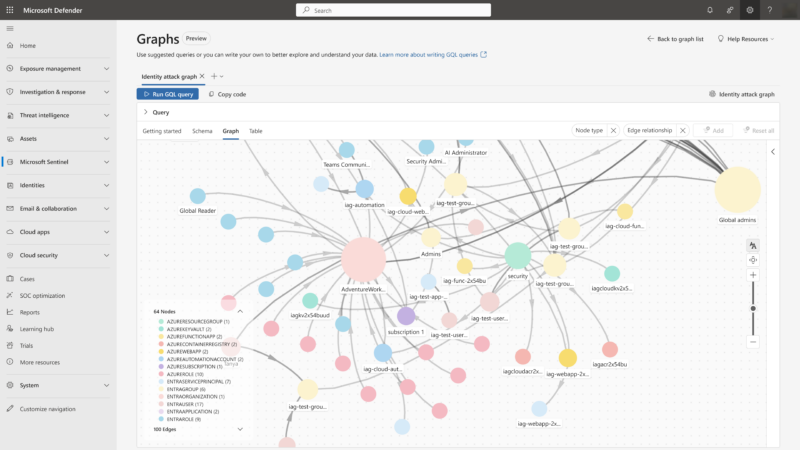
The identity attack graph models three things: identities (users, service principals, managed identities, groups), Azure resources (subscriptions, resource groups, VMs, storage accounts, Key Vaults), and the access relationships connecting them via role assignments and group memberships.
The focus is lateral movement paths, not just direct access. A user who is a member of a group that has a role assignment on a subscription containing a Key Vault is three hops from that Key Vault. That chain doesn’t appear in a flat permissions table. It appears in a graph because each of those relationships is modelled as an edge you can traverse.
It’s built to answer questions like:
- What resources could an attacker reach if this account is compromised?
- Which identities have indirect paths to privileged roles?
- Which service principals can reach VMs, and via how many hops?
- Are there circular group memberships creating unintended privilege inheritance?
The predefined queries surface these without any GQL knowledge required. You can also write your own once you’re familiar with the schema.
Prerequisites
| Requirement | Details |
|---|---|
| Microsoft Sentinel data lake | Must be enabled. The identity attack graph reads from the data lake tier and won’t work without it. |
| Microsoft Entra ID Assets connector | Required. Provides identity data: users, groups, service principals, managed identities, and the relationships between them. |
| Azure Resource Graph connector | Required. Provides Azure subscription and resource hierarchy. |
| Role to create the graph | Global Administrator or Security Administrator. |
Both connectors are bundled in their respective Sentinel solution packages. If not yet installed, find them in Content Hub under Microsoft Sentinel > Content Management > Content Hub.
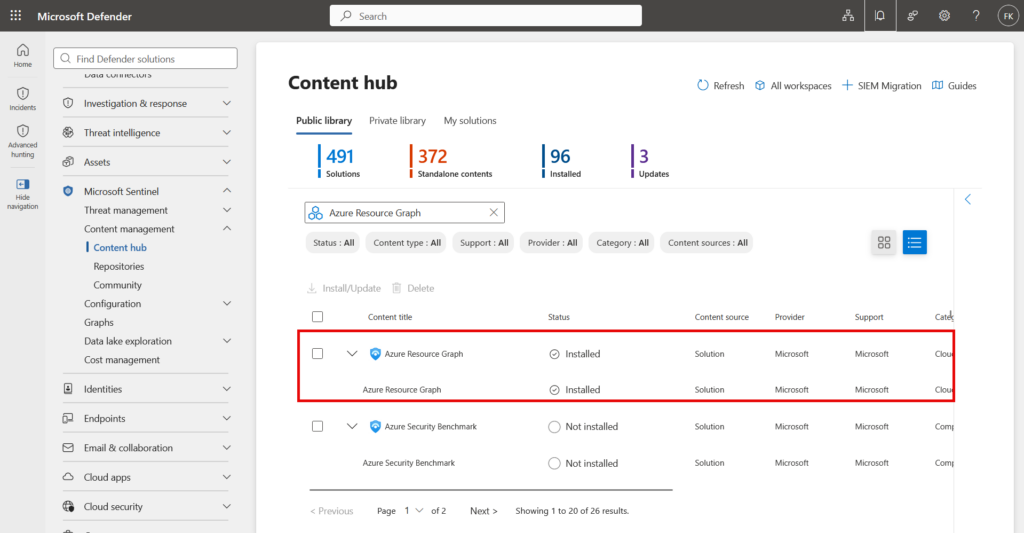
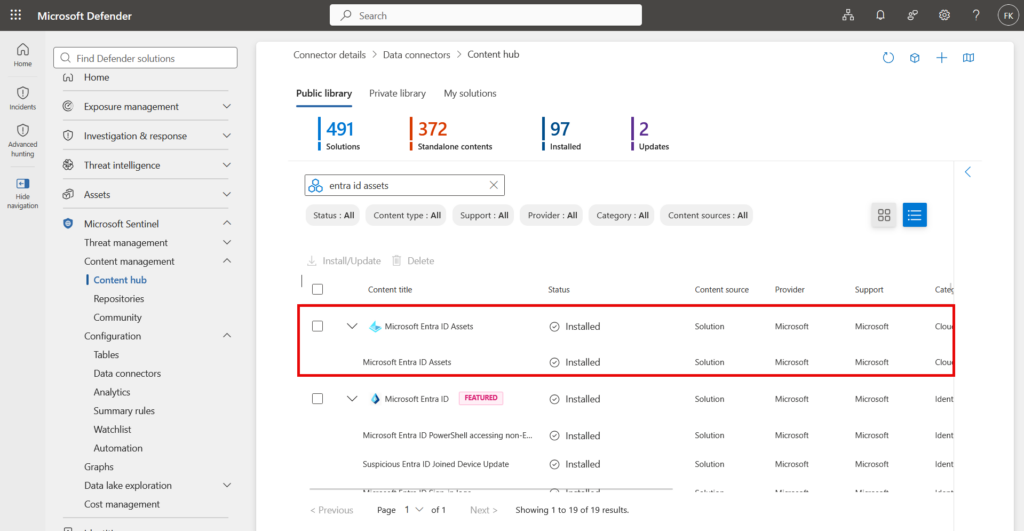
Asset data snapshots are taken once every 24 hours. After enabling a connector, data can take up to 24 hours to arrive in the lake. Initial graph processing after that can take up to 48 hours. Enable this well before you need it for an investigation.
One thing most guides don’t mention: ARG connector coverage
The Azure Resource Graph connector has a coverage limitation worth understanding before you enable it.
When enabled, its managed identity is automatically granted the Reader role only on subscriptions where you have the Owner role. If you don’t have Owner across your entire Azure estate (most people don’t), the connector ingests a partial view. The graph gets built, but it won’t include resources from subscriptions the managed identity can’t read.
In my case I had the owner permissions and the identity was correctly setup:
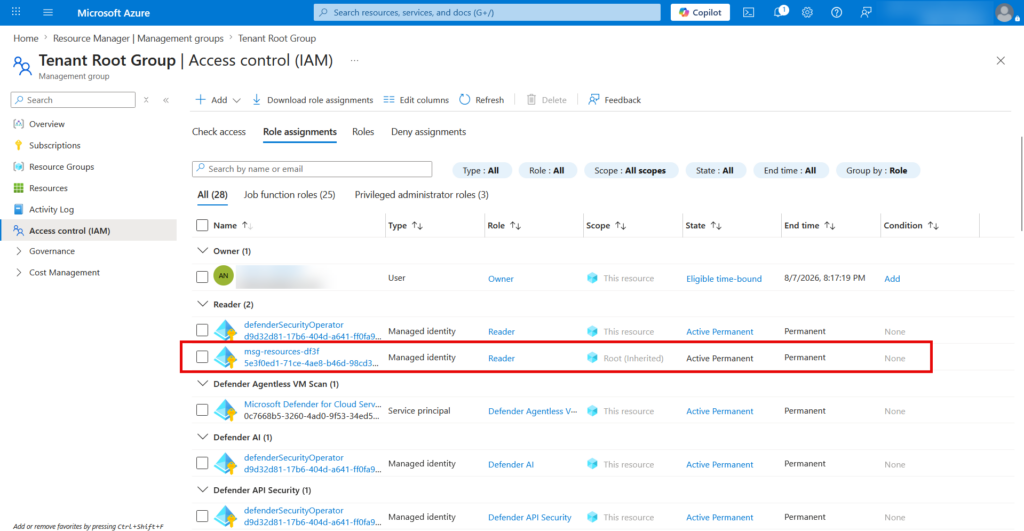
To get full tenant coverage, someone with elevated permissions needs to assign the Reader role to the connector’s managed identity at a broader scope if it failed. The managed identity is named msg-resources- followed by an alphanumeric ID, for example msg-resources-b05e. Reader can be assigned at:
- Tenant root management group covers all subscriptions in the tenant
- A specific management group covers a subset
- Individual subscriptions covers only those
Steps to assign:
- Navigate to the scope you want to cover, for example Tenant Root Group > Access control (IAM)
- Select + Add > Add role assignment
- Assign the Reader role to the managed identity
- Locate the
msg-resources-*managed identity and complete the assignment
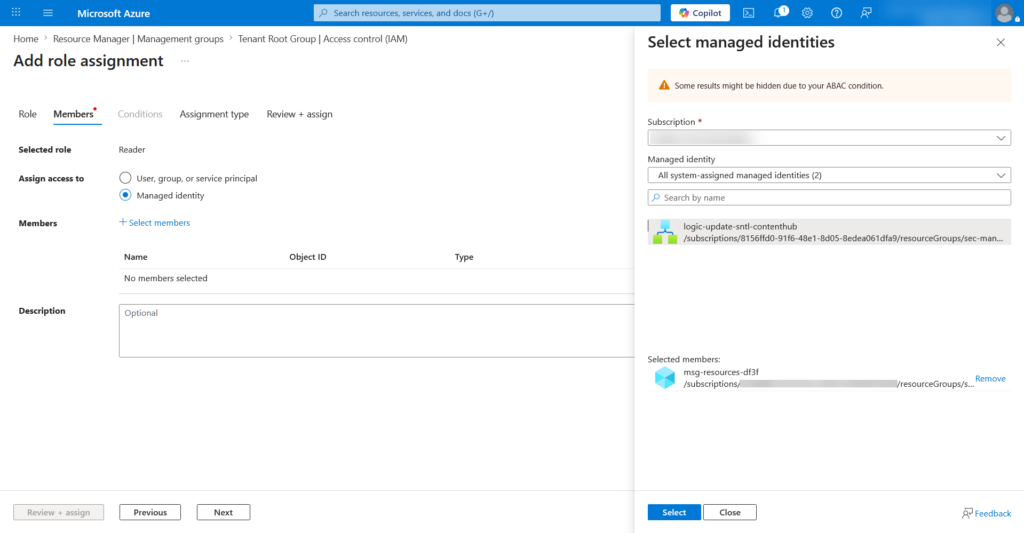
After the assignment propagates, the next ingestion cycle picks up the additional resources. Up to 24 hours for the new data to appear in the lake.
If your graph is missing subscriptions or resources you’d expect to find, this is almost certainly the reason.
Setting up the identity attack graph
Step 1: Navigate to Graphs
In the Microsoft Defender portal, go to Microsoft Sentinel > Graphs.
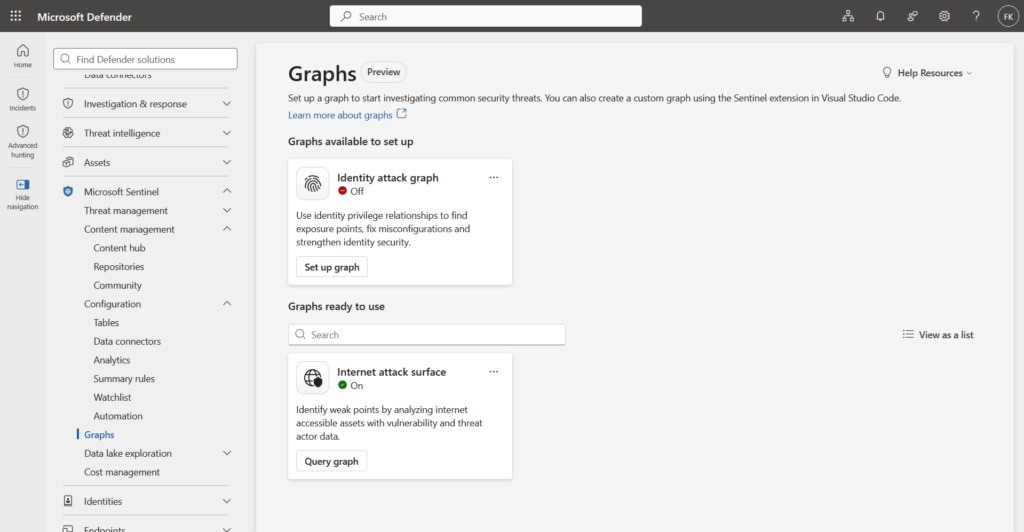
Step 2: Set up the graph
Find the identity attack graph card and select Set up graph.
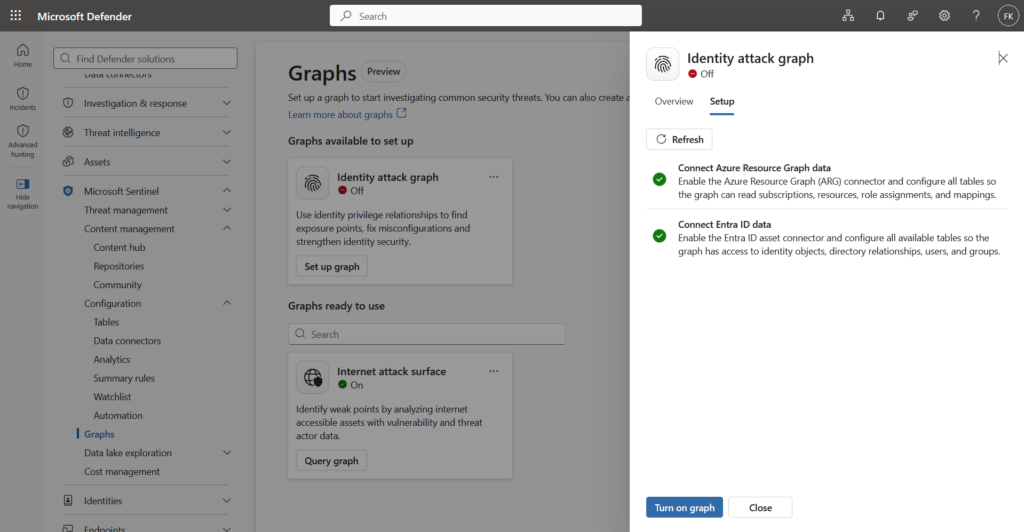
Step 3: Enable the required connectors
The setup flow walks you through both connectors:
- Microsoft Entra ID Assets covers identity data, group memberships, and service principals
- Azure Resource Graph covers Azure subscriptions and resource hierarchy
If either is not yet installed, go to Content Hub first and install the relevant solution. Already installed but not enabled, the setup flow will prompt you to turn them on.
This is also the point to think about ARG connector coverage. If full tenant coverage matters for your use case, sort out the managed identity Reader assignment before continuing.
Step 4: Turn on the graph
Select Turn on graph. The graph starts ingesting data and building its relationship model.
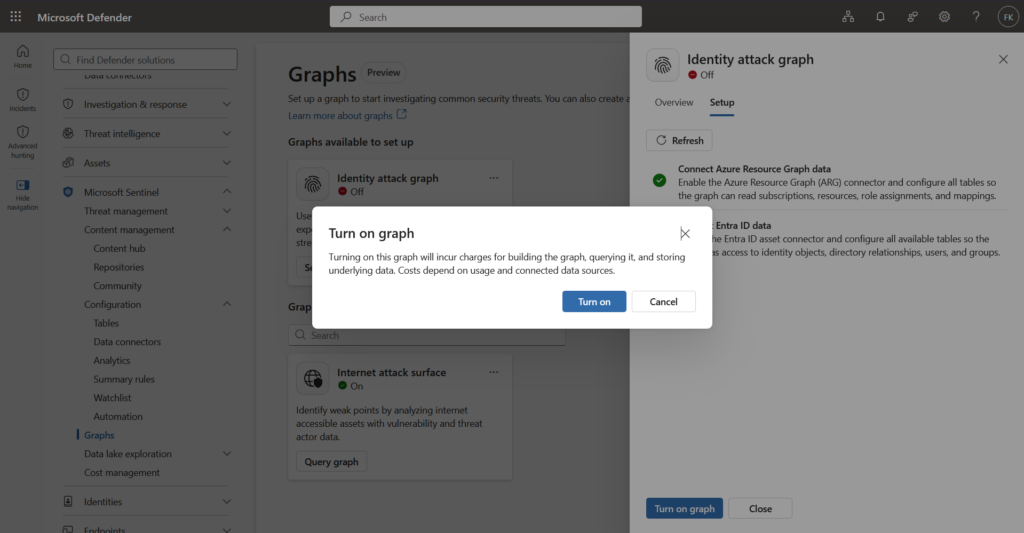
Initial processing can take up to 48 hours. The graph is not query-able until the first build completes.
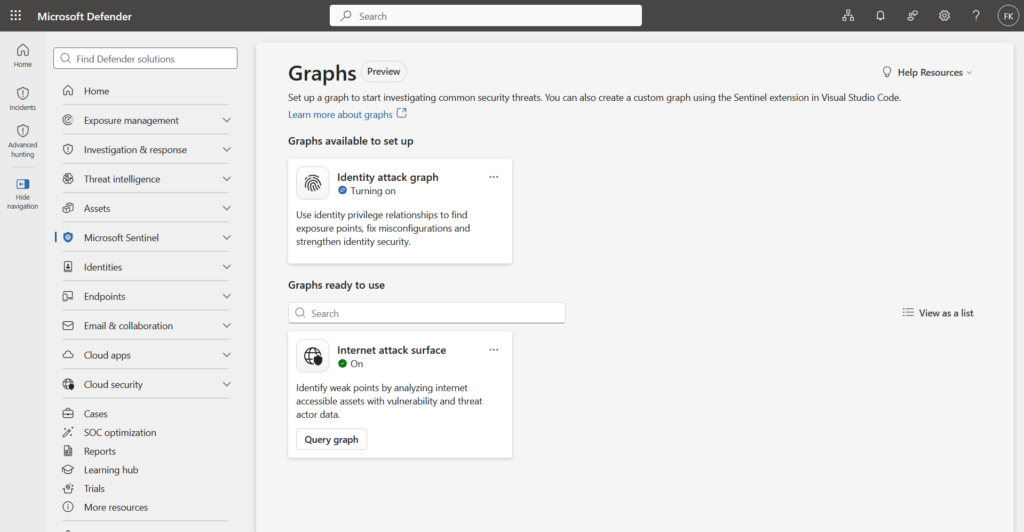
Step 5: Open the query interface
When the graph shows as ready, select Query graph on the identity attack graph tile.
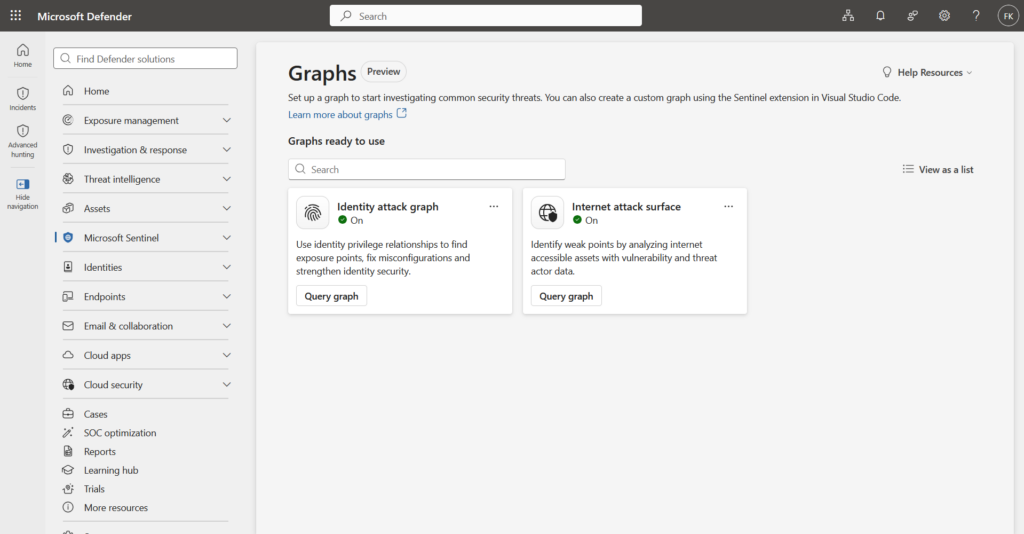
Querying the identity attack graph
Step 6: Review the schema
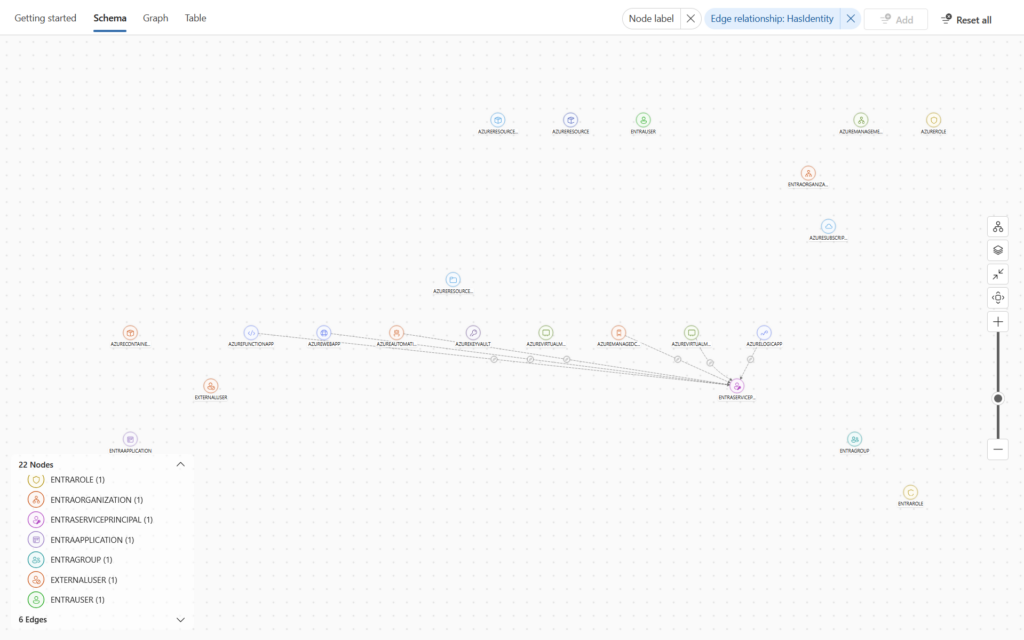
Before running anything, open the Schema tab.
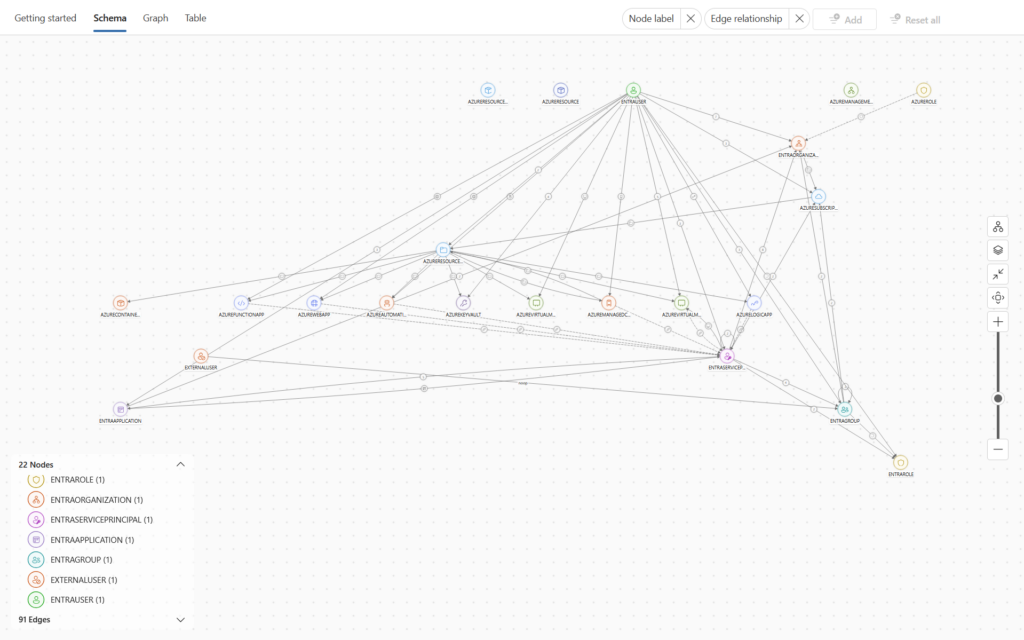
The schema defines what you can match in GQL. Node types include Entra users, groups, service principals, managed identities, Azure subscriptions, resource groups, VMs, storage accounts, and Key Vaults. Edge types include group memberships and role assignments. Checking the schema before writing queries saves time.
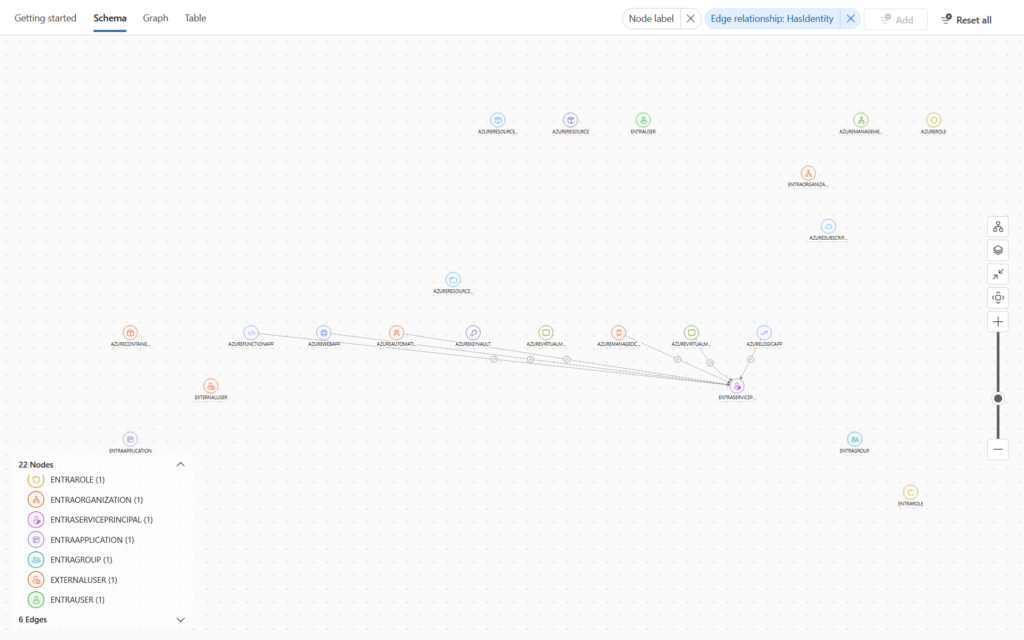
Worth being explicit: the query language here is GQL (Graph Query Language), not KQL. The syntax looks familiar in places but the logic is different. GQL uses MATCH (x)-[y]->(z) patterns to traverse relationships. You follow edges between nodes rather than joining rows. The predefined queries are a good way to see what working GQL looks like before writing your own.
Step 7: Start with the predefined queries
Start with the predefined queries before writing custom GQL. They cover the most useful scenarios and show you the query structure.
| Query | What it surfaces |
|---|---|
| Visualize any graph | All nodes and edges, good starting point for exploration |
| Map Azure management structure | Subscription, resource group, and resource hierarchy |
| Identity attack paths: Entra users to Azure Key Vaults | Users with direct or indirect Key Vault access |
| Identity attack paths: service principals to virtual machines | Service principals that can reach VMs |
| Identity attack paths to Azure subscriptions | Identities with paths to subscription-level access |
| Identity attack paths to privileged roles | Identities that can reach privileged directory roles |
| Entra group memberships: detect circular relationships | Groups that form circular membership chains |
Select Edit query on any of these to copy the GQL into the editor, then adjust filters, change the target node type, or add conditions for your specific investigation.
Step 8: Run and explore
Select Run GQL query. Results render as an interactive graph (in this case I used the Visualize any graph as base):
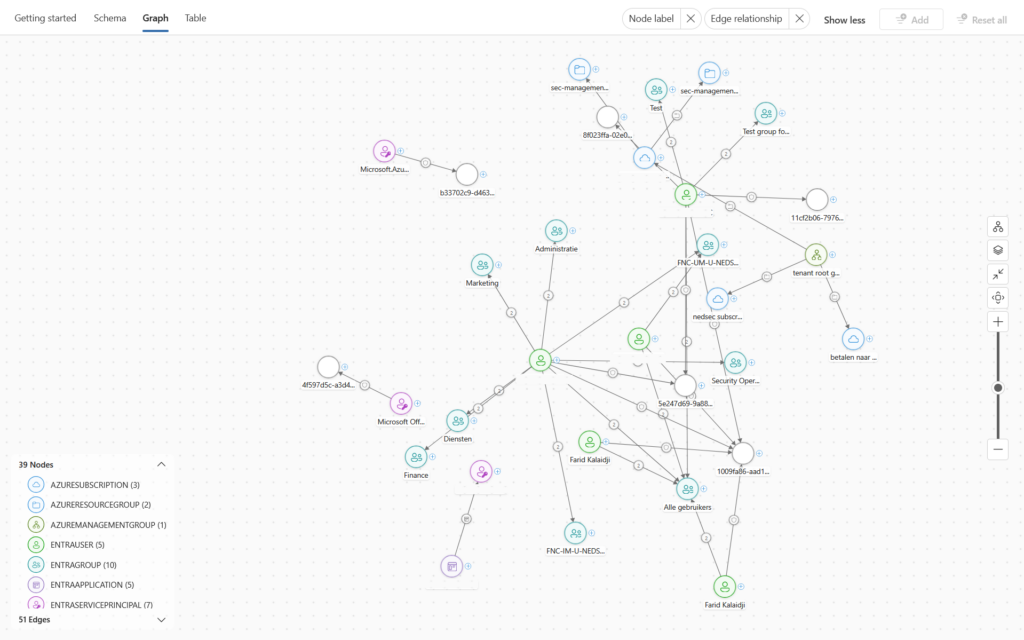
From here:
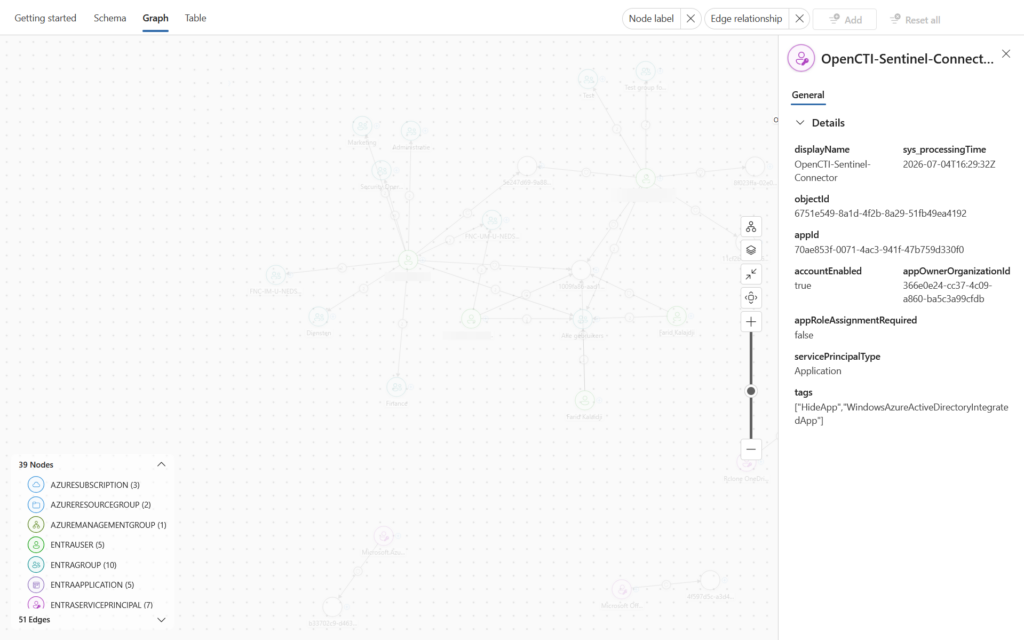
- Select any node to open the details pane with account status, department, role assignments, and last password change
- Right-click a node and select Explore connected assets to traverse one hop further without a new query
- Switch to Table view to see results in rows and export to CSV
- Hover over a node to highlight its direct connections and mute everything else
- Use the filters in the top right of the canvas to narrow by node type or edge relationship
What to look for
Short paths to privileged roles. The fewer hops between an identity and a privileged directory role, the more exposed you are. An identity two hops from Global Administrator via a nested group chain and a role assignment is a different risk profile than one eight hops away.
Service principals with unexpected resource access. Service principals reaching VMs or Key Vaults via indirect role assignments, through inherited group memberships or role assignments higher up the subscription hierarchy, often come from earlier deployments that were never cleaned up.
Circular group memberships. These create privilege inheritance chains that are invisible from the portal’s flat group membership view. The graph shows them immediately as cycles.
Identities whose access exceeds their apparent role. Someone in a non-privileged department with indirect access to production Key Vaults via three layers of group nesting. Not malicious activity, just environment drift. The graph surfaces it; the follow-up is a permissions review.
Billing and data retention
The identity attack graph is billed under the Sentinel graph meter. Two cost elements to know about:
- Asset data ingestion: charges apply for ingesting data through the Entra ID Assets and Azure Resource Graph connectors
- Asset data retention: default retention is 30 days, expandable up to 12 years, and you pay for whatever period you configure
Check the Sentinel pricing page for current rates on the graph meter and asset ingestion.
Limitations
- Up to 48 hours for initial build: The graph is not queryable during this window.
- ARG connector ingests partial coverage by default: Only subscriptions where the enabling user has Owner. Expand manually for full tenant coverage (see the ARG section above).
- Schema is Microsoft-managed: You can query what’s there but cannot add custom node or edge types.
- Asset data refreshes once every 24 hours: The graph is a point-in-time snapshot. Recent permission changes may not appear until the next ingestion cycle.
- Preview: Functionality and query behavior are subject to change before GA.
Resources
- What is the identity attack graph? (preview)
- Asset data ingestion in the Microsoft Sentinel data lake
- What is Microsoft Sentinel graph?
- Visualize graphs in Microsoft Sentinel (preview)
- GQL reference for Sentinel custom graph
Closing
I find these graphs a pleasant way to investigate identity risk. No query to write, no schema to design. Just enable, wait, and start exploring paths you didn’t know existed. What I appreciate most is that the predefined queries do the heavy lifting. You don’t need to know what you’re looking for; the graph shows you anyway.
What would make this even more powerful is the ability to take action directly based on what you find: trigger a remediation, flag a path for review, kick off a Conditional Access change. That’s the natural next step and I hope Microsoft moves in that direction.
Curious to see which managed graphs Microsoft ships next. The identity attack graph is clearly the first of several and the foundation is solid. I’ll might cover here more as they become available.